> ## Documentation Index
> Fetch the complete documentation index at: https://docs.astrobee.ai/llms.txt
> Use this file to discover all available pages before exploring further.
# File Uploads
> Upload CSV and Excel files to AstroBee
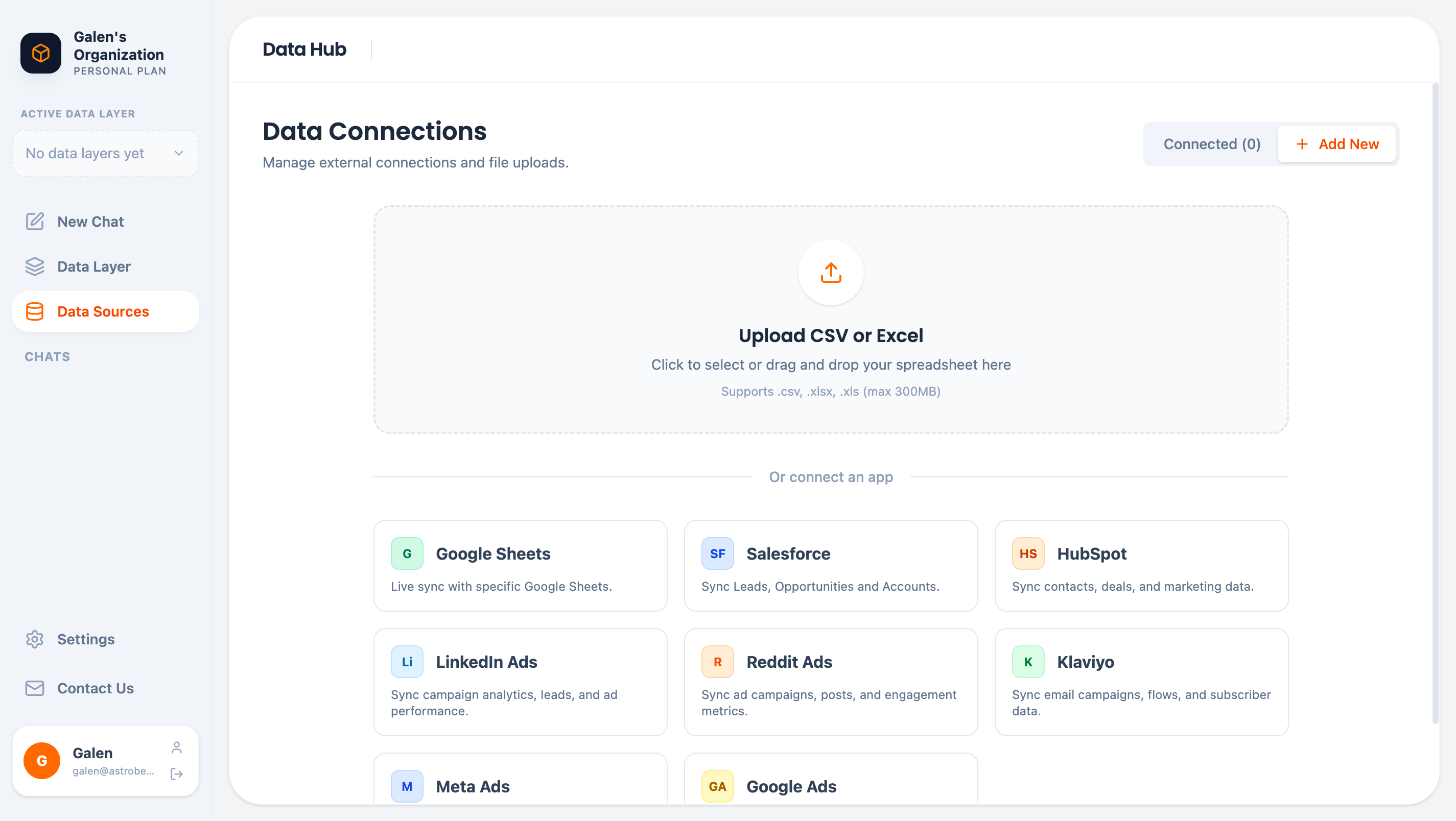
Upload spreadsheets directly to AstroBee for quick data exploration without configuring external connections.
## Supported Formats
| Format | Extensions | Max Size |
| ------ | ----------- | -------- |
| CSV | .csv | 300 MB |
| Excel | .xlsx, .xls | 300 MB |
## Uploading Files
1. Navigate to **Data Sources** in the sidebar
2. Click **Add New**
3. Drag and drop files into the upload zone, or click to browse
 ### Multiple Files
Upload multiple files at once to create a data source with multiple tables. Each file becomes a separate table.
### Excel Workbooks
For Excel files with multiple sheets, each sheet becomes a separate table within the data source.
## After Upload
Once uploaded, AstroBee:
1. **Parses the file** — Reads rows and columns
2. **Detects types** — Identifies strings, numbers, dates, etc.
3. **Analyzes patterns** — Discovers ID formats, email patterns, etc.
4. **Finds linkages** — Identifies potential relationships between tables
## Data Type Detection
AstroBee automatically detects column types:
| Detected Type | Examples |
| ------------- | --------------------------------- |
| String | "John Smith", "Active", "SKU-123" |
| Integer | 42, 100, -5 |
| Float | 19.99, 3.14159 |
| Date | 2024-01-15, 01/15/2024 |
| Datetime | 2024-01-15 14:30:00 |
| Boolean | true, false, yes, no |
If types are detected incorrectly, ensure your source data is consistently formatted. For example, don't mix "N/A" text in a numeric column.
## Best Practices
Include column headers in the first row. AstroBee uses these as field names.
Keep data types consistent within columns. Don't mix numbers and text.
Use descriptive column names like "customer\_id" instead of "id1".
Remove empty rows and columns before uploading.
Save CSV files with UTF-8 encoding for special characters.
## Updating Data
File uploads are one-time imports. To update the data:
1. Prepare your updated file
2. Upload it with the same name
3. The existing data is replaced
For data that changes frequently, consider using an external connector with automatic sync instead.
## Limitations
* Maximum file size: 300 MB
* Maximum rows: No hard limit, but very large files may take longer to process
* Password-protected Excel files are not supported
## Next Steps
Explore uploaded tables in the Data Hub
Create entities from your uploaded data
### Multiple Files
Upload multiple files at once to create a data source with multiple tables. Each file becomes a separate table.
### Excel Workbooks
For Excel files with multiple sheets, each sheet becomes a separate table within the data source.
## After Upload
Once uploaded, AstroBee:
1. **Parses the file** — Reads rows and columns
2. **Detects types** — Identifies strings, numbers, dates, etc.
3. **Analyzes patterns** — Discovers ID formats, email patterns, etc.
4. **Finds linkages** — Identifies potential relationships between tables
## Data Type Detection
AstroBee automatically detects column types:
| Detected Type | Examples |
| ------------- | --------------------------------- |
| String | "John Smith", "Active", "SKU-123" |
| Integer | 42, 100, -5 |
| Float | 19.99, 3.14159 |
| Date | 2024-01-15, 01/15/2024 |
| Datetime | 2024-01-15 14:30:00 |
| Boolean | true, false, yes, no |
If types are detected incorrectly, ensure your source data is consistently formatted. For example, don't mix "N/A" text in a numeric column.
## Best Practices
Include column headers in the first row. AstroBee uses these as field names.
Keep data types consistent within columns. Don't mix numbers and text.
Use descriptive column names like "customer\_id" instead of "id1".
Remove empty rows and columns before uploading.
Save CSV files with UTF-8 encoding for special characters.
## Updating Data
File uploads are one-time imports. To update the data:
1. Prepare your updated file
2. Upload it with the same name
3. The existing data is replaced
For data that changes frequently, consider using an external connector with automatic sync instead.
## Limitations
* Maximum file size: 300 MB
* Maximum rows: No hard limit, but very large files may take longer to process
* Password-protected Excel files are not supported
## Next Steps
Explore uploaded tables in the Data Hub
Create entities from your uploaded data