> ## Documentation Index
> Fetch the complete documentation index at: https://docs.astrobee.ai/llms.txt
> Use this file to discover all available pages before exploring further.
# Data Sources Overview
> Connect your data to AstroBee
AstroBee connects to your data through file uploads and external connectors. Once connected, you can explore your data and build semantic data layers for natural language querying.
## Connection Methods
### File Uploads
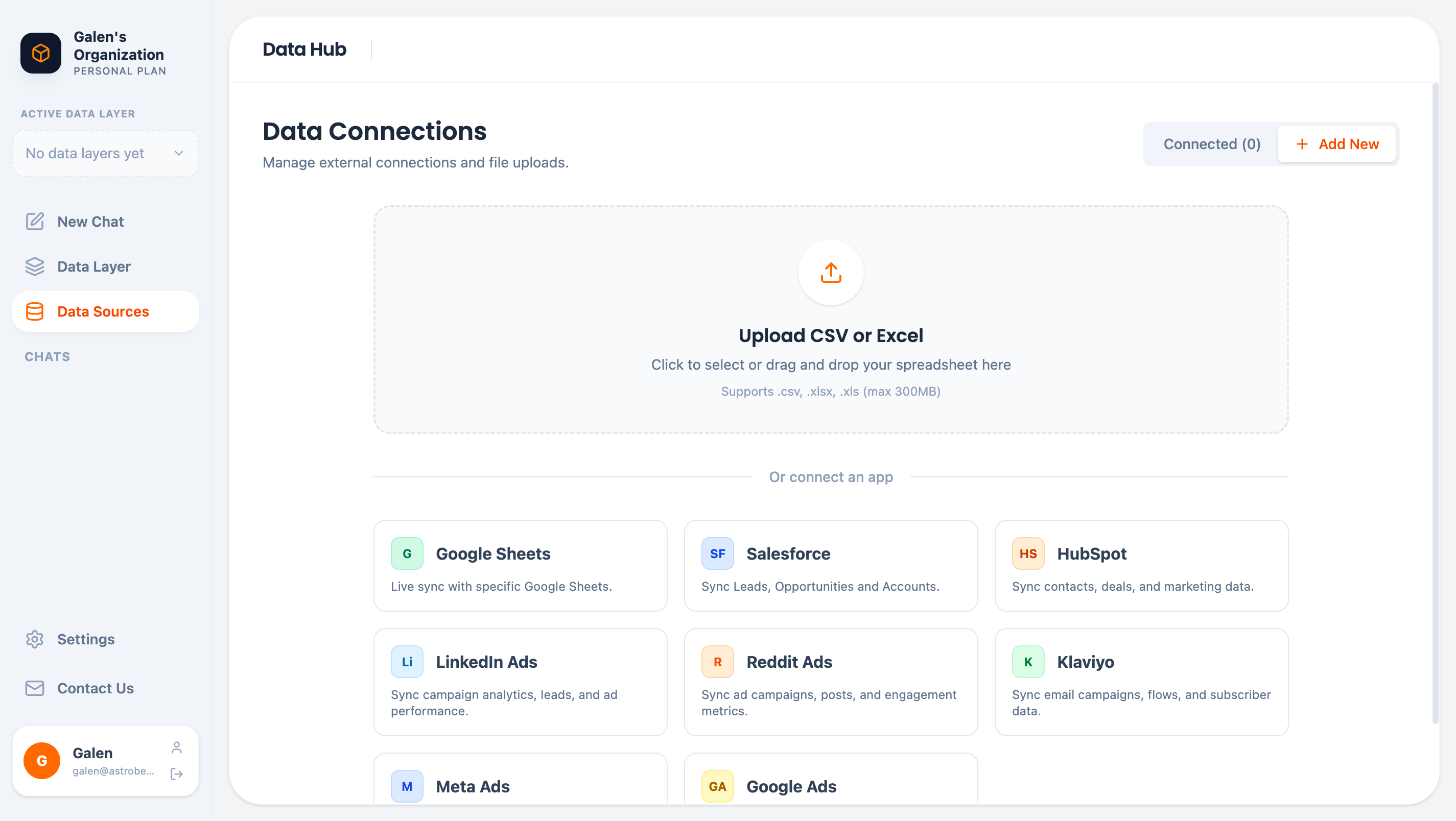
Upload spreadsheets directly to AstroBee:
| Format | Max Size |
| ------------------- | -------- |
| CSV (.csv) | 300 MB |
| Excel (.xlsx, .xls) | 300 MB |
[Learn more about file uploads →](/data/files)
### External Connectors
Connect business tools via secure [Fivetran](https://www.fivetran.com/) integration:
Live sync with specific Google Sheets
Leads, Opportunities, Accounts
Contacts, Deals, Marketing data
Campaign analytics, Ad performance
Campaigns, Posts, Engagement
Email campaigns, Flows, Subscribers
Campaigns, Audiences, Performance
Campaigns, Ad groups, Conversions
## How Connectors Work
External data sources use Fivetran for secure, reliable data synchronization:
```mermaid theme={null}
graph LR
A[Your Data Source] --> B[Fivetran]
B --> C[AstroBee Warehouse]
C --> D[Data Layer]
```
1. **Authentication** — You authorize AstroBee to access your data via OAuth
2. **Sync** — Fivetran securely transfers data to your AstroBee warehouse
3. **Analysis** — AstroBee analyzes patterns and discovers relationships
4. **Exploration** — Preview tables and build your data layer
### Security
* **OAuth 2.0** — Industry-standard authorization (credentials never stored)
* **Encryption** — All data encrypted in transit (TLS 1.3) and at rest (AES-256)
* **SOC 2 Certified** — Both Fivetran and AstroBee maintain SOC 2 compliance
[Learn more about security →](/security/overview)
## Adding a Data Source
1. Navigate to **Data Sources** in the sidebar
2. Click **Add New**
3. Select your data source type
4. Complete the authentication flow
5. Wait for initial sync to complete
 ## After Connecting
Once your data syncs, AstroBee automatically:
* **Detects schemas** — Identifies tables, columns, and data types
* **Analyzes patterns** — Discovers ID formats, email patterns, date formats
* **Finds linkages** — Identifies relationships between tables
You can then:
* Preview table data
* View discovered patterns
* Connect the source to a data layer
* Build entities and relationships
## Data Source Limits
| Plan | Data Sources | Storage |
| ---------- | ------------ | --------------------- |
| Free | 2 | Shared warehouse |
| Pro | Unlimited | Shared warehouse |
| Enterprise | Unlimited | Bring Your Own Bucket |
## Next Steps
Upload CSV or Excel files
Create entities from your data
## After Connecting
Once your data syncs, AstroBee automatically:
* **Detects schemas** — Identifies tables, columns, and data types
* **Analyzes patterns** — Discovers ID formats, email patterns, date formats
* **Finds linkages** — Identifies relationships between tables
You can then:
* Preview table data
* View discovered patterns
* Connect the source to a data layer
* Build entities and relationships
## Data Source Limits
| Plan | Data Sources | Storage |
| ---------- | ------------ | --------------------- |
| Free | 2 | Shared warehouse |
| Pro | Unlimited | Shared warehouse |
| Enterprise | Unlimited | Bring Your Own Bucket |
## Next Steps
Upload CSV or Excel files
Create entities from your data