> ## Documentation Index
> Fetch the complete documentation index at: https://docs.astrobee.ai/llms.txt
> Use this file to discover all available pages before exploring further.
# Analytics Chat
> Ask questions about your data in plain English
Analytics Chat is AstroBee's natural language interface for querying your data. Ask questions in plain English and get answers with full transparency into the SQL and logic used.
 ## Starting a Chat
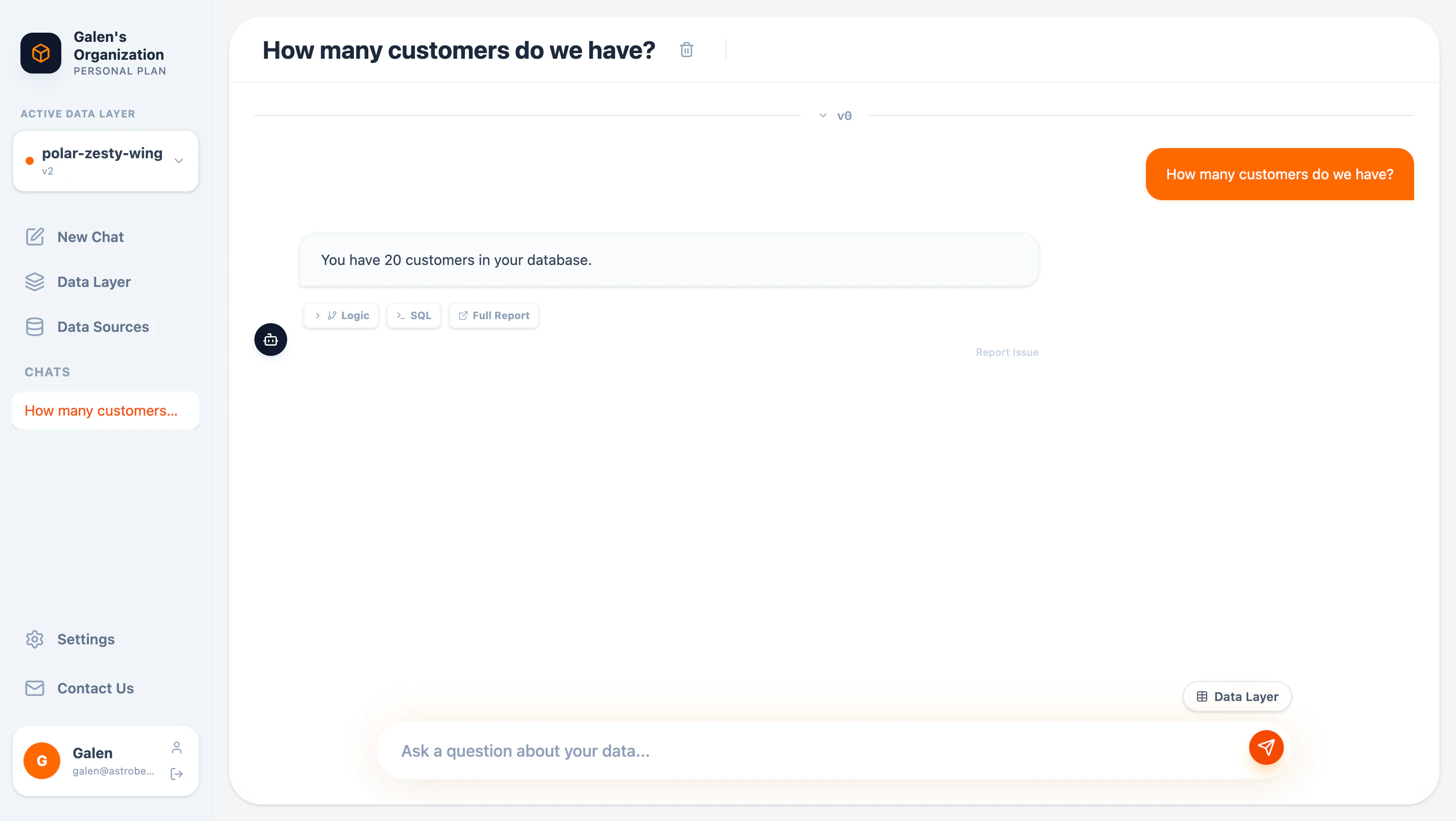
Click **New Chat** in the sidebar to start a conversation. Each chat is saved and accessible from the sidebar.
## Asking Questions
Type your question in plain English:
```
How many customers do we have?
```
```
What are the top 5 products by revenue?
```
```
Show me customers who placed more than 2 orders last month
```
AstroBee interprets your question, generates SQL against your data layer, executes it, and returns the answer.
## Understanding Responses
Each response includes multiple views:
### Answer
The direct answer to your question in natural language:
> You have 20 customers in your database.
### SQL View
Click **SQL** to see the exact query AstroBee generated:
## Starting a Chat
Click **New Chat** in the sidebar to start a conversation. Each chat is saved and accessible from the sidebar.
## Asking Questions
Type your question in plain English:
```
How many customers do we have?
```
```
What are the top 5 products by revenue?
```
```
Show me customers who placed more than 2 orders last month
```
AstroBee interprets your question, generates SQL against your data layer, executes it, and returns the answer.
## Understanding Responses
Each response includes multiple views:
### Answer
The direct answer to your question in natural language:
> You have 20 customers in your database.
### SQL View
Click **SQL** to see the exact query AstroBee generated:
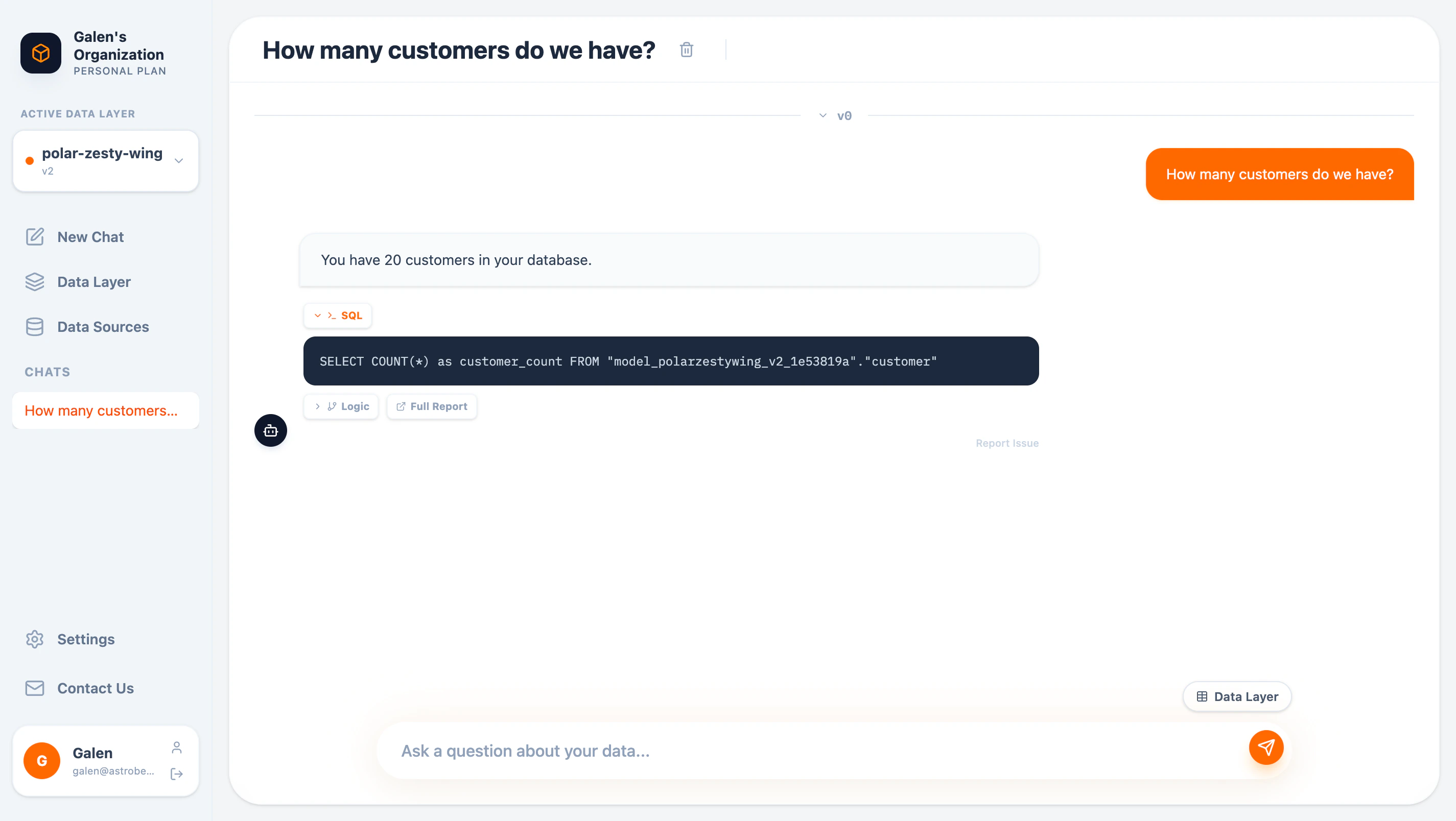 The SQL shows:
* Which tables and entities were queried
* Join conditions used
* Aggregations and filters applied
You can copy the SQL and run it directly in your warehouse for verification or further analysis.
### Logic View
Click **Logic** to understand AstroBee's reasoning:
The SQL shows:
* Which tables and entities were queried
* Join conditions used
* Aggregations and filters applied
You can copy the SQL and run it directly in your warehouse for verification or further analysis.
### Logic View
Click **Logic** to understand AstroBee's reasoning:
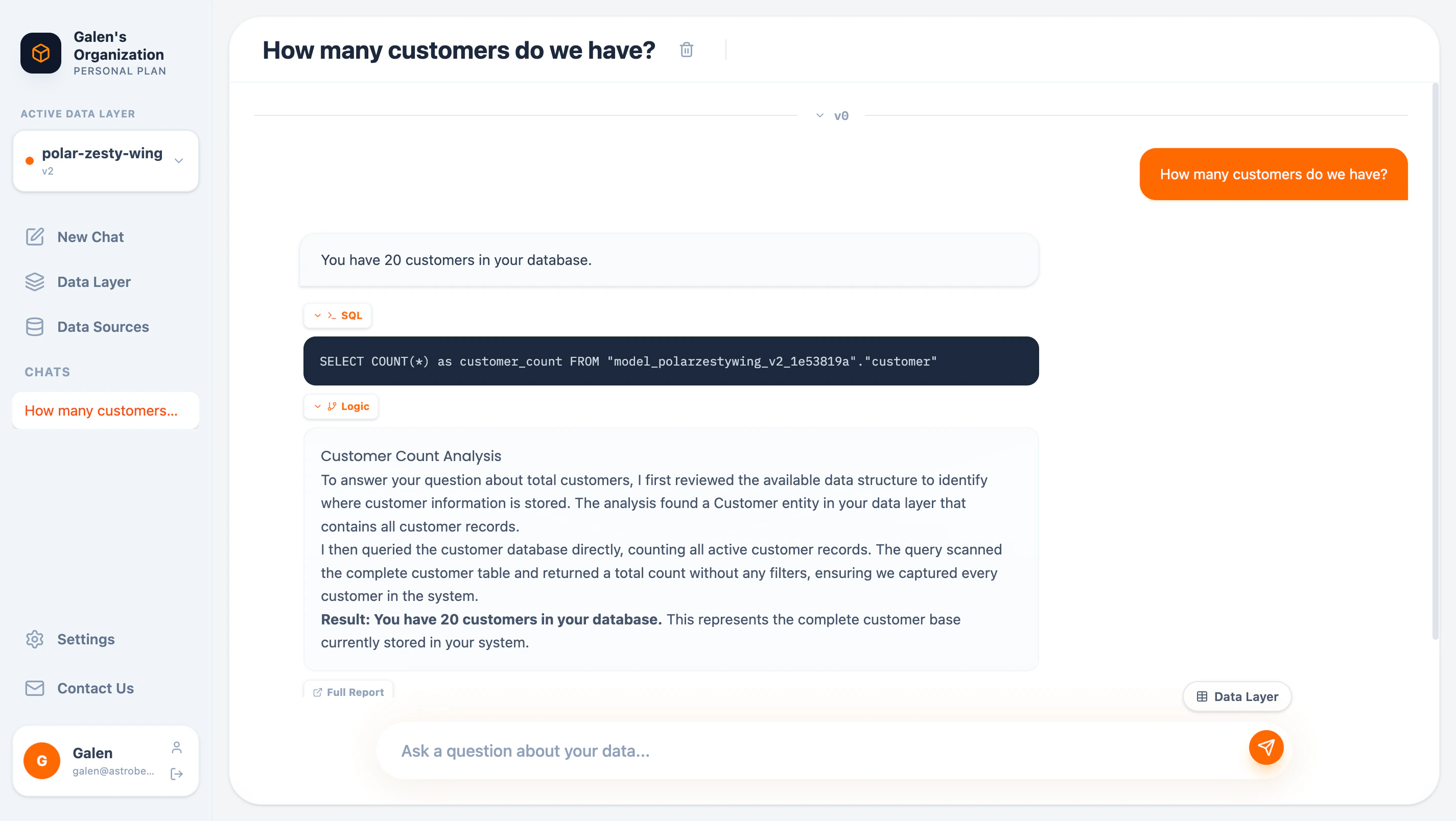 The Logic view explains:
* How AstroBee interpreted your question
* Which entities and relationships it used
* Why it chose that particular approach
### Full Report
Click **Full Report** for a complete breakdown:
The Logic view explains:
* How AstroBee interpreted your question
* Which entities and relationships it used
* Why it chose that particular approach
### Full Report
Click **Full Report** for a complete breakdown:
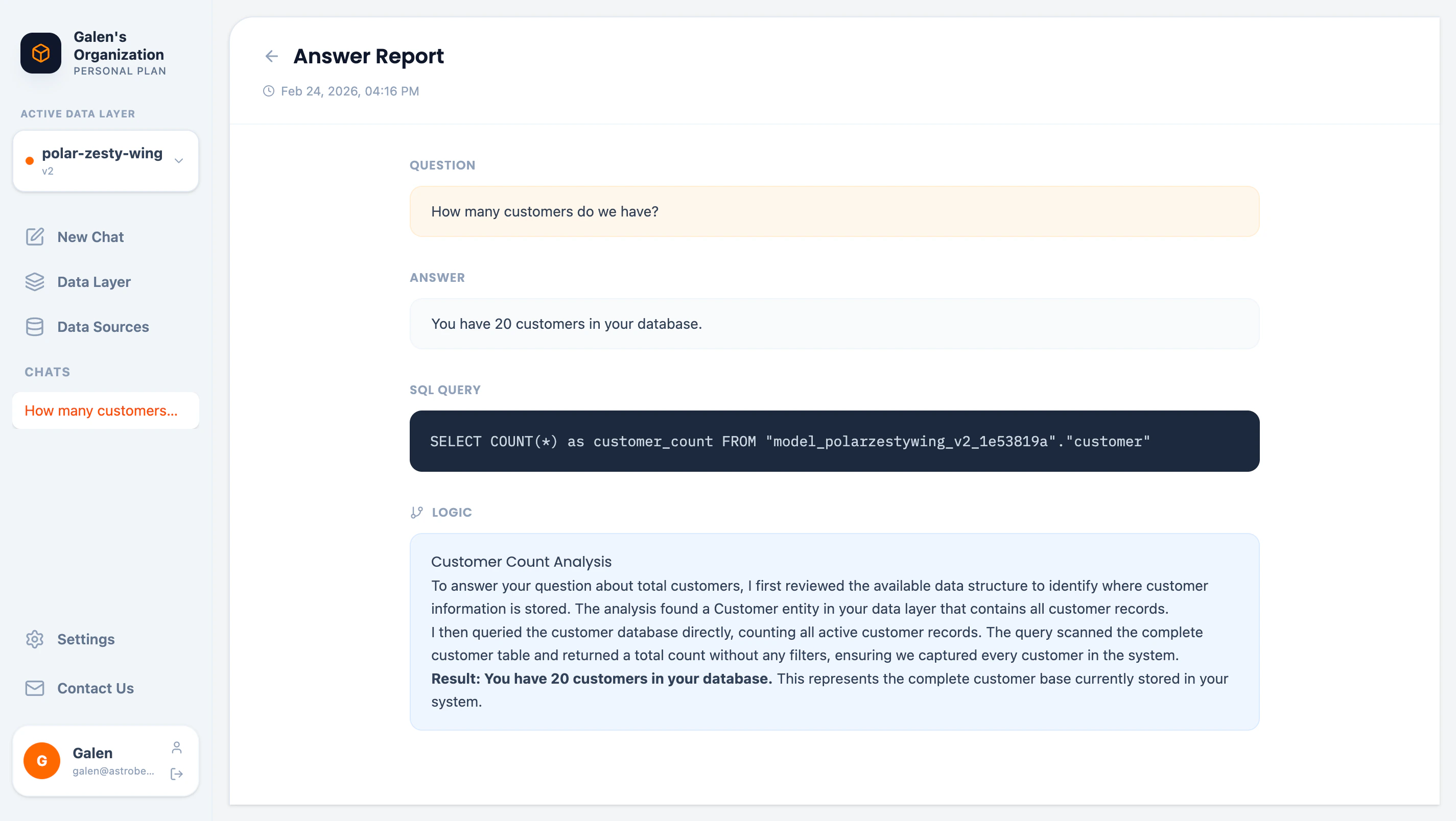 The report includes:
* Original question
* Answer
* SQL query
* Full logic explanation
* Timestamp
## Browsing the Data Layer
While chatting, click **Data Layer** to browse available entities:
The report includes:
* Original question
* Answer
* SQL query
* Full logic explanation
* Timestamp
## Browsing the Data Layer
While chatting, click **Data Layer** to browse available entities:
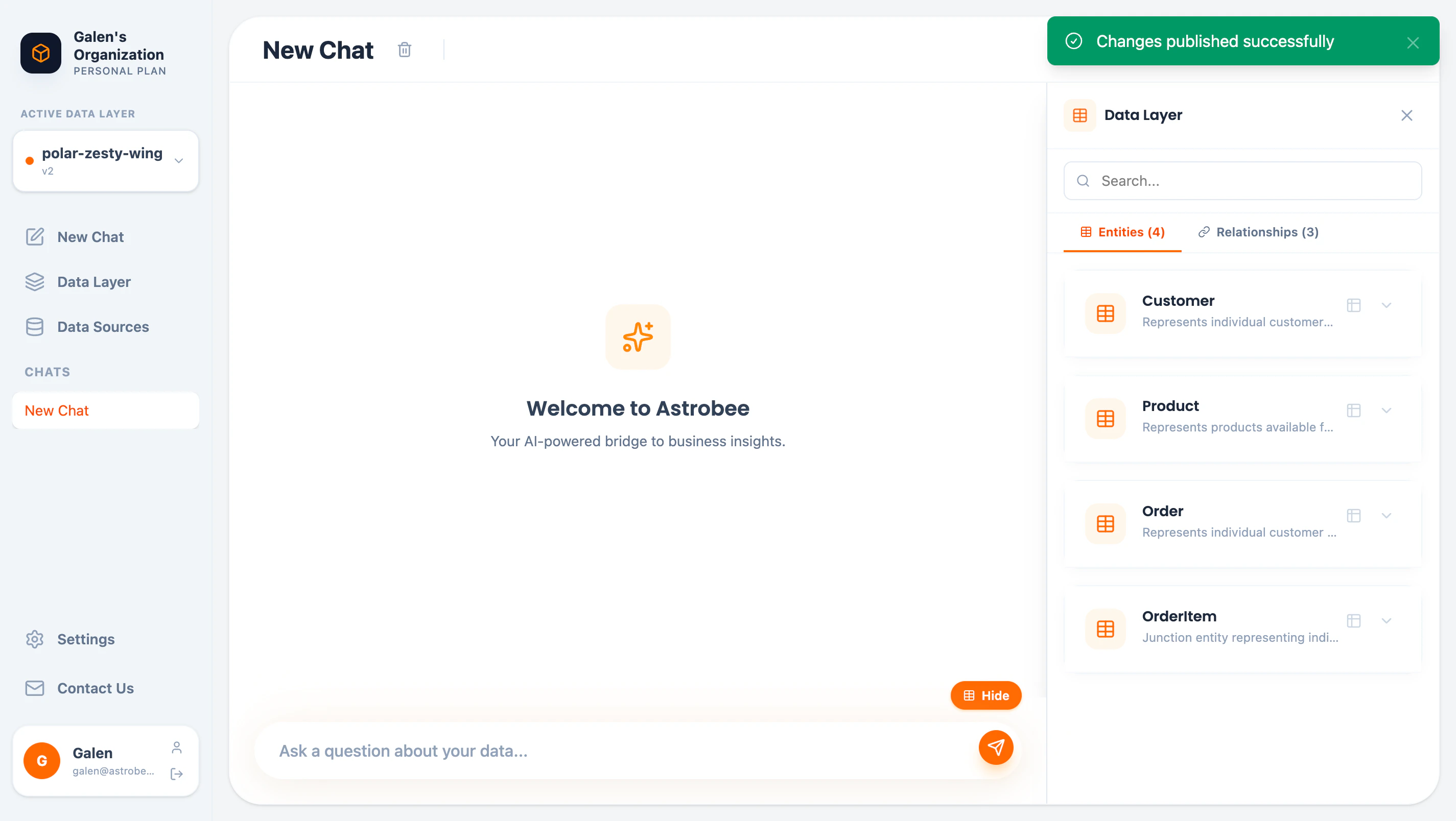 The browser shows:
* All entities in your data layer
* Entity descriptions
* Option to preview data or show fields
This helps you understand what data is available when forming questions.
## Chat History
### Saved Conversations
All chats are automatically saved and appear in the sidebar under **CHATS**. Click any chat to continue the conversation.
### Renaming Chats
Click the chat title to rename it. Descriptive names help you find conversations later.
### Deleting Chats
Click the delete button next to a chat title to remove it.
## Question Tips
"Show revenue by product category" is better than "Show me revenue"
"Orders from last month" or "Customers who signed up in 2024"
"Compare revenue between Q1 and Q2" or "Top 10 vs bottom 10 customers"
"Show a bar chart of..." or "Visualize..." (coming soon)
Build on previous answers: "Now break that down by region"
## Reporting Issues
If an answer seems incorrect, click **Report Issue** to flag it for review. Include details about:
* What you expected
* What was returned
* Why you think it's wrong
Your feedback helps improve AstroBee's accuracy.
## Limitations
* Questions must relate to data in your connected data layer
* Complex multi-step calculations may require refining your data layer
* Very large result sets are automatically limited
## Next Steps
Define entities and relationships for better answers
Query from Claude Desktop or VS Code
The browser shows:
* All entities in your data layer
* Entity descriptions
* Option to preview data or show fields
This helps you understand what data is available when forming questions.
## Chat History
### Saved Conversations
All chats are automatically saved and appear in the sidebar under **CHATS**. Click any chat to continue the conversation.
### Renaming Chats
Click the chat title to rename it. Descriptive names help you find conversations later.
### Deleting Chats
Click the delete button next to a chat title to remove it.
## Question Tips
"Show revenue by product category" is better than "Show me revenue"
"Orders from last month" or "Customers who signed up in 2024"
"Compare revenue between Q1 and Q2" or "Top 10 vs bottom 10 customers"
"Show a bar chart of..." or "Visualize..." (coming soon)
Build on previous answers: "Now break that down by region"
## Reporting Issues
If an answer seems incorrect, click **Report Issue** to flag it for review. Include details about:
* What you expected
* What was returned
* Why you think it's wrong
Your feedback helps improve AstroBee's accuracy.
## Limitations
* Questions must relate to data in your connected data layer
* Complex multi-step calculations may require refining your data layer
* Very large result sets are automatically limited
## Next Steps
Define entities and relationships for better answers
Query from Claude Desktop or VS Code