> ## Documentation Index
> Fetch the complete documentation index at: https://docs.astrobee.ai/llms.txt
> Use this file to discover all available pages before exploring further.
# Data Hub
> Connect, preview, and analyze your data sources
The Data Hub is your central location for managing all data connections in AstroBee. Upload files, connect external tools, and explore your data before building a data layer.
 ## Accessing the Data Hub
Click **Data Sources** in the sidebar to open the Data Hub.
## Adding Data Sources
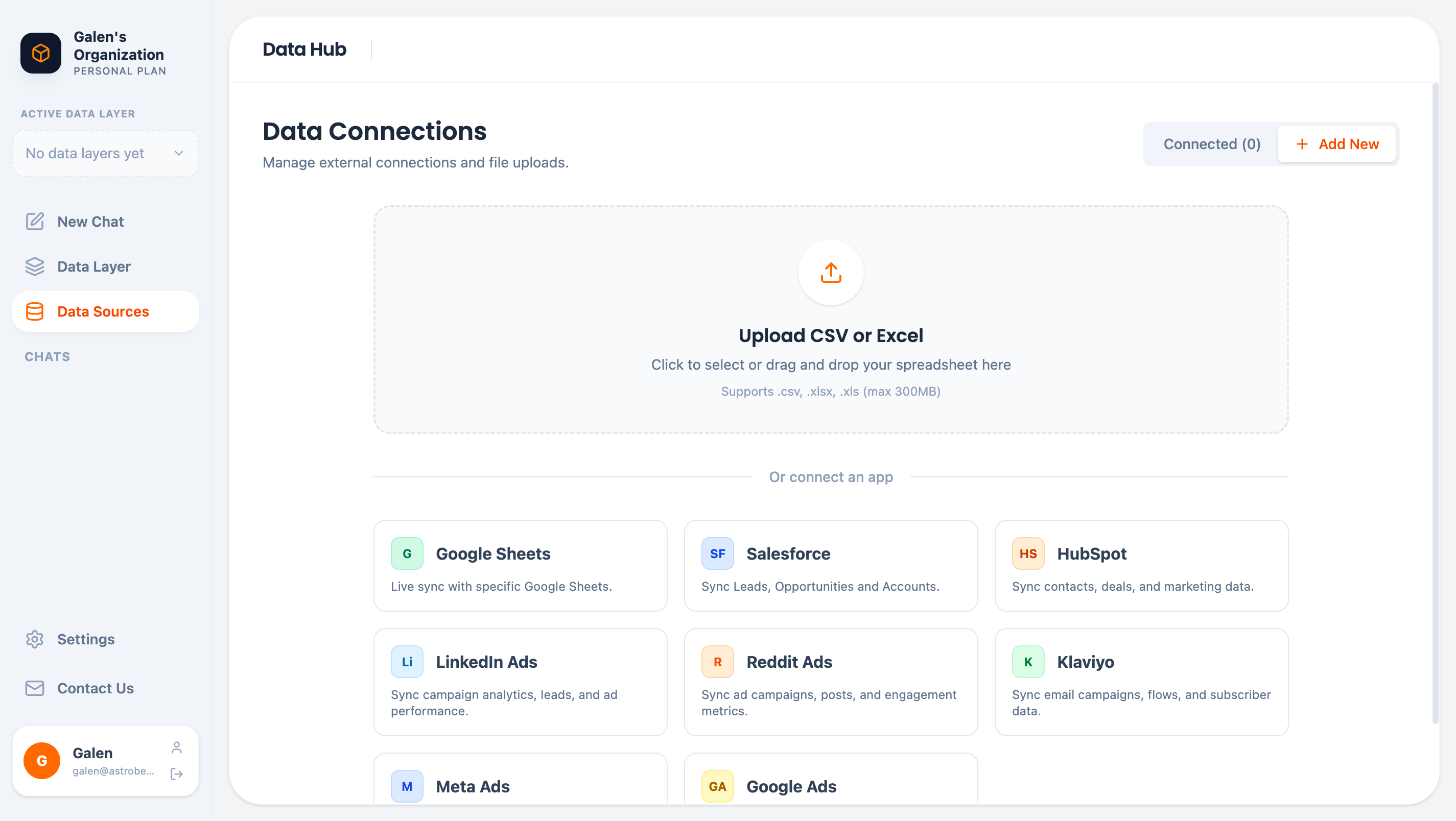
Click **Add New** to see all available connection options:
## Accessing the Data Hub
Click **Data Sources** in the sidebar to open the Data Hub.
## Adding Data Sources
Click **Add New** to see all available connection options:
 ### File Uploads
Upload spreadsheets directly:
| Format | Max Size | Features |
| ------------------- | -------- | ------------------------- |
| CSV | 300 MB | Automatic type detection |
| Excel (.xlsx, .xls) | 300 MB | Multiple sheets supported |
Drag and drop files or click to browse.
### External Connectors
Connect business tools via secure Fivetran integration:
| Connector | Data Types |
| ----------------- | ------------------------------------ |
| **Google Sheets** | Live sync with specific sheets |
| **Salesforce** | Leads, Opportunities, Accounts |
| **HubSpot** | Contacts, Deals, Marketing data |
| **LinkedIn Ads** | Campaign analytics, Ad performance |
| **Reddit Ads** | Campaigns, Posts, Engagement metrics |
| **Klaviyo** | Email campaigns, Flows, Subscribers |
| **Meta Ads** | Campaigns, Audiences, Performance |
| **Google Ads** | Campaigns, Ad groups, Conversions |
External connections use [Fivetran](https://www.fivetran.com/), a SOC 2 certified data integration platform. Your credentials are encrypted and never stored by AstroBee.
## Data Source Cards
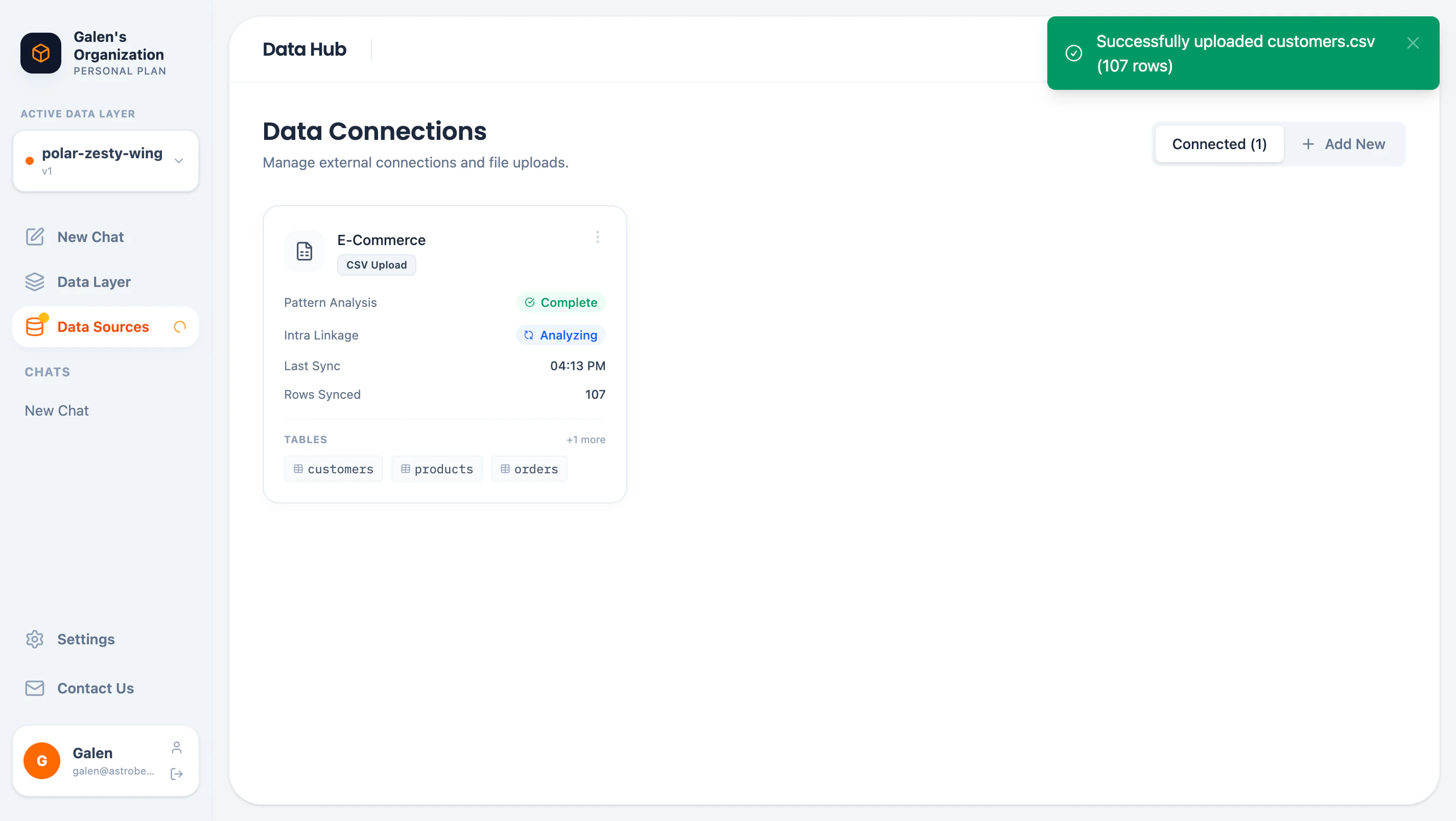
Each connected source shows a card with key information:
| Field | Description |
| -------------------- | ---------------------------------- |
| **Name** | Editable display name |
| **Type** | CSV Upload or connector name |
| **Pattern Analysis** | Status of column pattern discovery |
| **Intra Linkage** | Status of relationship discovery |
| **Last Sync** | When data was last updated |
| **Rows Synced** | Total row count |
| **Tables** | Available tables in this source |
## Exploring Tables
Click a table name to preview its data:
### File Uploads
Upload spreadsheets directly:
| Format | Max Size | Features |
| ------------------- | -------- | ------------------------- |
| CSV | 300 MB | Automatic type detection |
| Excel (.xlsx, .xls) | 300 MB | Multiple sheets supported |
Drag and drop files or click to browse.
### External Connectors
Connect business tools via secure Fivetran integration:
| Connector | Data Types |
| ----------------- | ------------------------------------ |
| **Google Sheets** | Live sync with specific sheets |
| **Salesforce** | Leads, Opportunities, Accounts |
| **HubSpot** | Contacts, Deals, Marketing data |
| **LinkedIn Ads** | Campaign analytics, Ad performance |
| **Reddit Ads** | Campaigns, Posts, Engagement metrics |
| **Klaviyo** | Email campaigns, Flows, Subscribers |
| **Meta Ads** | Campaigns, Audiences, Performance |
| **Google Ads** | Campaigns, Ad groups, Conversions |
External connections use [Fivetran](https://www.fivetran.com/), a SOC 2 certified data integration platform. Your credentials are encrypted and never stored by AstroBee.
## Data Source Cards
Each connected source shows a card with key information:
| Field | Description |
| -------------------- | ---------------------------------- |
| **Name** | Editable display name |
| **Type** | CSV Upload or connector name |
| **Pattern Analysis** | Status of column pattern discovery |
| **Intra Linkage** | Status of relationship discovery |
| **Last Sync** | When data was last updated |
| **Rows Synced** | Total row count |
| **Tables** | Available tables in this source |
## Exploring Tables
Click a table name to preview its data:
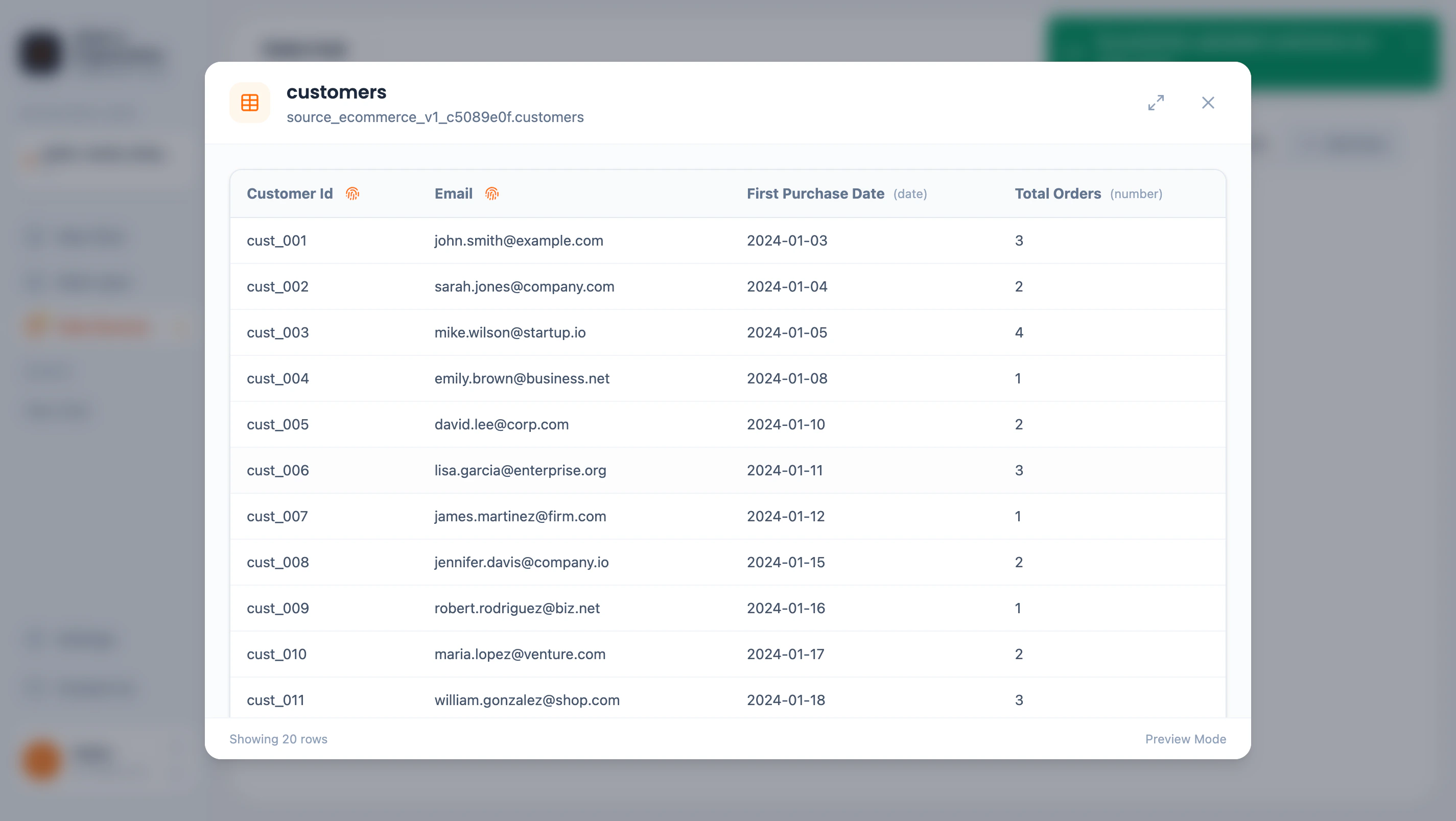 The preview shows:
* Column names with data types
* Sample data (up to 20 rows)
* Pattern analysis buttons for each column
### Pattern Analysis
AstroBee automatically analyzes columns to discover patterns:
The preview shows:
* Column names with data types
* Sample data (up to 20 rows)
* Pattern analysis buttons for each column
### Pattern Analysis
AstroBee automatically analyzes columns to discover patterns:
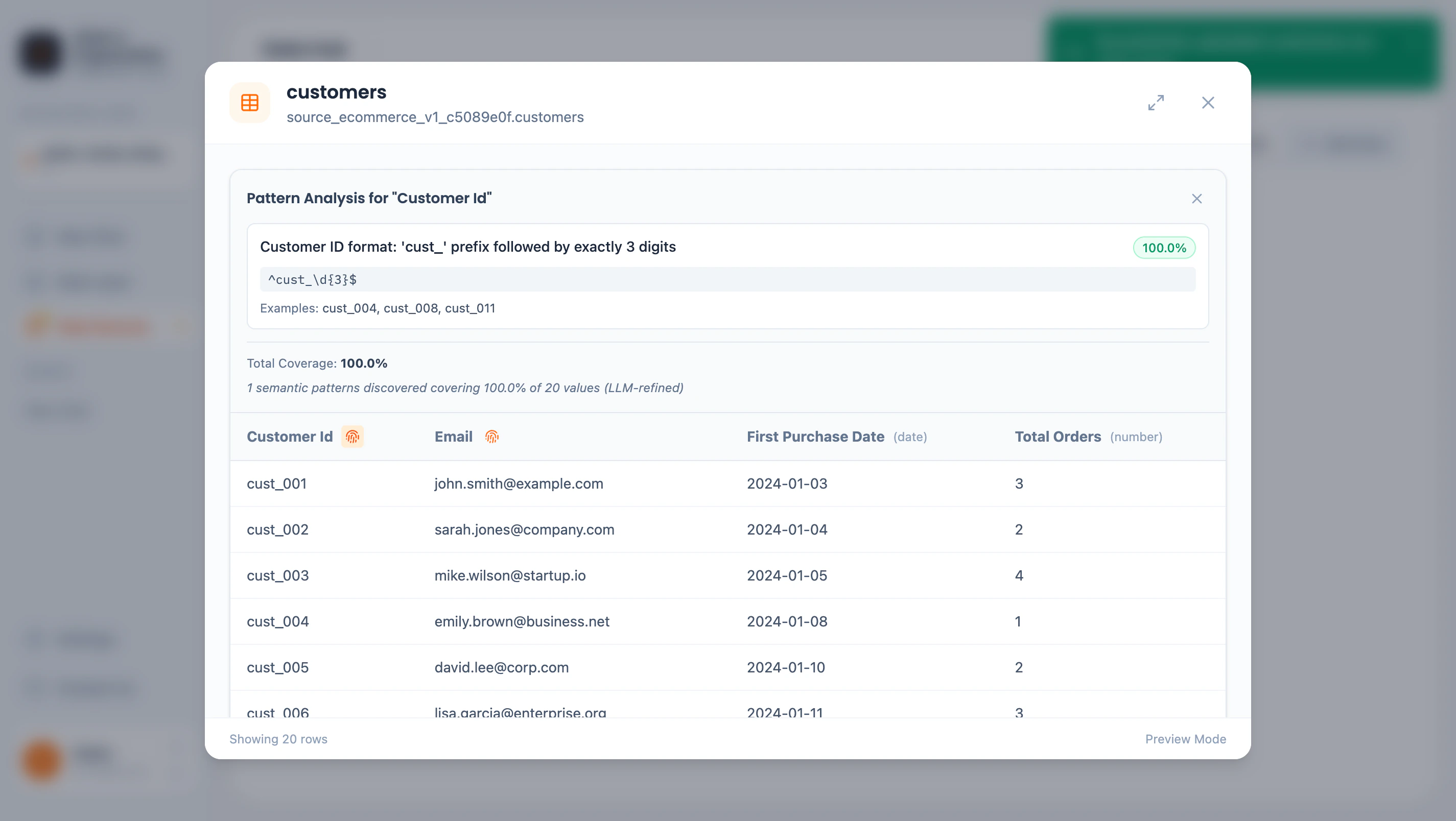 Pattern details include:
* **Description** — Human-readable pattern explanation
* **Coverage** — Percentage of values matching the pattern
* **Regex** — Technical pattern definition
* **Examples** — Sample values matching the pattern
Patterns help AstroBee:
* Understand data semantics (IDs, emails, dates)
* Suggest appropriate entity mappings
* Discover relationships between tables
## Linkage Discovery
AstroBee automatically discovers relationships between tables within a data source:
* **Key references** — Foreign key relationships (e.g., `orders.customer_id` → `customers.customer_id`)
* **Pattern matches** — Columns with matching patterns across tables
View discovered linkages in the Data Layer → Linkages tab.
## Managing Data Sources
### Renaming
Click the data source name to rename it. Names help identify sources when connecting to data layers.
### Syncing
External connectors sync automatically based on your Fivetran configuration. File uploads are one-time imports.
To update file data:
1. Upload a new version of the file
2. The existing source is replaced
### Deleting
Click the menu button (⋮) on a data source card to delete it.
Deleting a data source removes its data from AstroBee. Data layers using this source will lose access to its tables.
## Demo Data
New accounts can load demo datasets to explore AstroBee:
| Demo | Contents |
| ----------------------- | ----------------------------------------------- |
| **Basic E-Commerce** | Customers, Products, Orders (1 source) |
| **Complete E-Commerce** | Full e-commerce with marketing data (2 sources) |
Demo data is great for learning the platform before connecting your own data.
## Next Steps
Create entities and relationships from your data
Step-by-step guides for each connector
Pattern details include:
* **Description** — Human-readable pattern explanation
* **Coverage** — Percentage of values matching the pattern
* **Regex** — Technical pattern definition
* **Examples** — Sample values matching the pattern
Patterns help AstroBee:
* Understand data semantics (IDs, emails, dates)
* Suggest appropriate entity mappings
* Discover relationships between tables
## Linkage Discovery
AstroBee automatically discovers relationships between tables within a data source:
* **Key references** — Foreign key relationships (e.g., `orders.customer_id` → `customers.customer_id`)
* **Pattern matches** — Columns with matching patterns across tables
View discovered linkages in the Data Layer → Linkages tab.
## Managing Data Sources
### Renaming
Click the data source name to rename it. Names help identify sources when connecting to data layers.
### Syncing
External connectors sync automatically based on your Fivetran configuration. File uploads are one-time imports.
To update file data:
1. Upload a new version of the file
2. The existing source is replaced
### Deleting
Click the menu button (⋮) on a data source card to delete it.
Deleting a data source removes its data from AstroBee. Data layers using this source will lose access to its tables.
## Demo Data
New accounts can load demo datasets to explore AstroBee:
| Demo | Contents |
| ----------------------- | ----------------------------------------------- |
| **Basic E-Commerce** | Customers, Products, Orders (1 source) |
| **Complete E-Commerce** | Full e-commerce with marketing data (2 sources) |
Demo data is great for learning the platform before connecting your own data.
## Next Steps
Create entities and relationships from your data
Step-by-step guides for each connector