> ## Documentation Index
> Fetch the complete documentation index at: https://docs.astrobee.ai/llms.txt
> Use this file to discover all available pages before exploring further.
# Data Layer
> Define how your business concepts map to your raw data
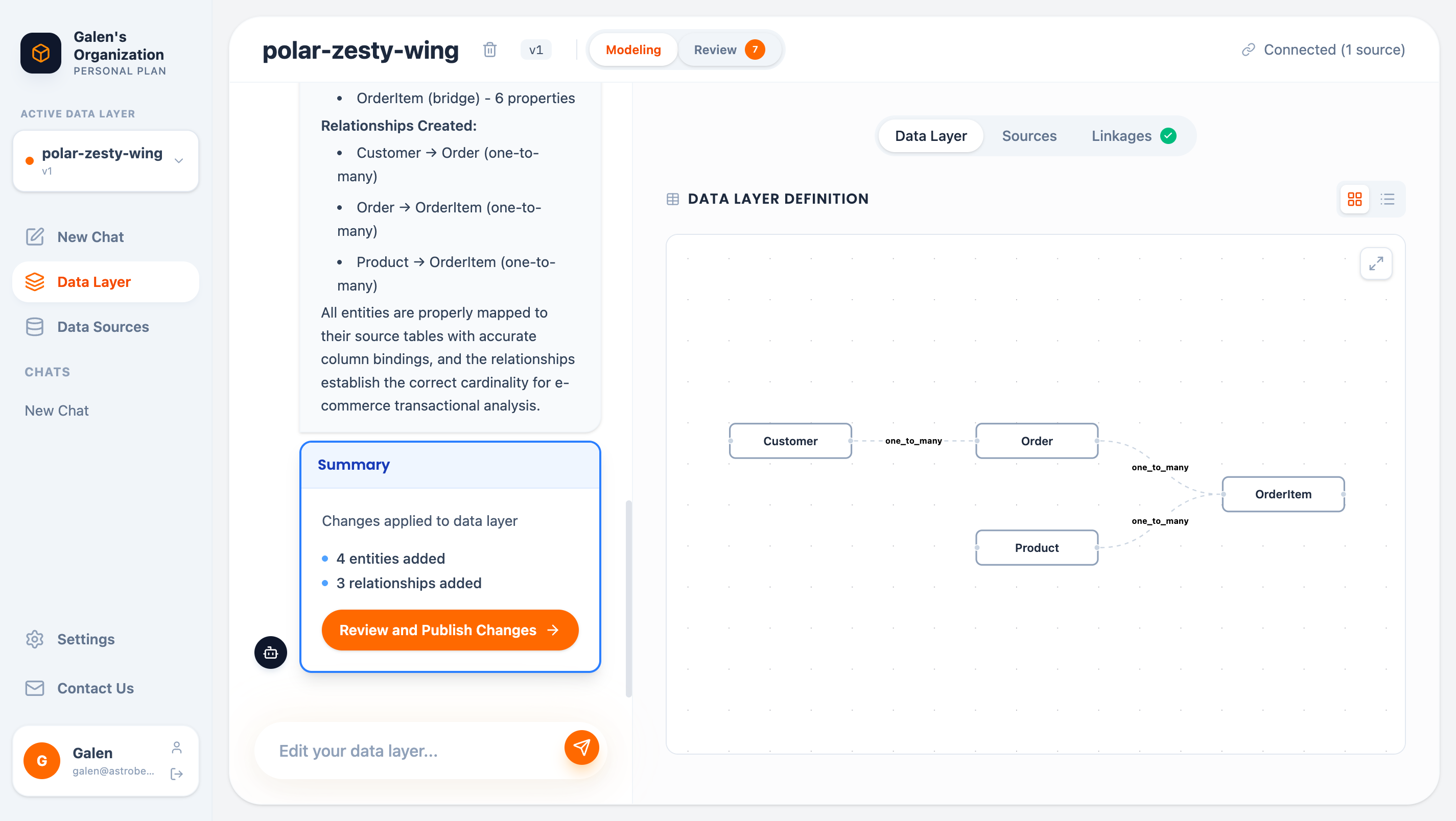
The Data Layer is AstroBee's semantic modeling feature. It creates a business-friendly abstraction over your raw data, allowing you to ask questions in plain English without knowing where the data lives or how tables connect.
## Overview
A data layer consists of:
* **Entities** — Business concepts like Customer, Product, or Order
* **Properties** — Attributes of entities (e.g., Customer.email, Product.price)
* **Relationships** — How entities connect (e.g., Customer → Order)
 ## Accessing the Data Layer
Click **Data Layer** in the sidebar to open the editor. The editor has three main tabs:
| Tab | Purpose |
| -------------- | -------------------------------------------- |
| **Data Layer** | View and edit entities in Graph or List view |
| **Sources** | Connect data sources to your data layer |
| **Linkages** | View discovered relationships between tables |
## Generating a Data Layer
### Connect Sources First
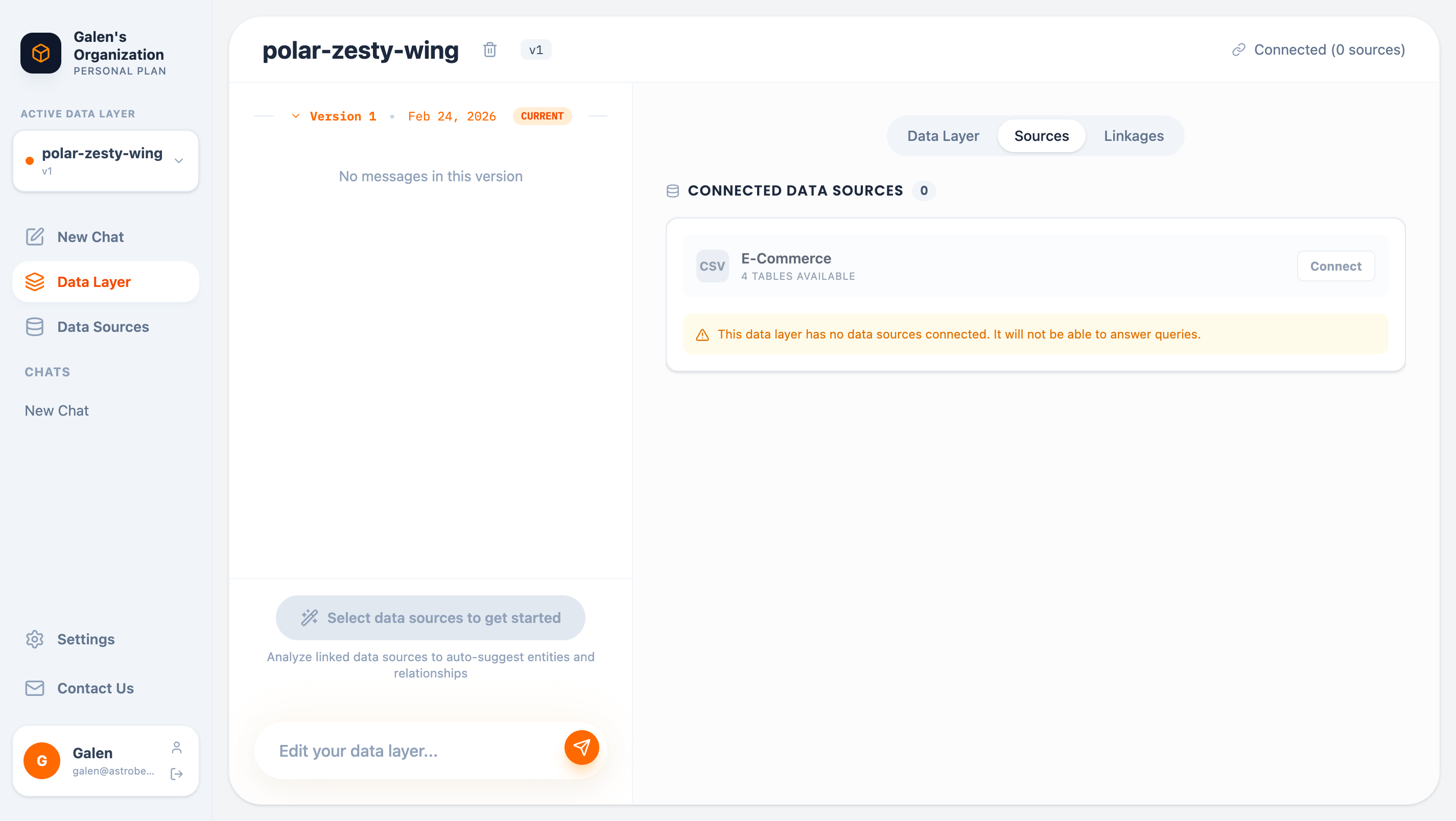
Before generating, connect at least one data source:
1. Click the **Sources** tab
2. Find available data sources
3. Click **Connect** to link them to this data layer
## Accessing the Data Layer
Click **Data Layer** in the sidebar to open the editor. The editor has three main tabs:
| Tab | Purpose |
| -------------- | -------------------------------------------- |
| **Data Layer** | View and edit entities in Graph or List view |
| **Sources** | Connect data sources to your data layer |
| **Linkages** | View discovered relationships between tables |
## Generating a Data Layer
### Connect Sources First
Before generating, connect at least one data source:
1. Click the **Sources** tab
2. Find available data sources
3. Click **Connect** to link them to this data layer
 ### AI-Assisted Generation
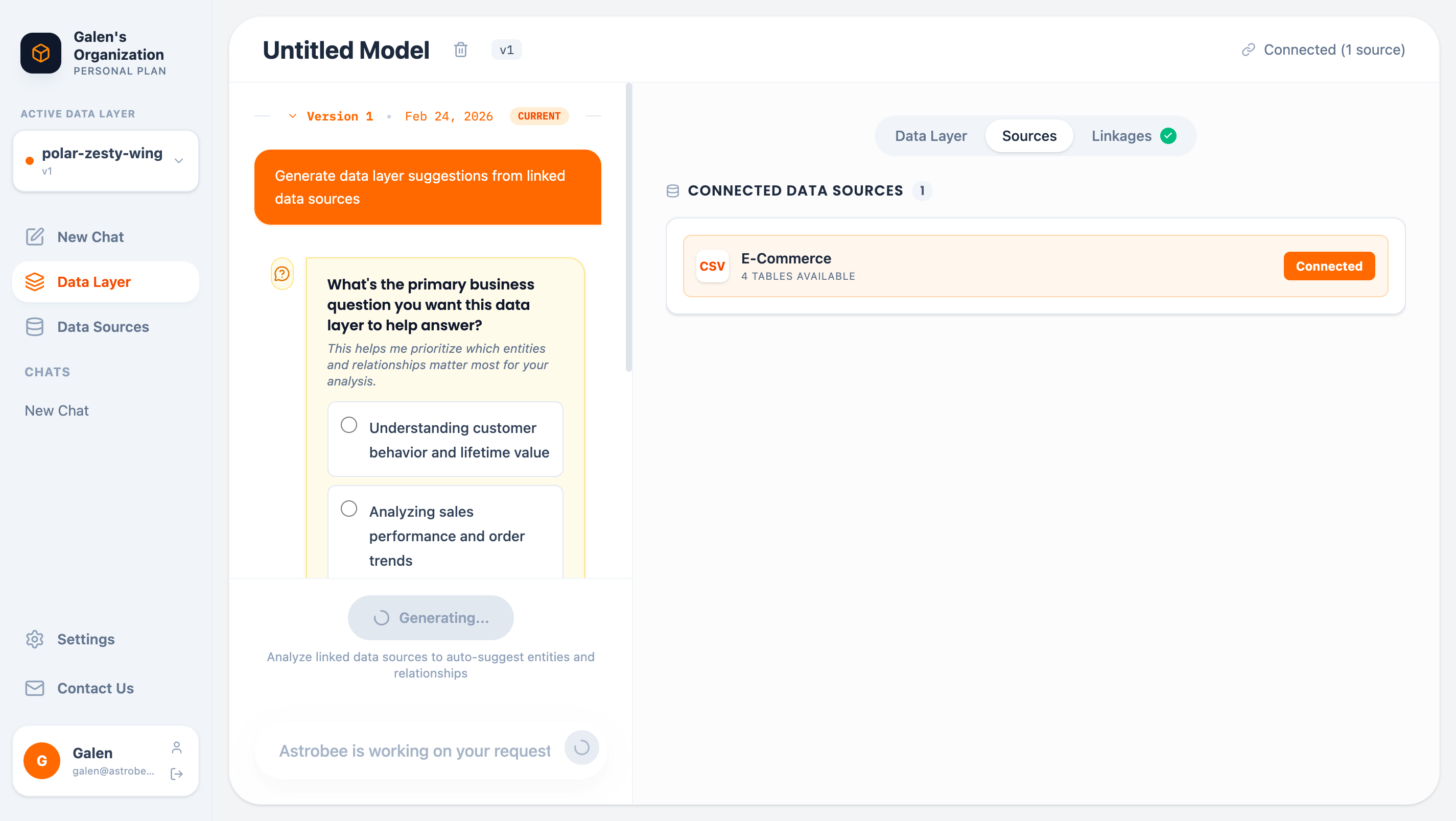
Click **Generate Data Layer from selected Sources** to start the AI-assisted workflow:
1. **Business Questions** — AstroBee asks what you want to analyze (customer behavior, sales performance, etc.)
2. **Terminology** — Define your business language (orders vs. sales vs. transactions)
3. **Generation** — AI analyzes your data and creates entities with proper bindings
### AI-Assisted Generation
Click **Generate Data Layer from selected Sources** to start the AI-assisted workflow:
1. **Business Questions** — AstroBee asks what you want to analyze (customer behavior, sales performance, etc.)
2. **Terminology** — Define your business language (orders vs. sales vs. transactions)
3. **Generation** — AI analyzes your data and creates entities with proper bindings
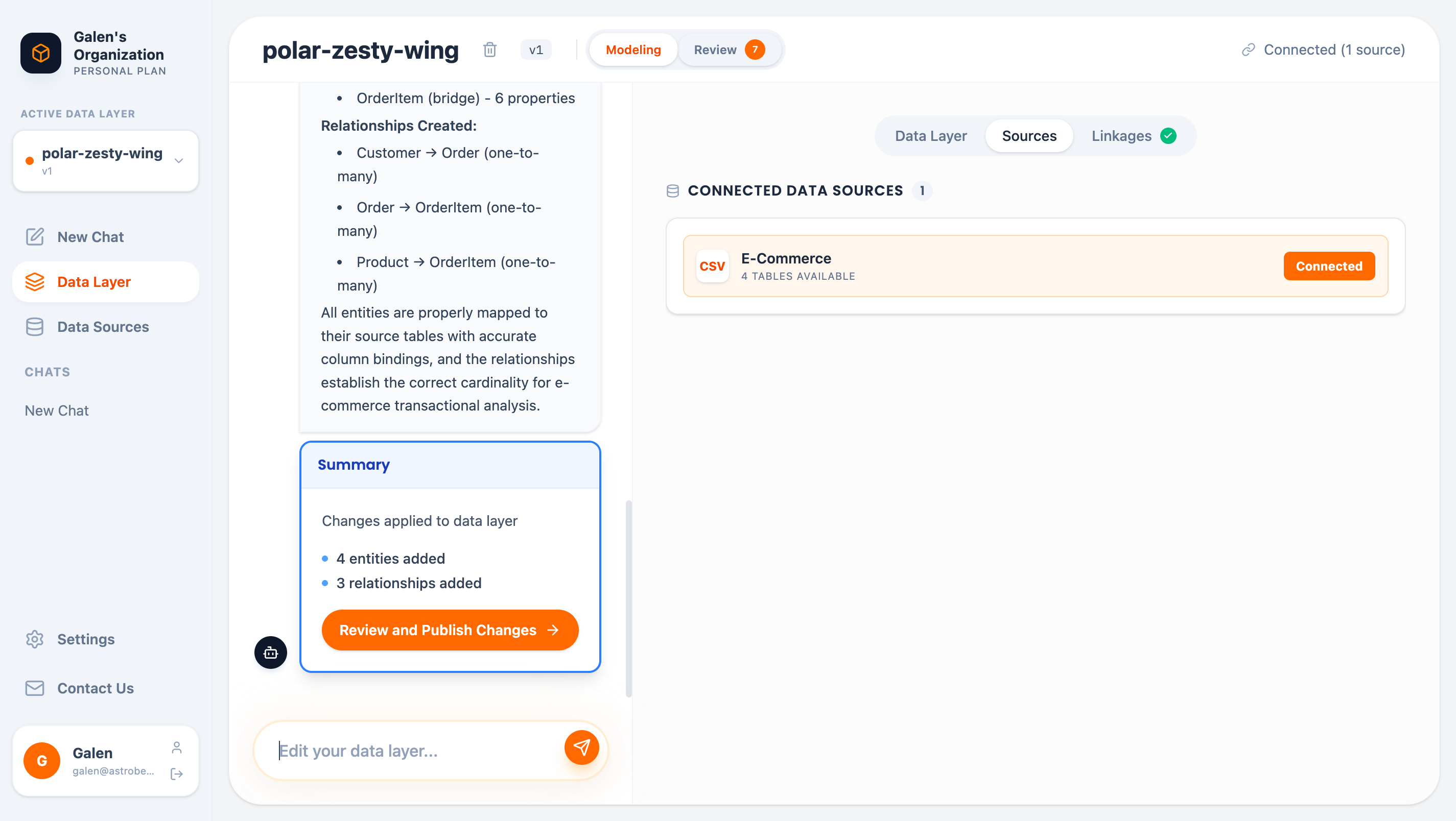
 The AI will:
* Discover tables and columns in your data sources
* Match entities to tables by name similarity
* Map properties to columns based on data types and meanings
* Create relationships based on discovered linkages
The AI will:
* Discover tables and columns in your data sources
* Match entities to tables by name similarity
* Map properties to columns based on data types and meanings
* Create relationships based on discovered linkages
 ## Viewing Your Data Layer
### Graph View
The default view shows entities as nodes and relationships as edges:
* **Nodes** represent entities (dimension, fact, or bridge types)
* **Edges** show relationships with cardinality (1:N, N:N)
* Click **Expand to fullscreen** for a larger view
### List View
Click **List View** for a detailed breakdown:
## Viewing Your Data Layer
### Graph View
The default view shows entities as nodes and relationships as edges:
* **Nodes** represent entities (dimension, fact, or bridge types)
* **Edges** show relationships with cardinality (1:N, N:N)
* Click **Expand to fullscreen** for a larger view
### List View
Click **List View** for a detailed breakdown:
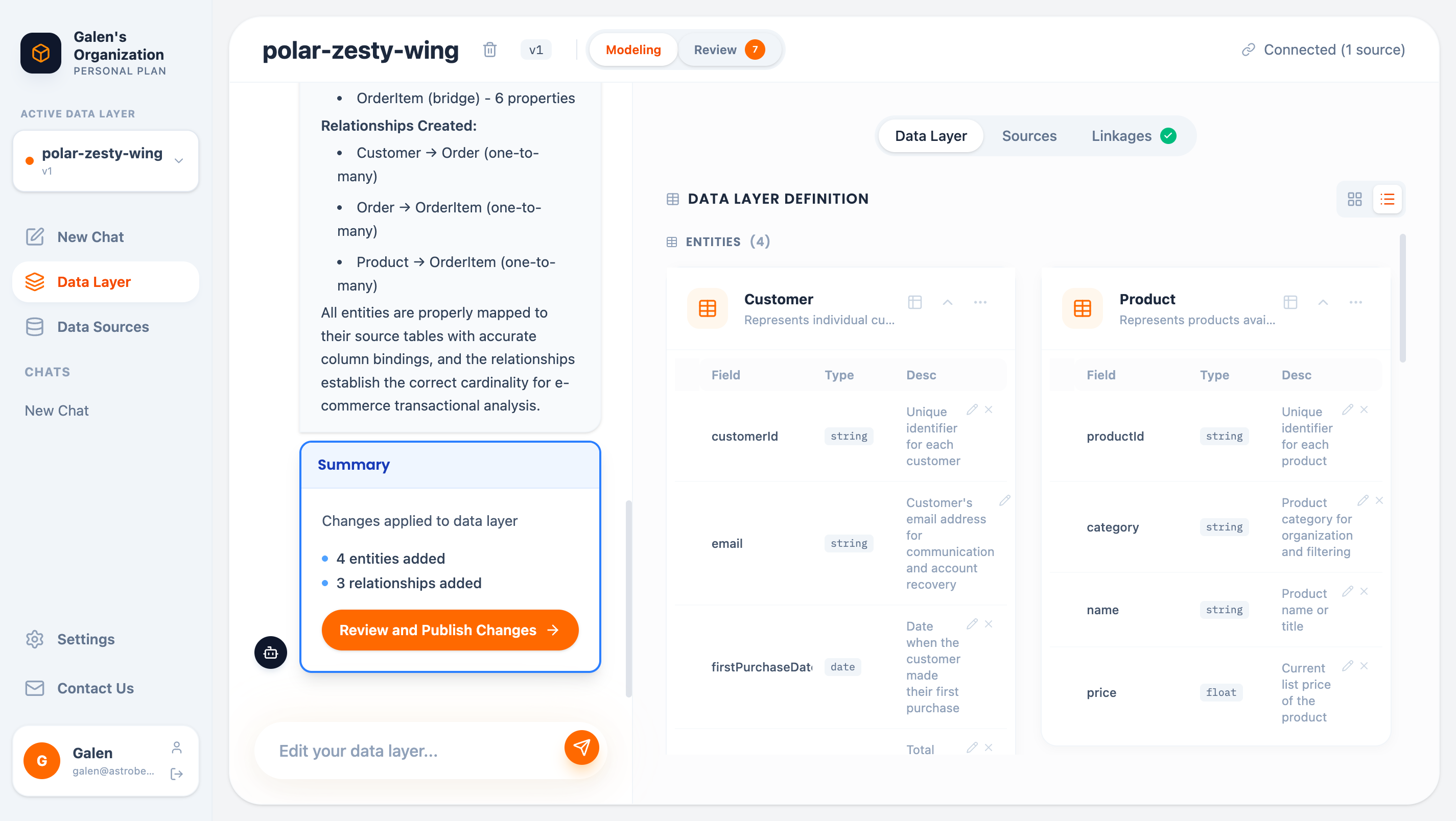 The list view shows:
* Entity names and descriptions
* All properties with types (Dimension/Measure) and data types
* Field descriptions
* Relationships with join conditions
## Editing Your Data Layer
### Chat-Based Editing
Use the chat input at the bottom to make changes in natural language:
```
Add a property called "lifetime_value" to Customer that calculates
total spend across all orders
```
```
Create a relationship between Product and OrderItem
```
AstroBee interprets your request, makes the changes, and shows them in the Review panel.
### Direct Editing
In List View, click on any element to edit directly:
* Click entity names to rename
* Click descriptions to update
* Click properties to modify types or descriptions
## Reviewing Changes
All changes go to a **scratchpad** before being published. Click the **Review** button to see pending changes:
The list view shows:
* Entity names and descriptions
* All properties with types (Dimension/Measure) and data types
* Field descriptions
* Relationships with join conditions
## Editing Your Data Layer
### Chat-Based Editing
Use the chat input at the bottom to make changes in natural language:
```
Add a property called "lifetime_value" to Customer that calculates
total spend across all orders
```
```
Create a relationship between Product and OrderItem
```
AstroBee interprets your request, makes the changes, and shows them in the Review panel.
### Direct Editing
In List View, click on any element to edit directly:
* Click entity names to rename
* Click descriptions to update
* Click properties to modify types or descriptions
## Reviewing Changes
All changes go to a **scratchpad** before being published. Click the **Review** button to see pending changes:
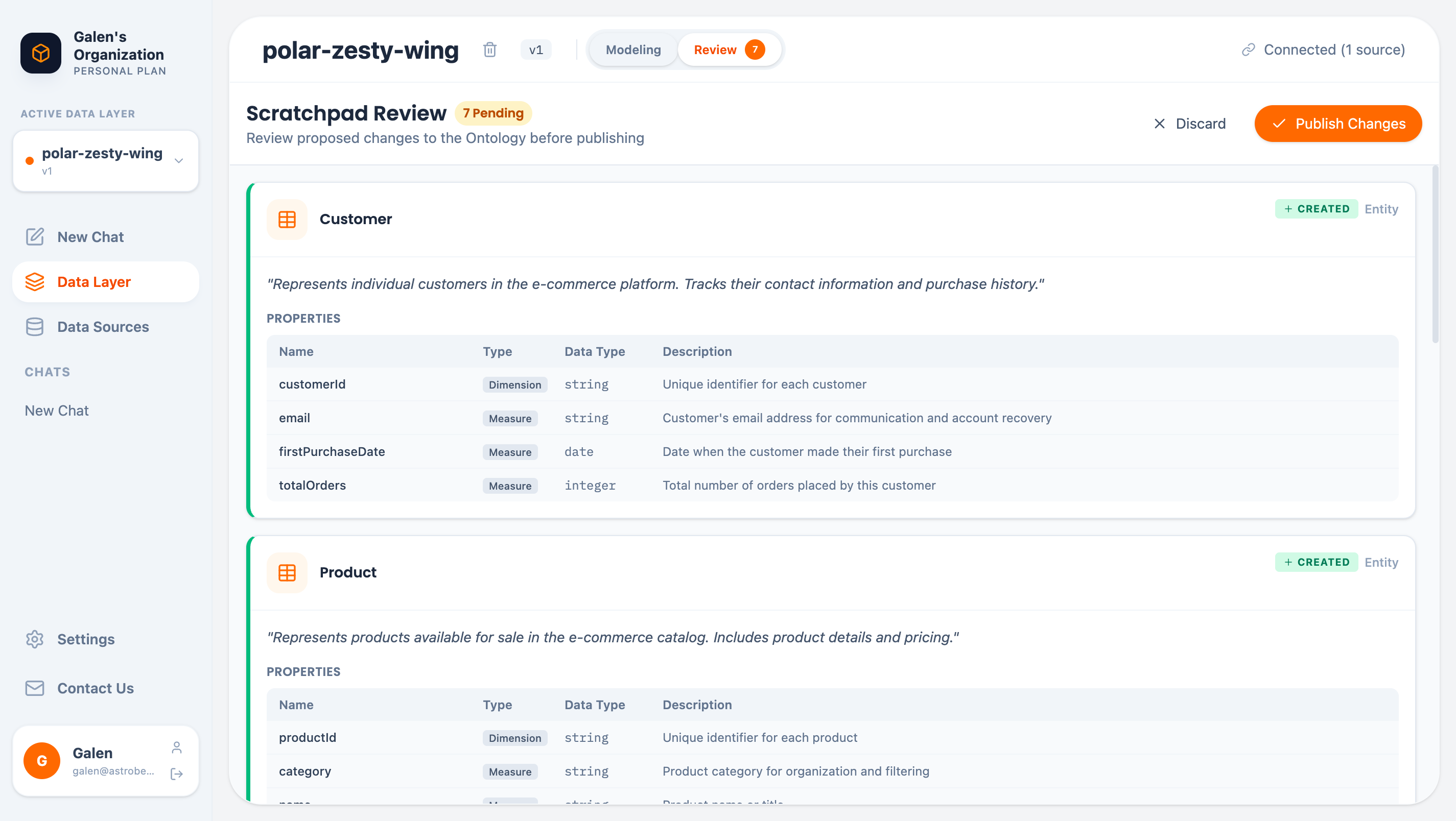 The review panel shows:
* **Created** items (new entities, properties, relationships)
* **Modified** items (updated definitions)
* **Deleted** items (removed elements)
Actions:
* **Publish all pending changes** — Apply changes and create a new version
* **Discard all pending changes** — Revert the scratchpad
## Version History
Every time you publish, AstroBee creates a new version. View history by clicking the version buttons:
The review panel shows:
* **Created** items (new entities, properties, relationships)
* **Modified** items (updated definitions)
* **Deleted** items (removed elements)
Actions:
* **Publish all pending changes** — Apply changes and create a new version
* **Discard all pending changes** — Revert the scratchpad
## Version History
Every time you publish, AstroBee creates a new version. View history by clicking the version buttons:
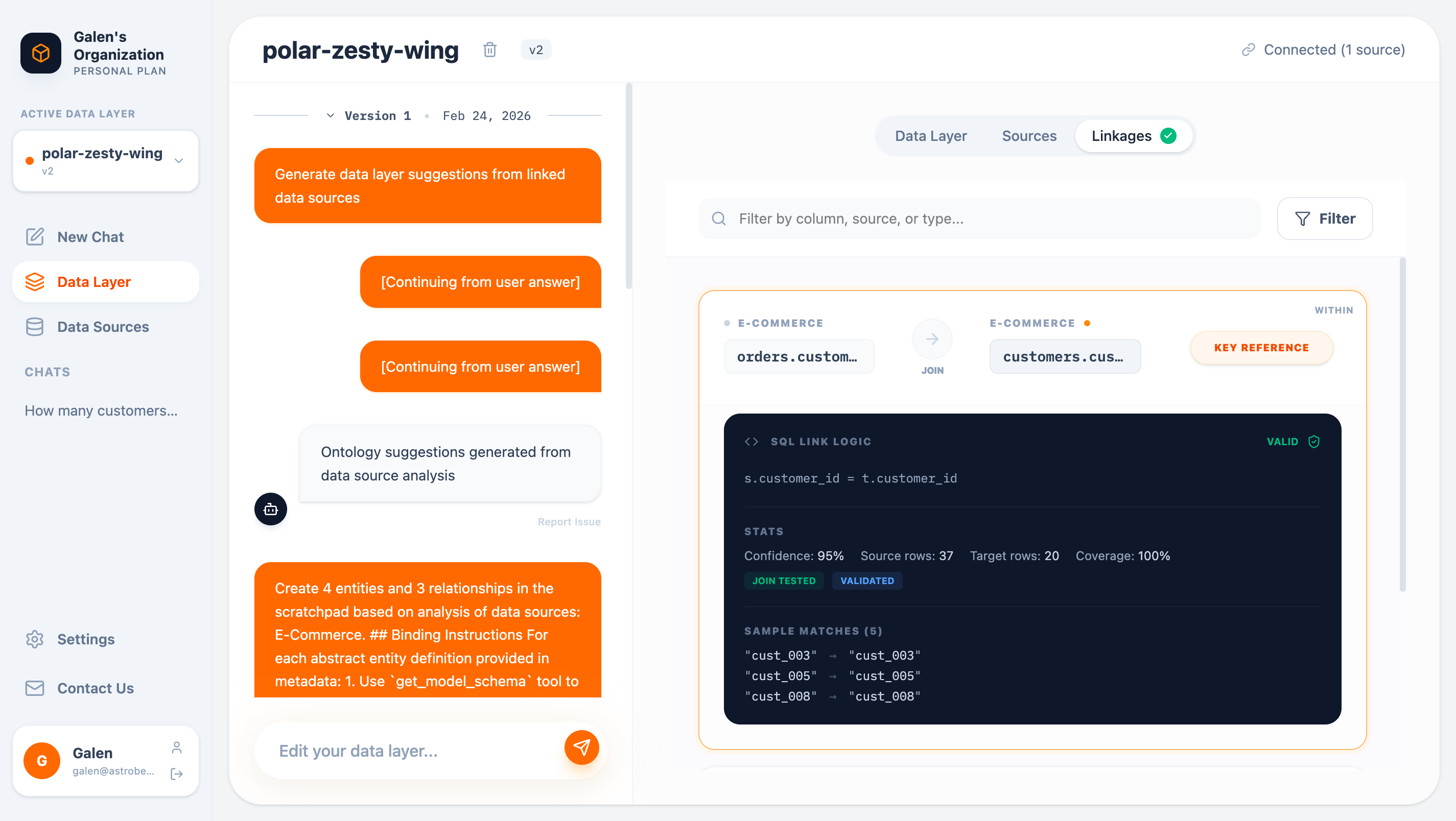 Version history includes:
* Timestamp of each version
* Conversation history (what was discussed to create that version)
* Ability to view any previous version
Versions are immutable. To make changes, edit the current version and publish a new one.
## Linkage Discovery
The **Linkages** tab shows relationships AstroBee discovered between your source tables:
Version history includes:
* Timestamp of each version
* Conversation history (what was discussed to create that version)
* Ability to view any previous version
Versions are immutable. To make changes, edit the current version and publish a new one.
## Linkage Discovery
The **Linkages** tab shows relationships AstroBee discovered between your source tables:
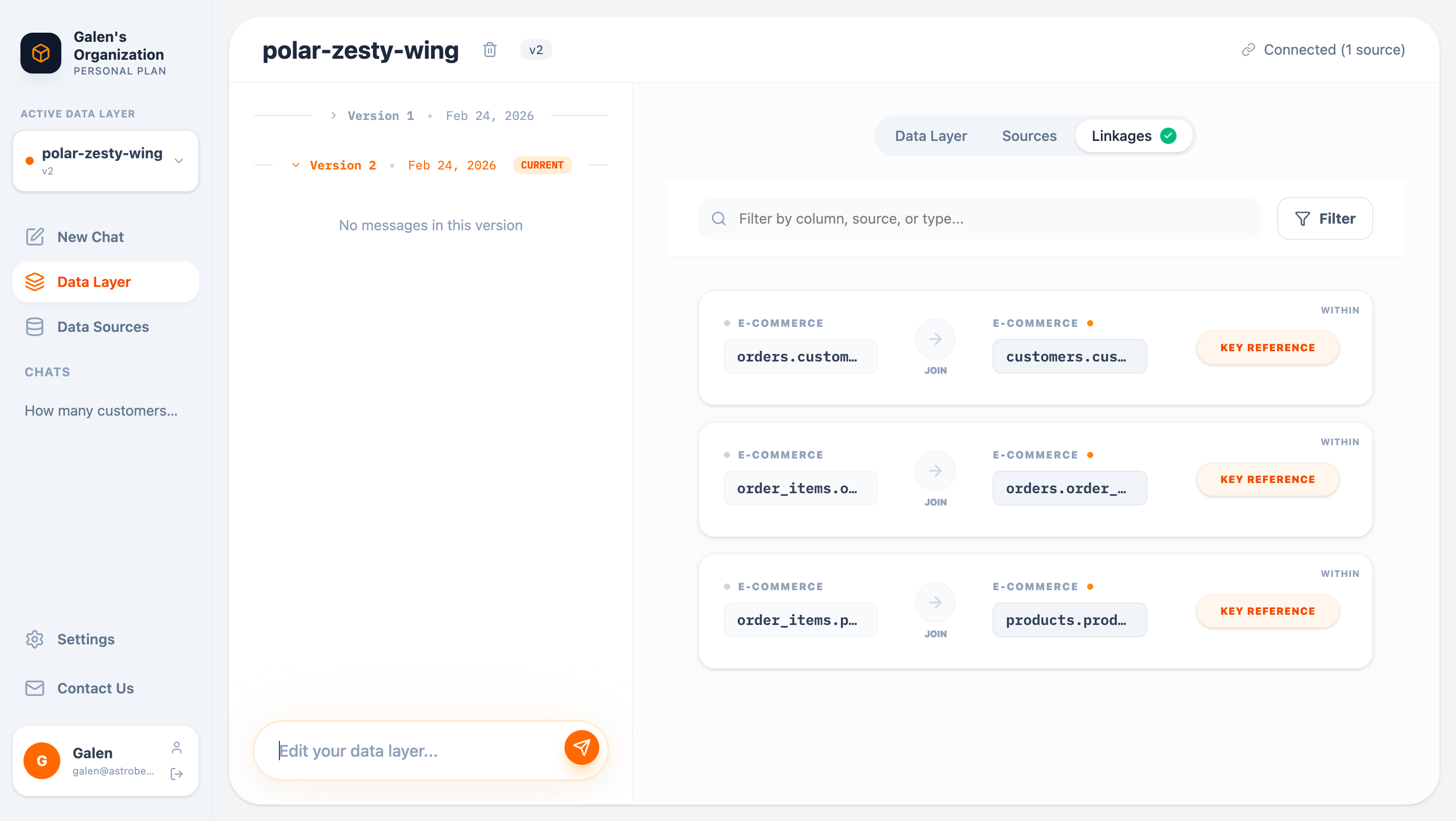 Click a linkage to see details:
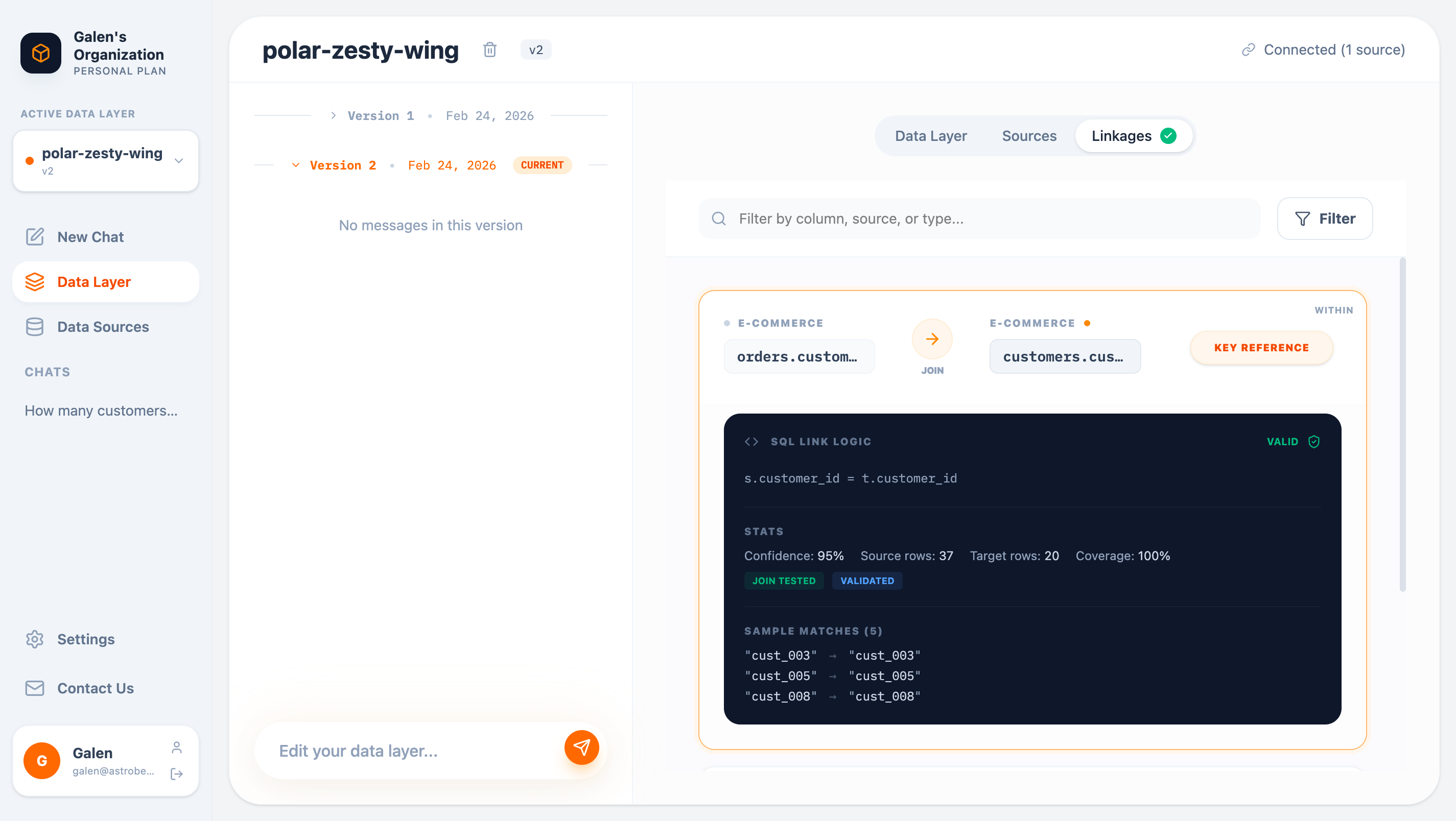 Each linkage shows:
* **SQL join logic** — The actual join condition
* **Validation status** — Whether the join was tested
* **Statistics** — Confidence, coverage, row counts
* **Sample matches** — Example values that match
## Entity Types
AstroBee uses three entity types:
| Type | Purpose | Example |
| ------------- | ---------------------------------------------- | ------------------------- |
| **Dimension** | Descriptive attributes for grouping/filtering | Customer, Product, Region |
| **Fact** | Measurable events or transactions | Order, PageView, Payment |
| **Bridge** | Junction tables for many-to-many relationships | OrderItem, UserRole |
## Property Types
Properties are classified as:
| Type | Purpose | Example |
| ------------- | ------------------------------------ | ------------------------------ |
| **Dimension** | Attributes for grouping or filtering | customer\_id, category, status |
| **Measure** | Numeric values for aggregation | price, quantity, total\_amount |
## Best Practices
Let AstroBee create the initial structure, then refine. It's faster than building from scratch.
Entity and property names should match how your team talks about the business.
Good descriptions help AstroBee understand context when answering questions.
Check the Linkages tab to ensure discovered relationships are correct before building on them.
Publish often to maintain a clear history of changes.
## Next Steps
Ask questions about your data layer
Add more data to your data layer
Each linkage shows:
* **SQL join logic** — The actual join condition
* **Validation status** — Whether the join was tested
* **Statistics** — Confidence, coverage, row counts
* **Sample matches** — Example values that match
## Entity Types
AstroBee uses three entity types:
| Type | Purpose | Example |
| ------------- | ---------------------------------------------- | ------------------------- |
| **Dimension** | Descriptive attributes for grouping/filtering | Customer, Product, Region |
| **Fact** | Measurable events or transactions | Order, PageView, Payment |
| **Bridge** | Junction tables for many-to-many relationships | OrderItem, UserRole |
## Property Types
Properties are classified as:
| Type | Purpose | Example |
| ------------- | ------------------------------------ | ------------------------------ |
| **Dimension** | Attributes for grouping or filtering | customer\_id, category, status |
| **Measure** | Numeric values for aggregation | price, quantity, total\_amount |
## Best Practices
Let AstroBee create the initial structure, then refine. It's faster than building from scratch.
Entity and property names should match how your team talks about the business.
Good descriptions help AstroBee understand context when answering questions.
Check the Linkages tab to ensure discovered relationships are correct before building on them.
Publish often to maintain a clear history of changes.
## Next Steps
Ask questions about your data layer
Add more data to your data layer