> ## Documentation Index
> Fetch the complete documentation index at: https://docs.astrobee.ai/llms.txt
> Use this file to discover all available pages before exploring further.
# Quickstart
> Build a data layer and ask questions about your data in minutes
In this quickstart, you'll load demo e-commerce data, watch AstroBee build a semantic data layer, and ask business questions in plain English—all in under 10 minutes.
**Prerequisites**: [Create an account](https://app.astrobee.ai) and sign in before you begin.
## Load Demo Data
After signing in, you'll land on the **Data Hub**. For new accounts, AstroBee offers demo datasets to help you explore the platform.
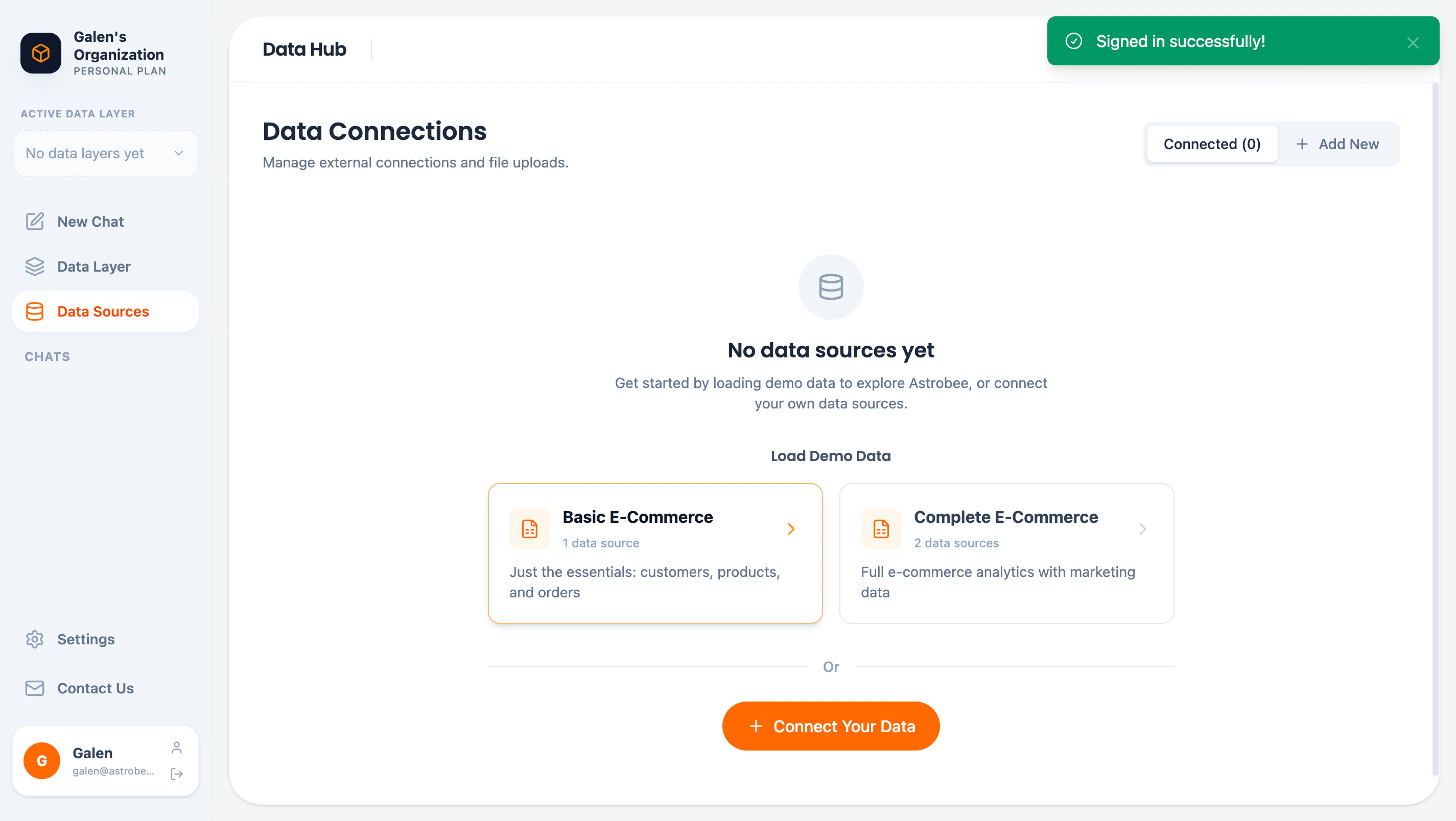 Click **Basic E-Commerce** to load a pre-configured dataset with:
* **Customers** — Customer information and purchase history
* **Products** — Product catalog with categories and pricing
* **Orders** — Transaction records linking customers to products
Click **Basic E-Commerce** to load a pre-configured dataset with:
* **Customers** — Customer information and purchase history
* **Products** — Product catalog with categories and pricing
* **Orders** — Transaction records linking customers to products
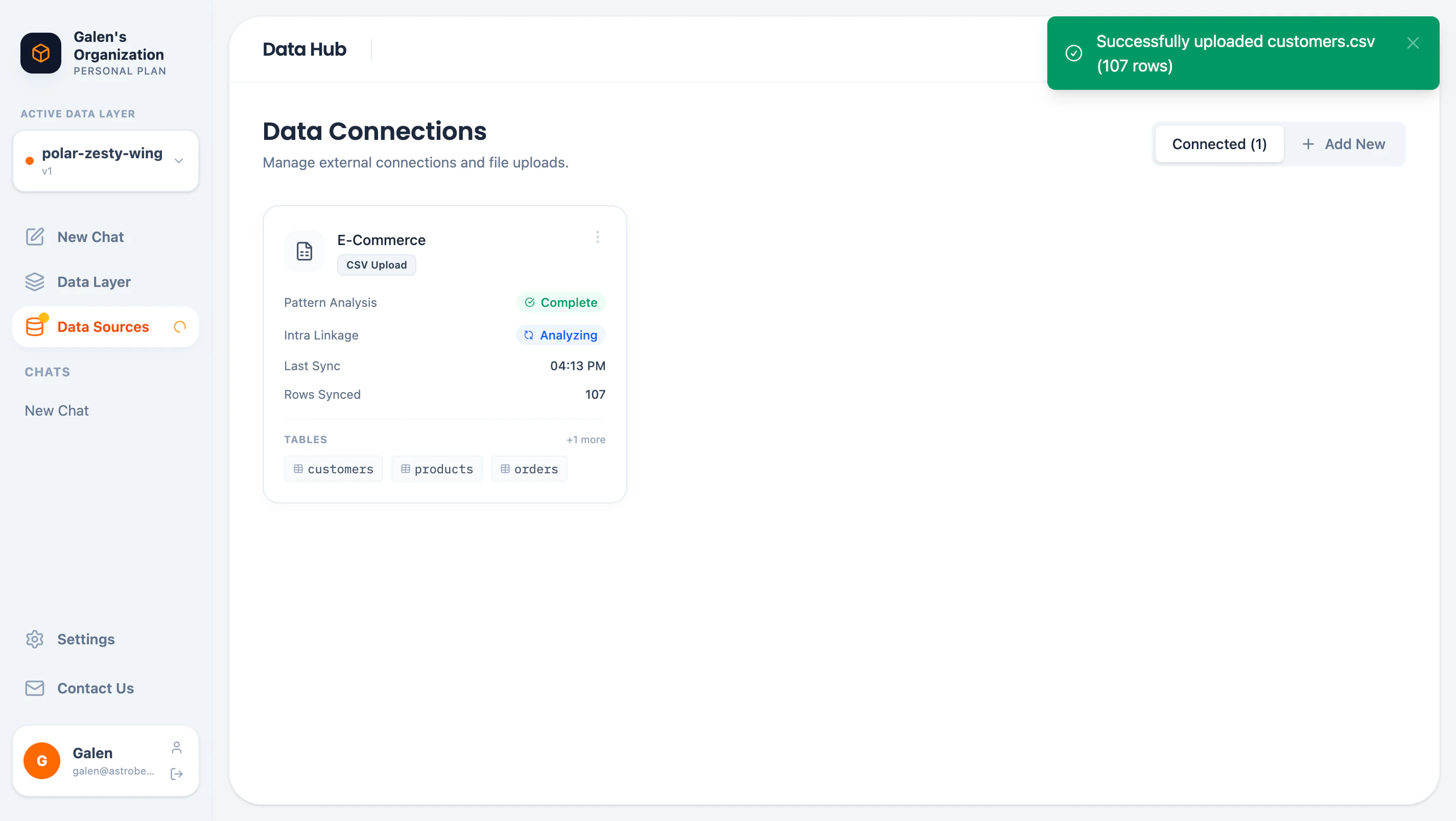 Once loaded, AstroBee automatically:
1. **Analyzes patterns** in your data columns (e.g., ID formats, email patterns)
2. **Discovers linkages** between tables (e.g., `orders.customer_id` → `customers.customer_id`)
## Explore Your Data
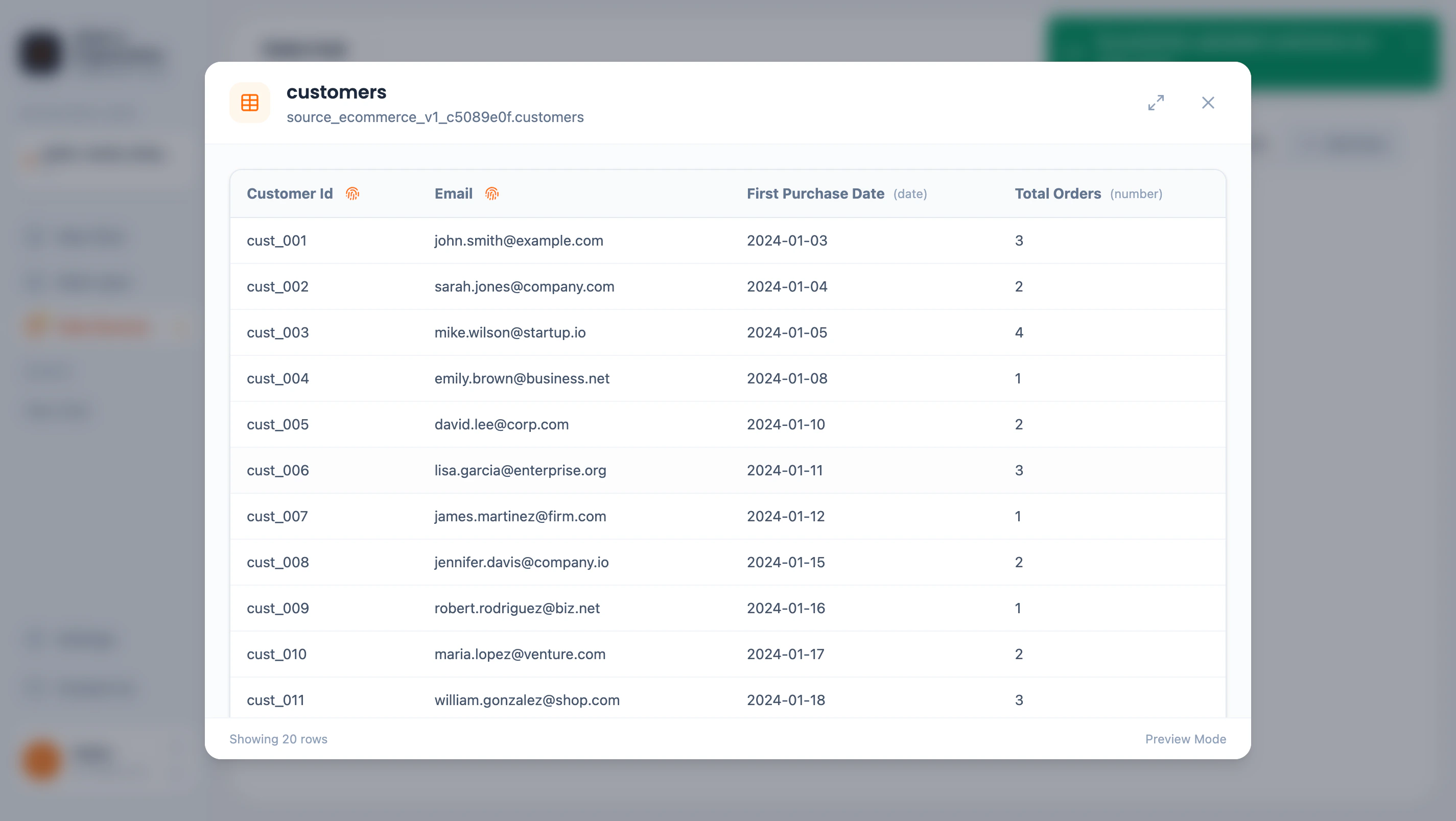
Click on any table to preview its data and see discovered patterns:
Once loaded, AstroBee automatically:
1. **Analyzes patterns** in your data columns (e.g., ID formats, email patterns)
2. **Discovers linkages** between tables (e.g., `orders.customer_id` → `customers.customer_id`)
## Explore Your Data
Click on any table to preview its data and see discovered patterns:
 ### Pattern Analysis
AstroBee automatically identifies patterns in your columns. Click the pattern icon next to a column to see details:
### Pattern Analysis
AstroBee automatically identifies patterns in your columns. Click the pattern icon next to a column to see details:
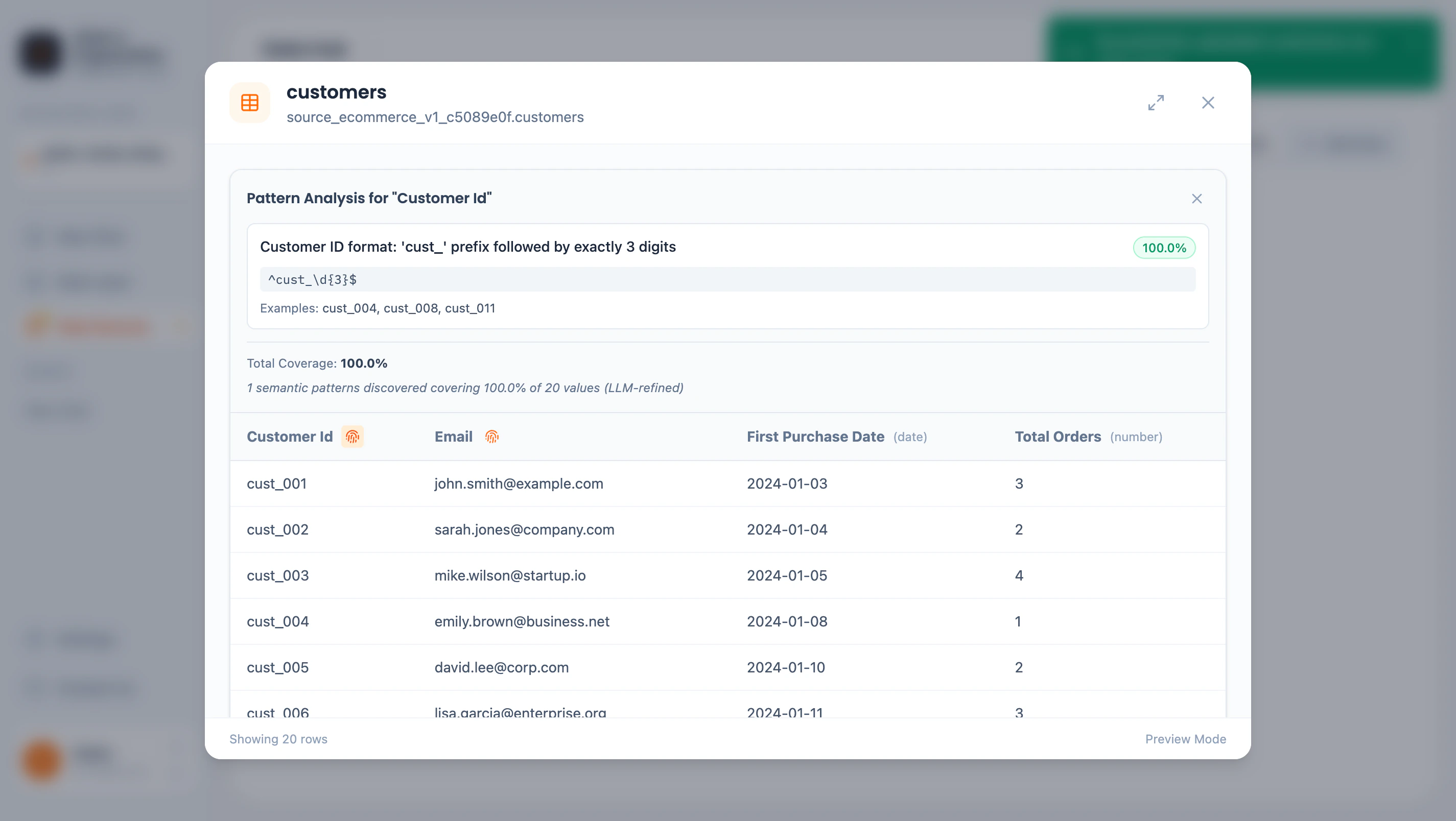 Pattern analysis helps AstroBee understand your data semantics and suggest appropriate entity mappings.
## Build Your Data Layer
Navigate to **Data Layer** in the sidebar. This is where you define how your business concepts map to your raw data.
### Connect Data Sources
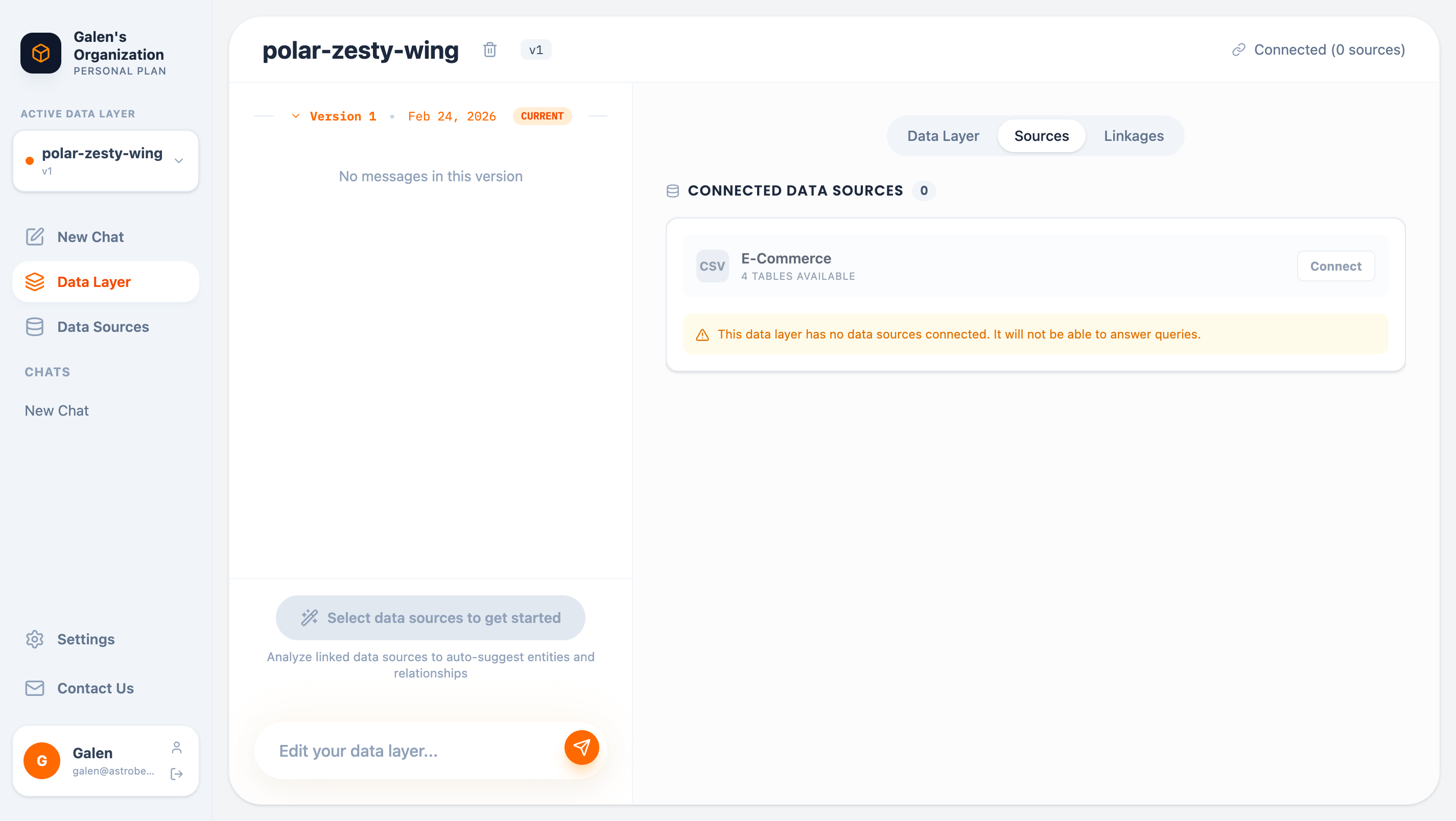
1. Click the **Sources** tab
2. Click **Connect** next to your E-Commerce data source
Pattern analysis helps AstroBee understand your data semantics and suggest appropriate entity mappings.
## Build Your Data Layer
Navigate to **Data Layer** in the sidebar. This is where you define how your business concepts map to your raw data.
### Connect Data Sources
1. Click the **Sources** tab
2. Click **Connect** next to your E-Commerce data source
 ### Generate with AI
Click **Generate Data Layer from selected Sources**. AstroBee's AI will ask a few questions to understand your business:
### Generate with AI
Click **Generate Data Layer from selected Sources**. AstroBee's AI will ask a few questions to understand your business:
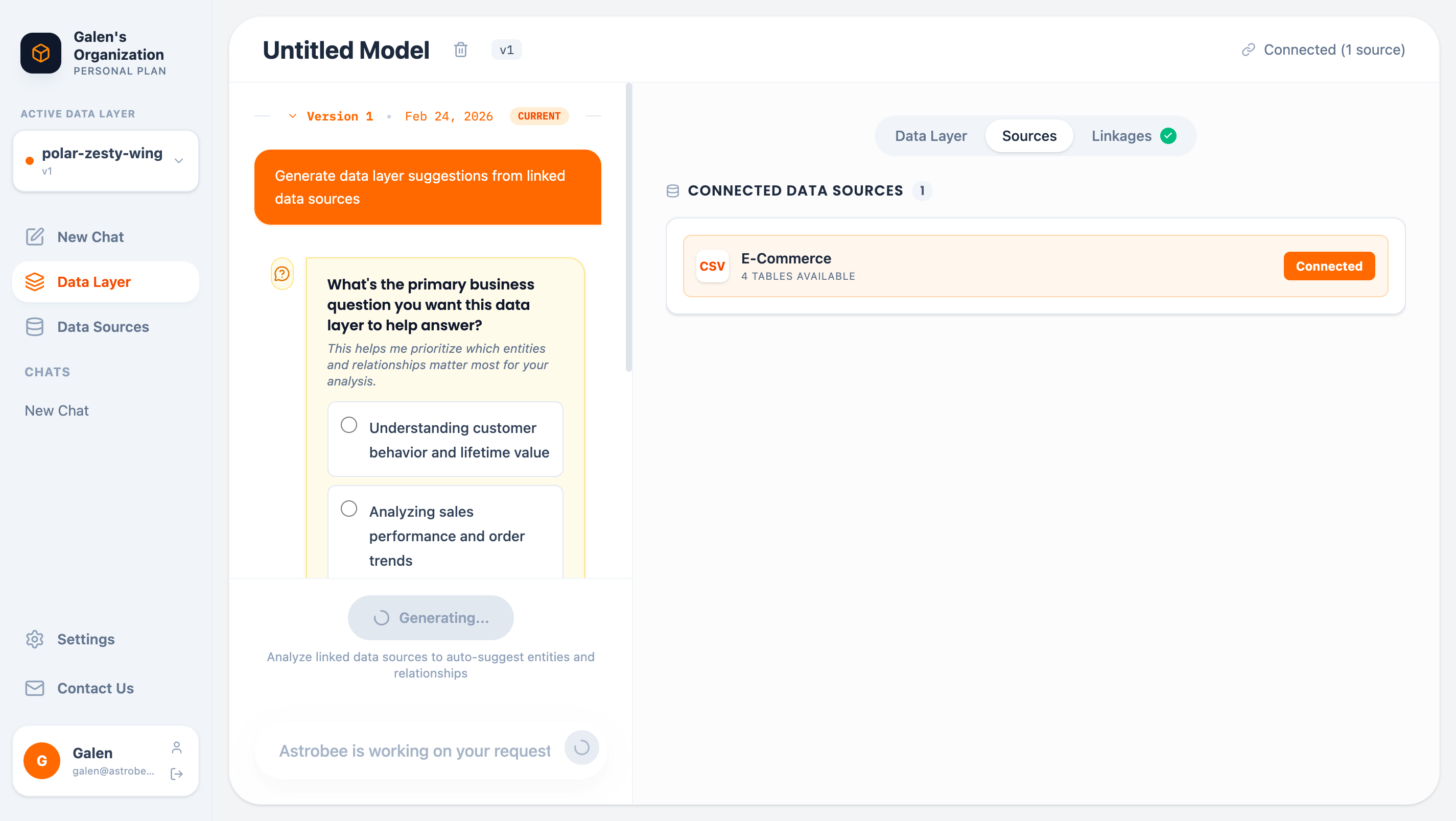 Select your answers and AstroBee will:
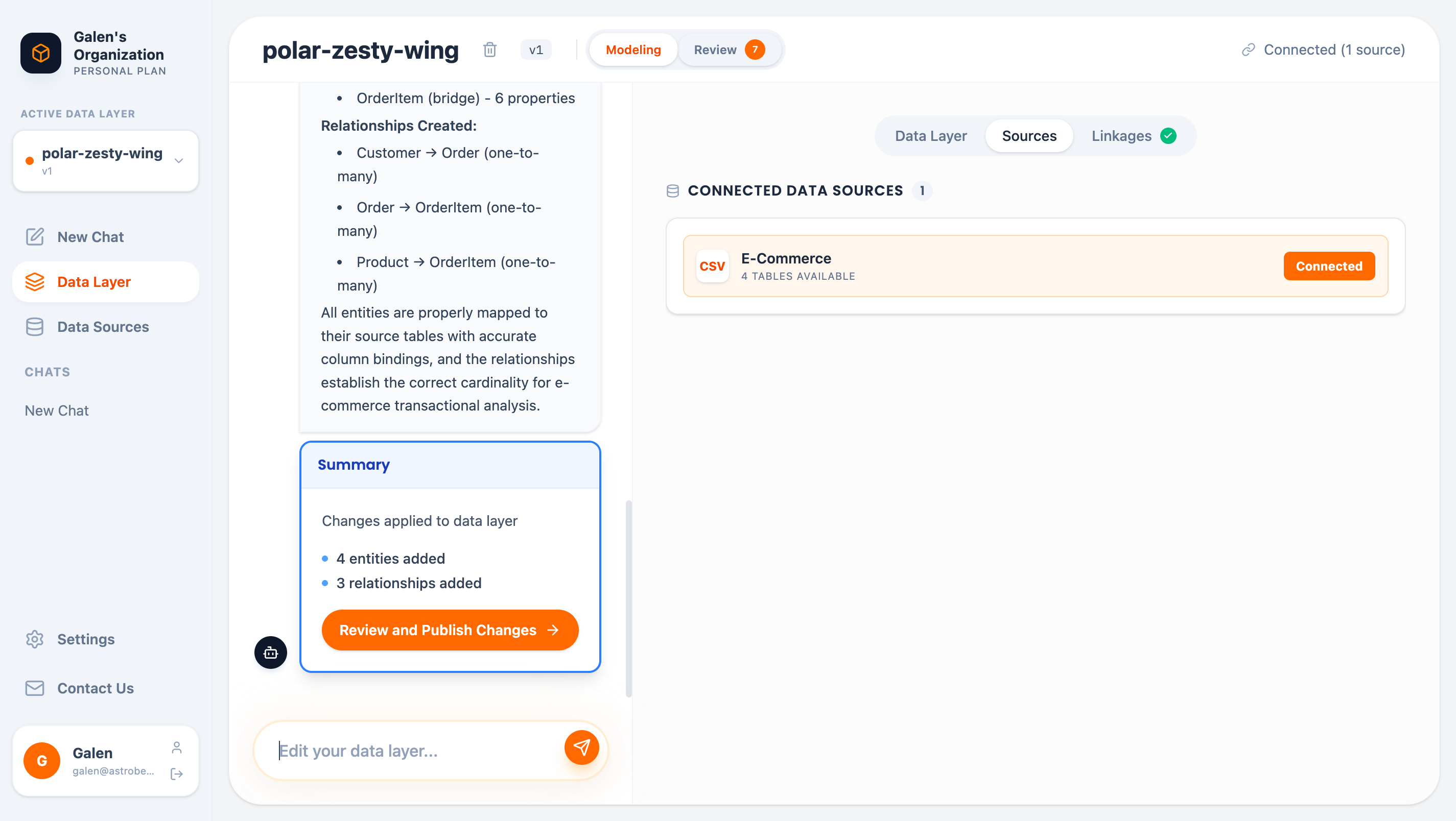
1. Analyze your connected data sources
2. Identify entities (Customer, Product, Order, OrderItem)
3. Map relationships between them
4. Bind entities to source tables
Select your answers and AstroBee will:
1. Analyze your connected data sources
2. Identify entities (Customer, Product, Order, OrderItem)
3. Map relationships between them
4. Bind entities to source tables
 ### Review the Graph
Switch to the **Data Layer** tab to see your entities visualized:
### Review the Graph
Switch to the **Data Layer** tab to see your entities visualized:
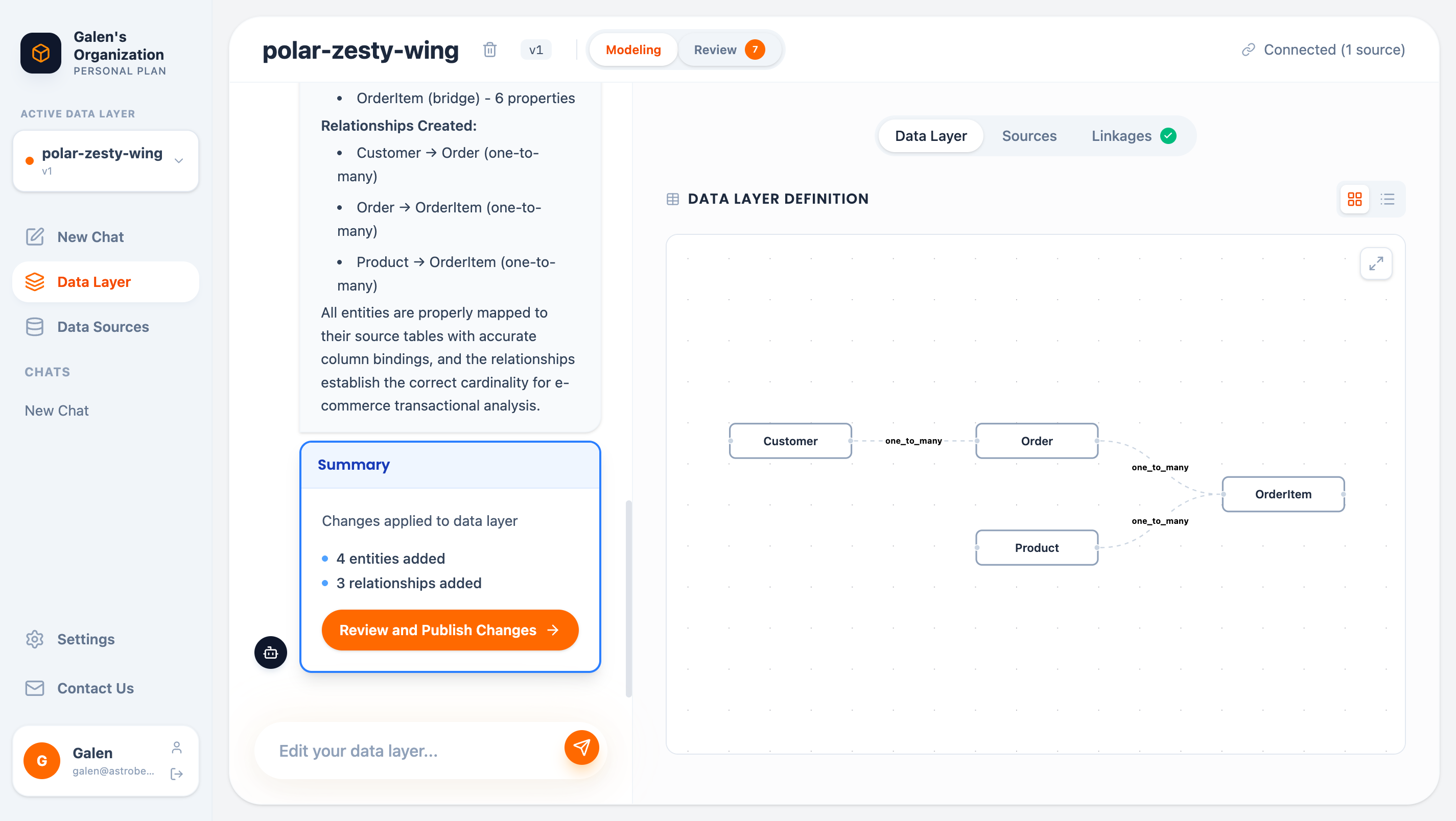 The graph shows:
* **Customer** (dimension) — Individual customers
* **Product** (dimension) — Products in your catalog
* **Order** (fact) — Customer transactions
* **OrderItem** (bridge) — Line items linking orders to products
### Review and Publish
Click **Review** to see all pending changes before publishing:
The graph shows:
* **Customer** (dimension) — Individual customers
* **Product** (dimension) — Products in your catalog
* **Order** (fact) — Customer transactions
* **OrderItem** (bridge) — Line items linking orders to products
### Review and Publish
Click **Review** to see all pending changes before publishing:
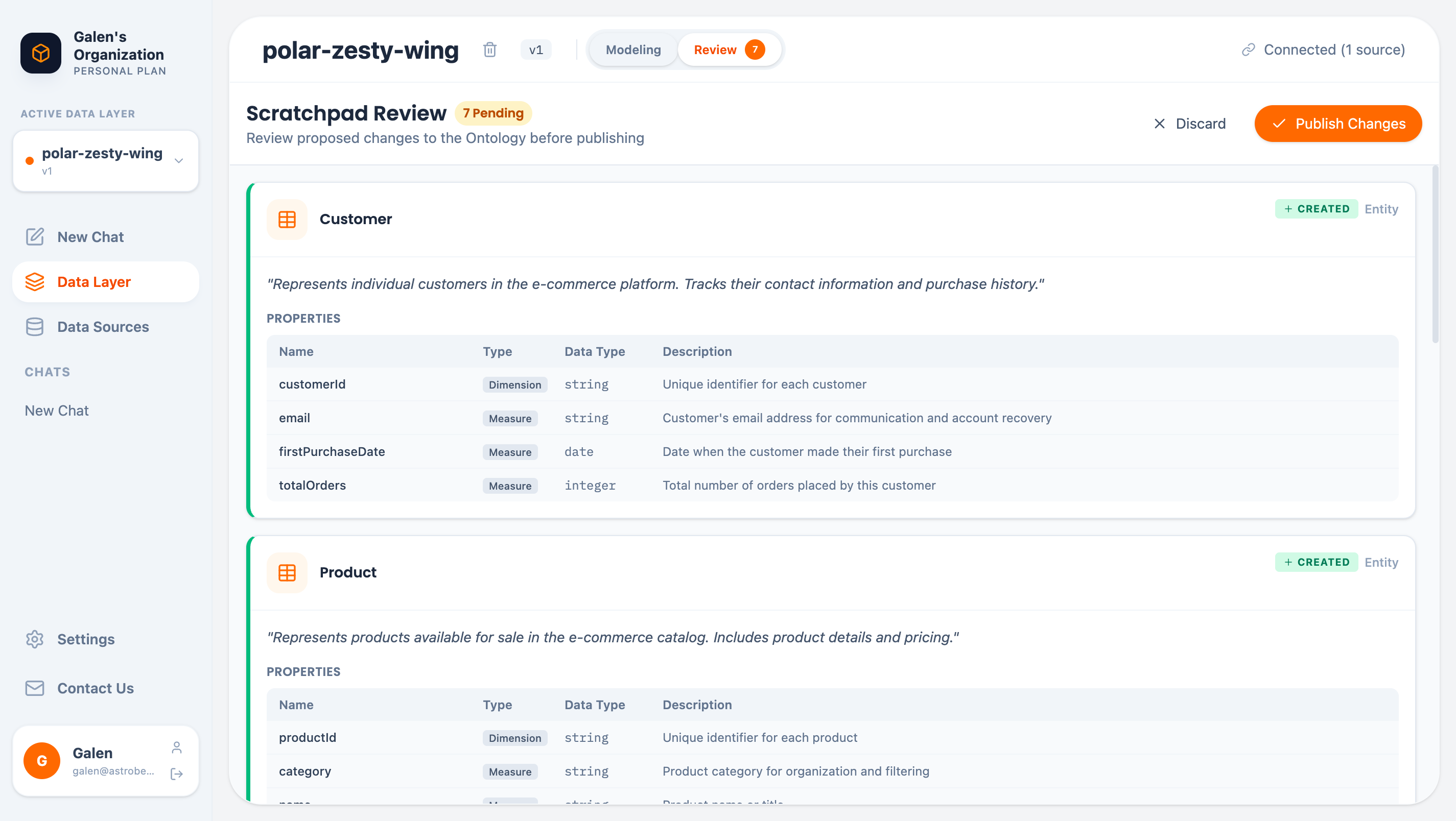 Click **Publish all pending changes** to make your data layer active.
## Ask Questions
With your data layer published, you're ready to ask questions! Click **New Chat** in the sidebar.
Click **Publish all pending changes** to make your data layer active.
## Ask Questions
With your data layer published, you're ready to ask questions! Click **New Chat** in the sidebar.
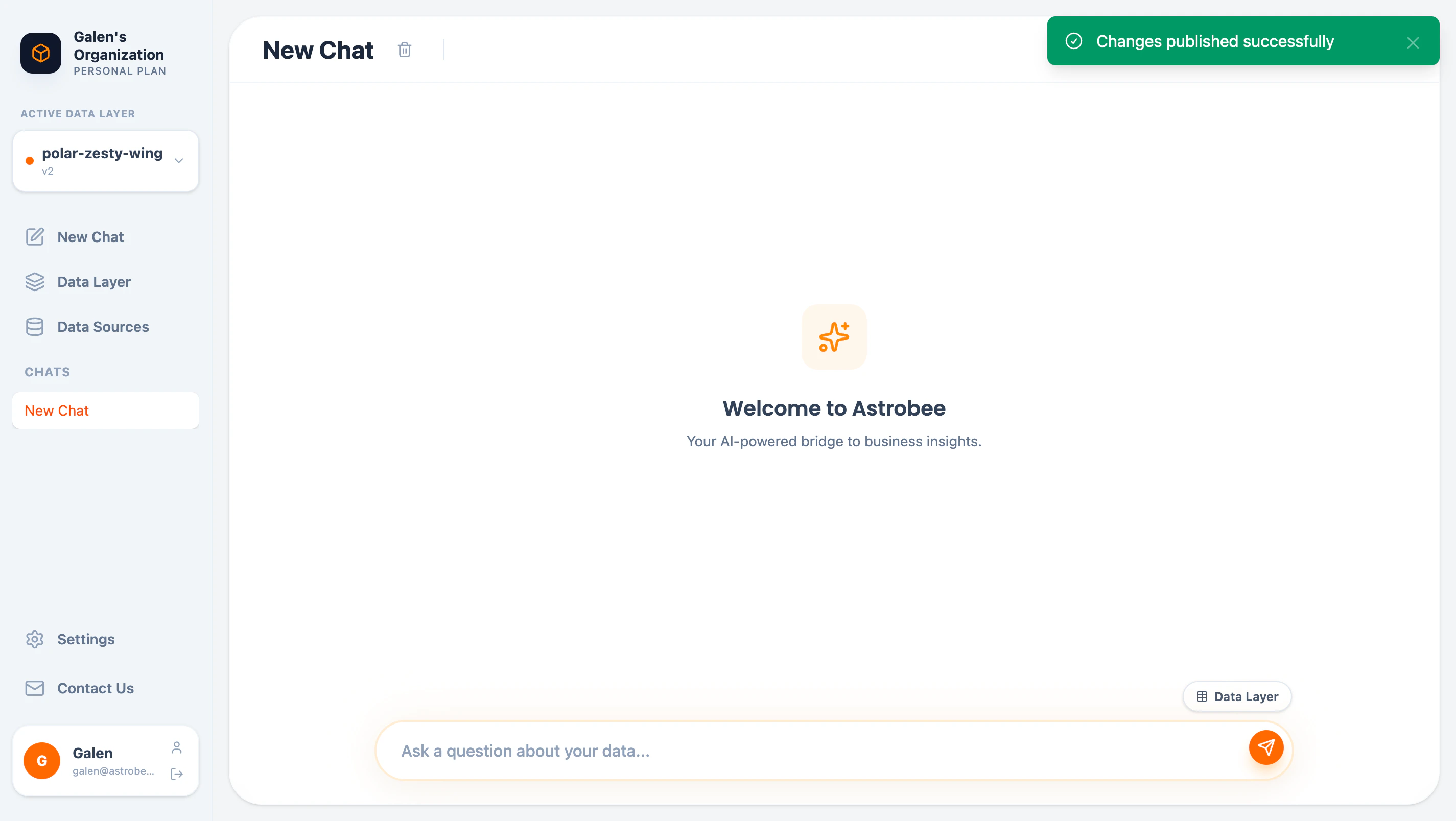 Type a question in plain English:
```
How many customers do we have?
```
Type a question in plain English:
```
How many customers do we have?
```
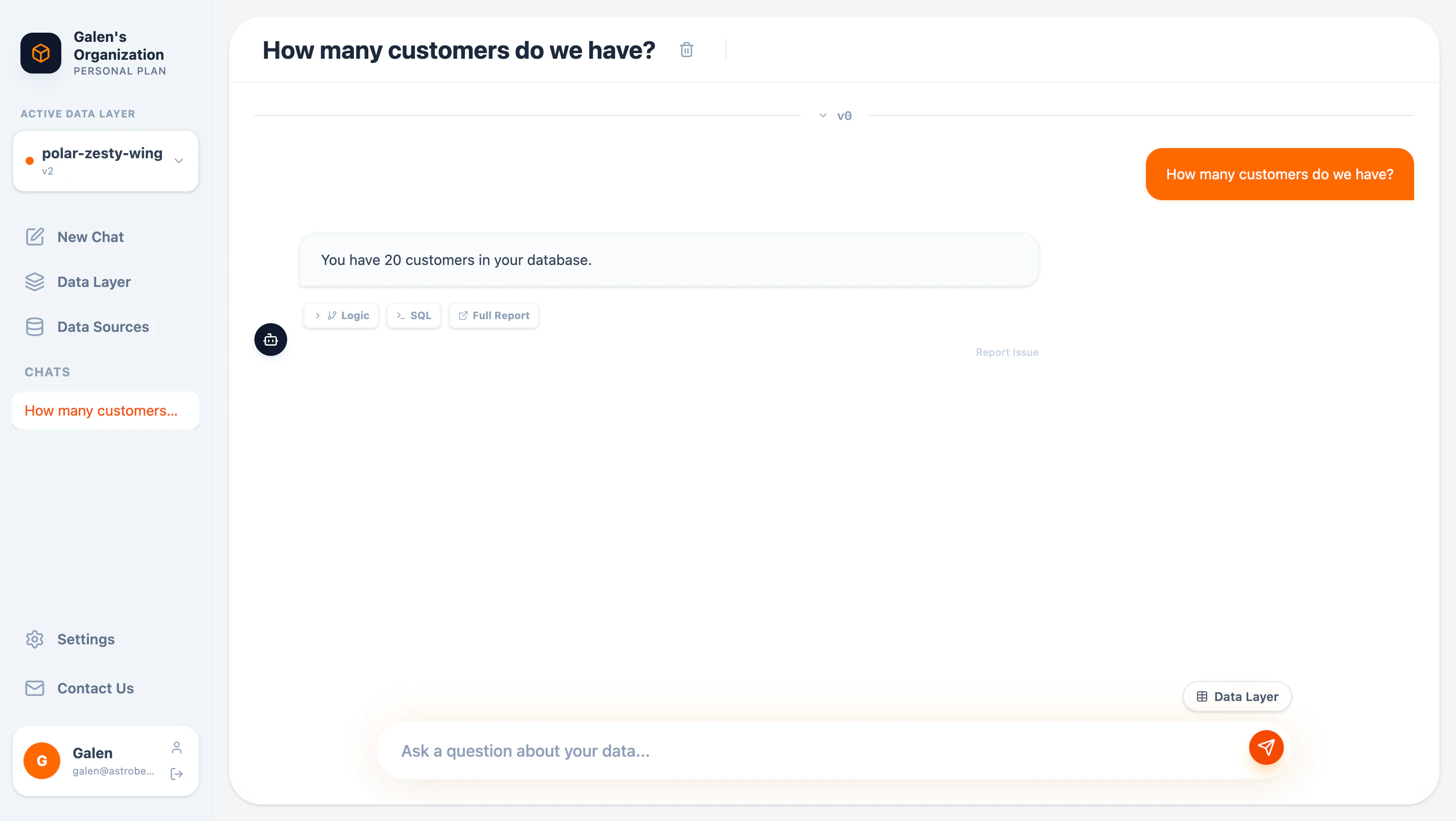 ### View the SQL
Click **SQL** to see the exact query AstroBee generated:
### View the SQL
Click **SQL** to see the exact query AstroBee generated:
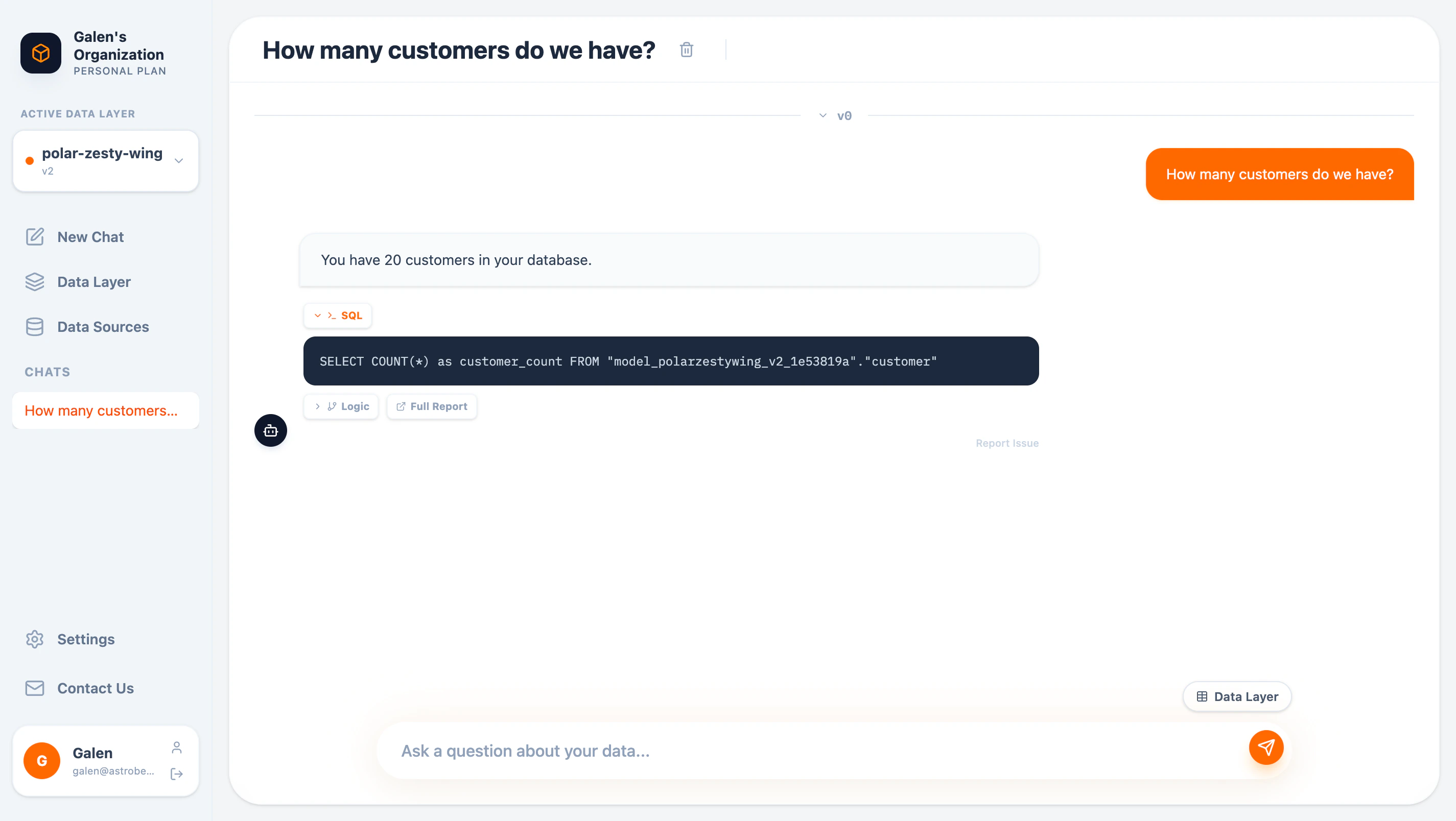 ### Understand the Logic
Click **Logic** to see how AstroBee reasoned through your question:
### Understand the Logic
Click **Logic** to see how AstroBee reasoned through your question:
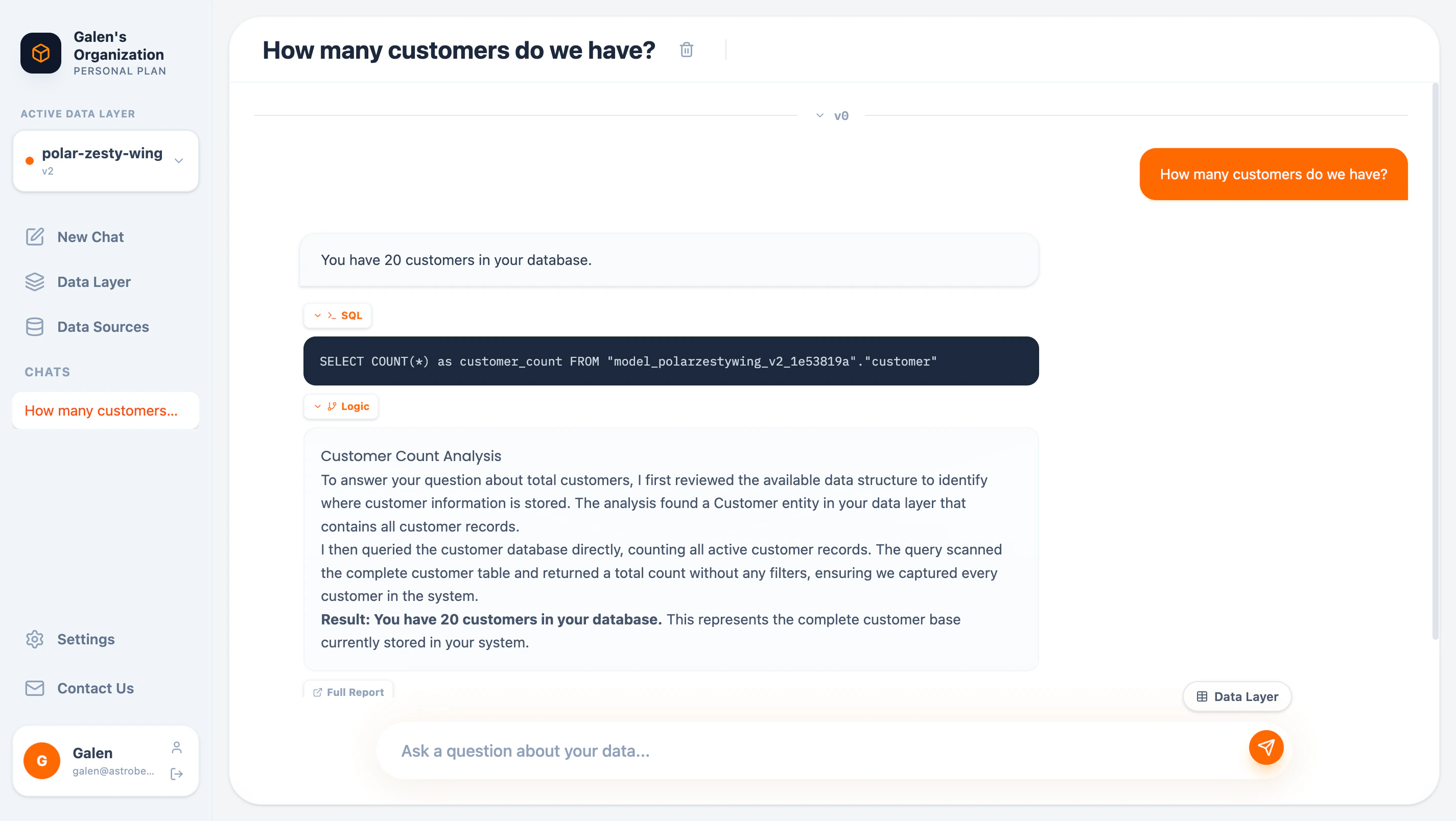 ### Full Report
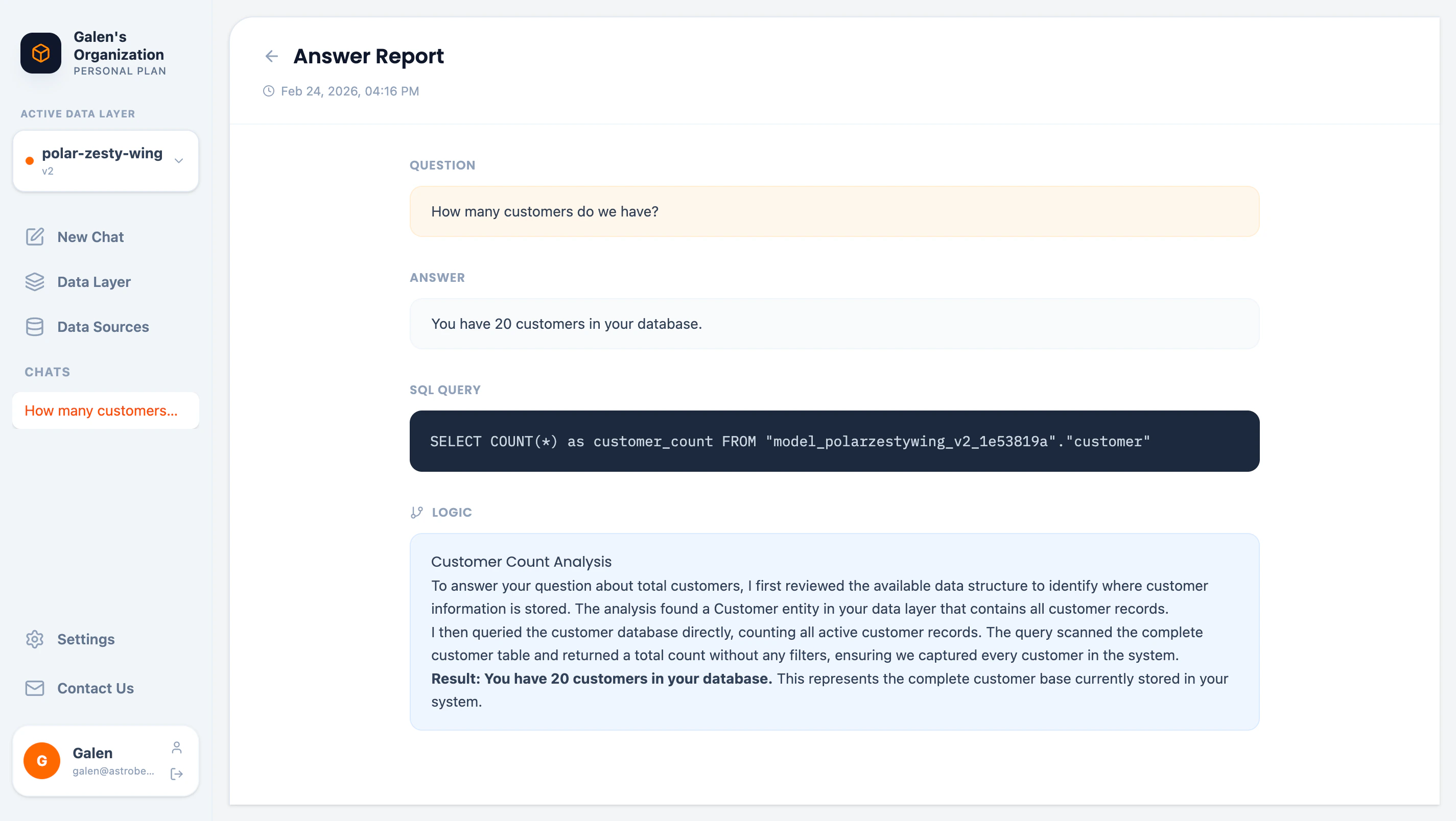
Click **Full Report** for a complete breakdown:
### Full Report
Click **Full Report** for a complete breakdown:
 ## Try More Questions
Now explore your data with more questions:
```
What are our top 5 products by total revenue?
```
```
Show me customers who have placed more than 2 orders
```
```
What's the average order value by product category?
```
Each answer shows the SQL and logic, so you always understand how AstroBee arrived at the result.
## Next Steps
Connect your own data sources—files, databases, or business tools
Learn more about editing and versioning your data layer
Explore charts, exports, and advanced query features
Query your data from Claude Desktop or VS Code
**Need help?** Contact us at [hello@astrobee.ai](mailto:hello@astrobee.ai).
## Try More Questions
Now explore your data with more questions:
```
What are our top 5 products by total revenue?
```
```
Show me customers who have placed more than 2 orders
```
```
What's the average order value by product category?
```
Each answer shows the SQL and logic, so you always understand how AstroBee arrived at the result.
## Next Steps
Connect your own data sources—files, databases, or business tools
Learn more about editing and versioning your data layer
Explore charts, exports, and advanced query features
Query your data from Claude Desktop or VS Code
**Need help?** Contact us at [hello@astrobee.ai](mailto:hello@astrobee.ai).