> ## Documentation Index
> Fetch the complete documentation index at: https://docs.astrobee.ai/llms.txt
> Use this file to discover all available pages before exploring further.
# Integrations
> Configure OAuth credentials for third-party API integrations
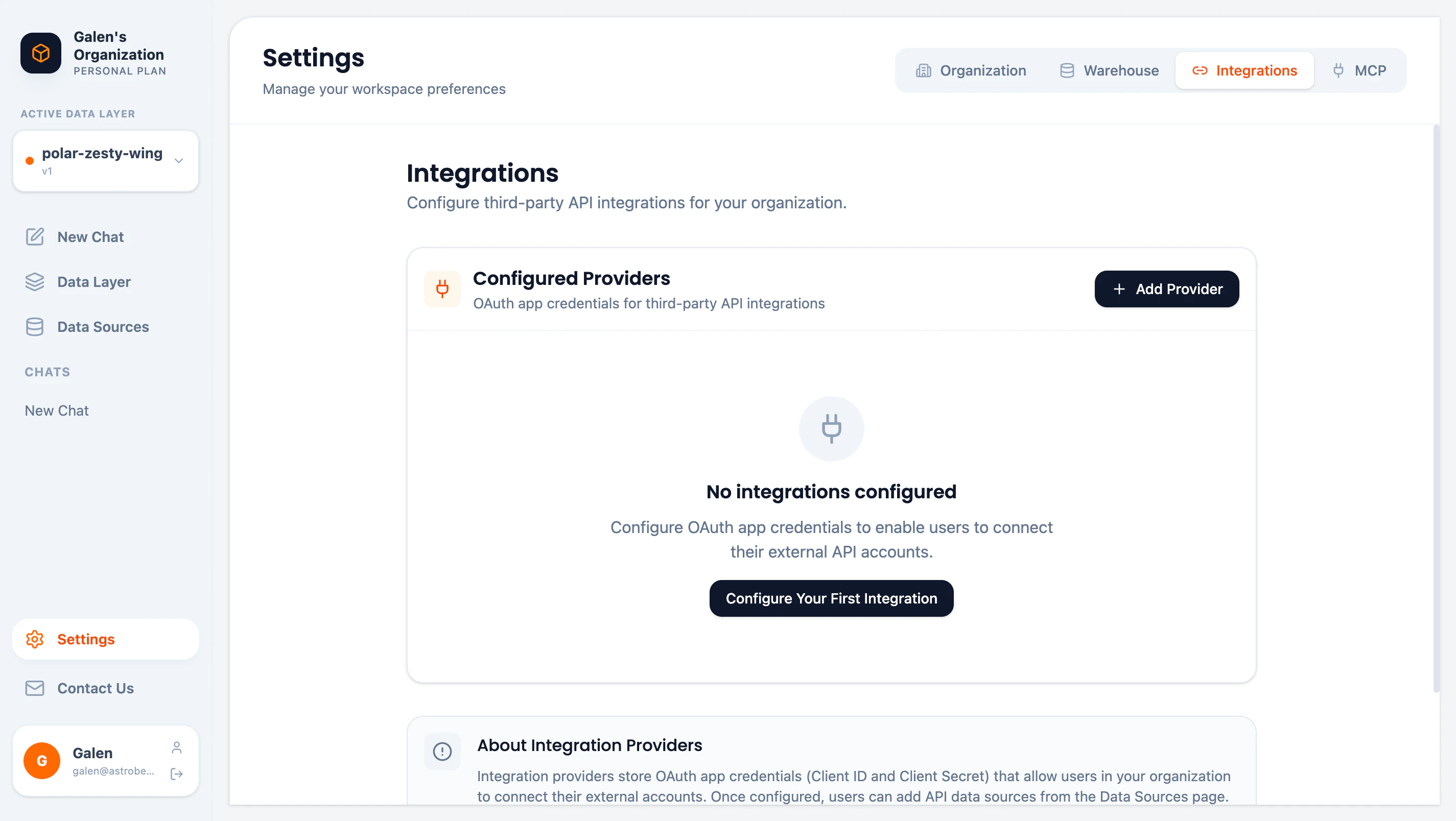
The Integrations page lets you configure OAuth app credentials for third-party API data sources. Once configured, users in your organization can connect their external accounts from the Data Hub.
Access it via **Settings** → **Integrations** tab.
 ## How It Works
Integration providers store OAuth app credentials (Client ID and Client Secret) that allow users in your organization to connect their external accounts:
1. **Admin configures** OAuth credentials in Settings → Integrations
2. **Users connect** their accounts from Data Hub → Add New
3. **Data syncs** through the configured OAuth app
Most data source connections use [Fivetran](https://www.fivetran.com/) and don't require manual OAuth configuration. Custom integrations are for advanced use cases.
## Configured Providers
View all configured integration providers in the table:
| Column | Description |
| ------------ | -------------------------------------------------- |
| **Provider** | The third-party service (e.g., Google, Salesforce) |
| **Status** | Enabled or Disabled |
| **Created** | When the integration was configured |
## Adding a Provider
1. Click **Add Provider** or **Configure Your First Integration**
2. Select the provider type
3. Enter your OAuth credentials:
* **Client ID** — From the provider's developer console
* **Client Secret** — From the provider's developer console
4. Save the configuration
### Getting OAuth Credentials
OAuth credentials come from each provider's developer console:
| Provider | Developer Console |
| ---------- | ----------------------------------------------------------------- |
| Google | [Google Cloud Console](https://console.cloud.google.com/) |
| Salesforce | [Salesforce Developer Console](https://developer.salesforce.com/) |
| HubSpot | [HubSpot Developer Portal](https://developers.hubspot.com/) |
Refer to each provider's documentation for specific setup instructions.
## Security
* **Encryption** — Credentials are encrypted at rest using AES-256-GCM
* **Access Control** — Only Admins can view or modify integrations
* **Audit** — All configuration changes are logged
## Managing Providers
### Disabling a Provider
Disabling a provider:
* Prevents new connections using these credentials
* Keeps existing connections active
* Can be re-enabled at any time
### Deleting a Provider
Deleting a provider:
* Permanently removes the credentials
* Existing connections continue to work (using cached tokens)
* New connections cannot be created
## Next Steps
Connect data sources using configured integrations
Configure MCP for AI assistant access
## How It Works
Integration providers store OAuth app credentials (Client ID and Client Secret) that allow users in your organization to connect their external accounts:
1. **Admin configures** OAuth credentials in Settings → Integrations
2. **Users connect** their accounts from Data Hub → Add New
3. **Data syncs** through the configured OAuth app
Most data source connections use [Fivetran](https://www.fivetran.com/) and don't require manual OAuth configuration. Custom integrations are for advanced use cases.
## Configured Providers
View all configured integration providers in the table:
| Column | Description |
| ------------ | -------------------------------------------------- |
| **Provider** | The third-party service (e.g., Google, Salesforce) |
| **Status** | Enabled or Disabled |
| **Created** | When the integration was configured |
## Adding a Provider
1. Click **Add Provider** or **Configure Your First Integration**
2. Select the provider type
3. Enter your OAuth credentials:
* **Client ID** — From the provider's developer console
* **Client Secret** — From the provider's developer console
4. Save the configuration
### Getting OAuth Credentials
OAuth credentials come from each provider's developer console:
| Provider | Developer Console |
| ---------- | ----------------------------------------------------------------- |
| Google | [Google Cloud Console](https://console.cloud.google.com/) |
| Salesforce | [Salesforce Developer Console](https://developer.salesforce.com/) |
| HubSpot | [HubSpot Developer Portal](https://developers.hubspot.com/) |
Refer to each provider's documentation for specific setup instructions.
## Security
* **Encryption** — Credentials are encrypted at rest using AES-256-GCM
* **Access Control** — Only Admins can view or modify integrations
* **Audit** — All configuration changes are logged
## Managing Providers
### Disabling a Provider
Disabling a provider:
* Prevents new connections using these credentials
* Keeps existing connections active
* Can be re-enabled at any time
### Deleting a Provider
Deleting a provider:
* Permanently removes the credentials
* Existing connections continue to work (using cached tokens)
* New connections cannot be created
## Next Steps
Connect data sources using configured integrations
Configure MCP for AI assistant access