

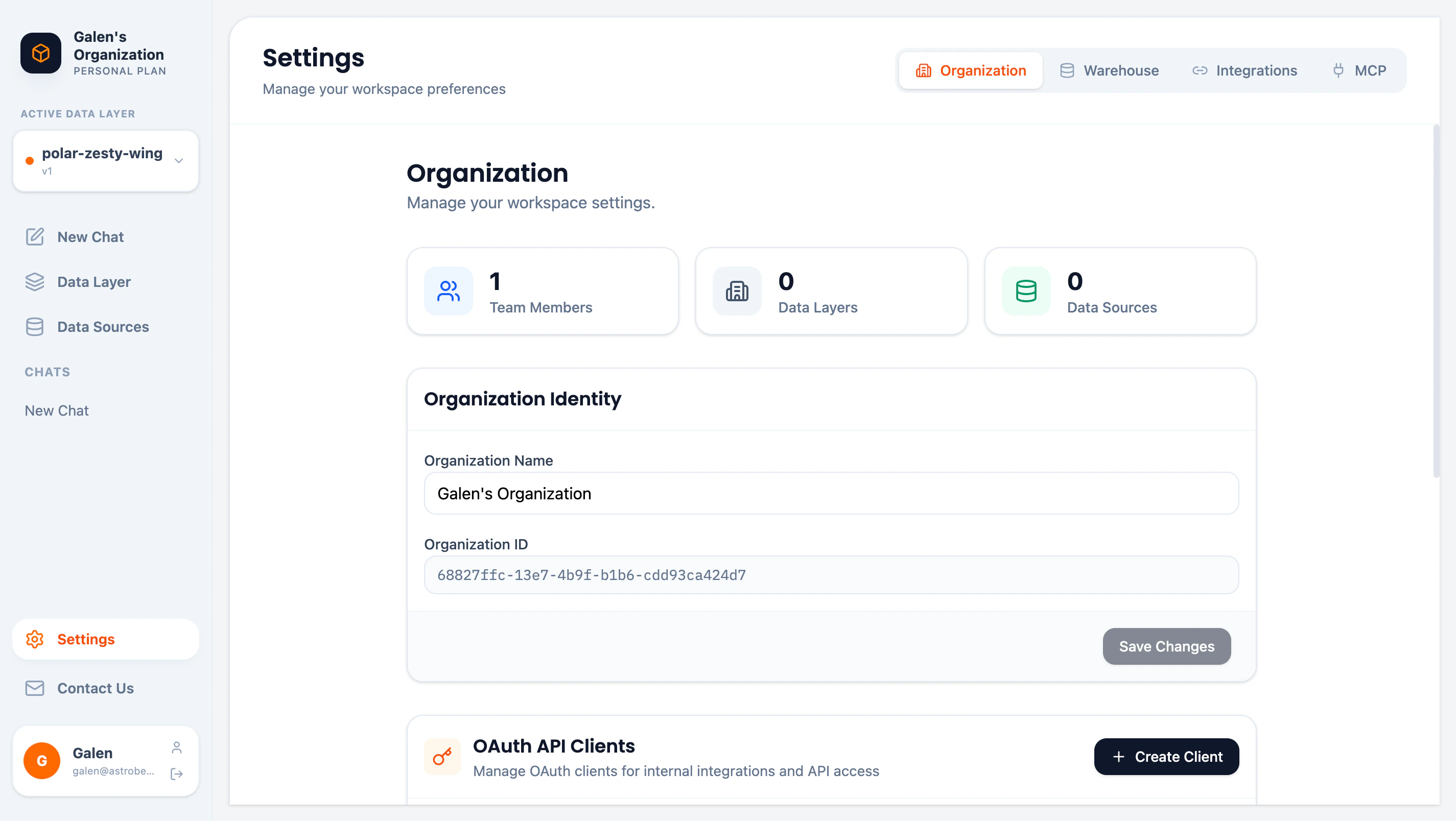
Organization settings page
Organization Overview
The overview section shows key metrics:Organization Identity
Update your organization’s display name:- Edit the Organization Name field
- Click Save Changes
OAuth API Clients
Create OAuth clients for programmatic access to AstroBee APIs. This is useful for:- Internal integrations
- Custom tools
- Third-party applications that need API access
Creating a Client
- Click Create Client in the OAuth API Clients section
- Enter a name for your client
- Save the generated Client ID and Client Secret
Client Credentials
Managing Clients
- View all clients in the OAuth API Clients table
- Disable clients to temporarily revoke access
- Delete clients to permanently remove access
Team Members
Manage who has access to your organization:Team members list showing roles
Roles
Inviting Members
- Click Invite Member
- Enter the email address
- Select a role (Admin or Member)
- Send the invitation
Managing Members
- Change roles by clicking the role dropdown next to a member
- Remove members by clicking the remove button
- The last Admin cannot be removed or demoted
At least one Admin must remain in the organization at all times.
Next Steps
Warehouse Configuration
Configure your data warehouse settings
Security Overview
Learn about security and compliance