

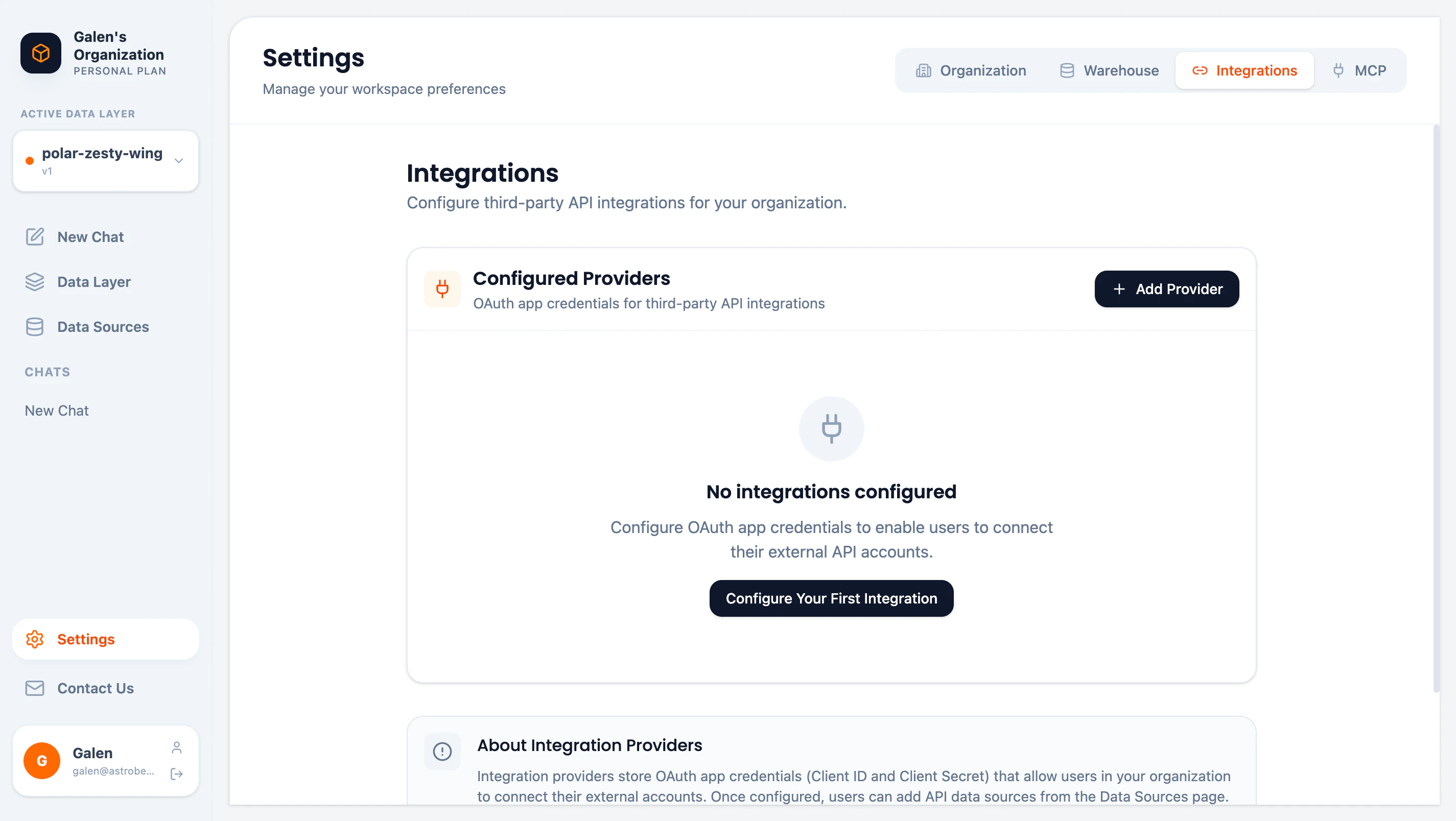
Integrations configuration page
How It Works
Integration providers store OAuth app credentials (Client ID and Client Secret) that allow users in your organization to connect their external accounts:- Admin configures OAuth credentials in Settings → Integrations
- Users connect their accounts from Data Hub → Add New
- Data syncs through the configured OAuth app
Most data source connections use Fivetran and don’t require manual OAuth configuration. Custom integrations are for advanced use cases.
Configured Providers
View all configured integration providers in the table:Adding a Provider
- Click Add Provider or Configure Your First Integration
- Select the provider type
- Enter your OAuth credentials:
- Client ID — From the provider’s developer console
- Client Secret — From the provider’s developer console
- Save the configuration
Getting OAuth Credentials
OAuth credentials come from each provider’s developer console:Security
- Encryption — Credentials are encrypted at rest using AES-256-GCM
- Access Control — Only Admins can view or modify integrations
- Audit — All configuration changes are logged
Managing Providers
Disabling a Provider
Disabling a provider:- Prevents new connections using these credentials
- Keeps existing connections active
- Can be re-enabled at any time
Deleting a Provider
Deleting a provider:- Permanently removes the credentials
- Existing connections continue to work (using cached tokens)
- New connections cannot be created
Next Steps
Data Sources
Connect data sources using configured integrations
MCP Settings
Configure MCP for AI assistant access