












Experimental feature: Google Analytics connector is currently in beta. We’re actively improving sync reliability and adding more features.
Prerequisites
- A Google Analytics 4 property (Universal Analytics is not supported)
- Google account with read access to the GA4 property you want to sync
- GA4 property must be actively collecting data
Connecting Google Analytics
You can connect Google Analytics in two ways: from the Sources page if you’re already using AstroBee, or during the onboarding process if you’re a new user.- During onboarding
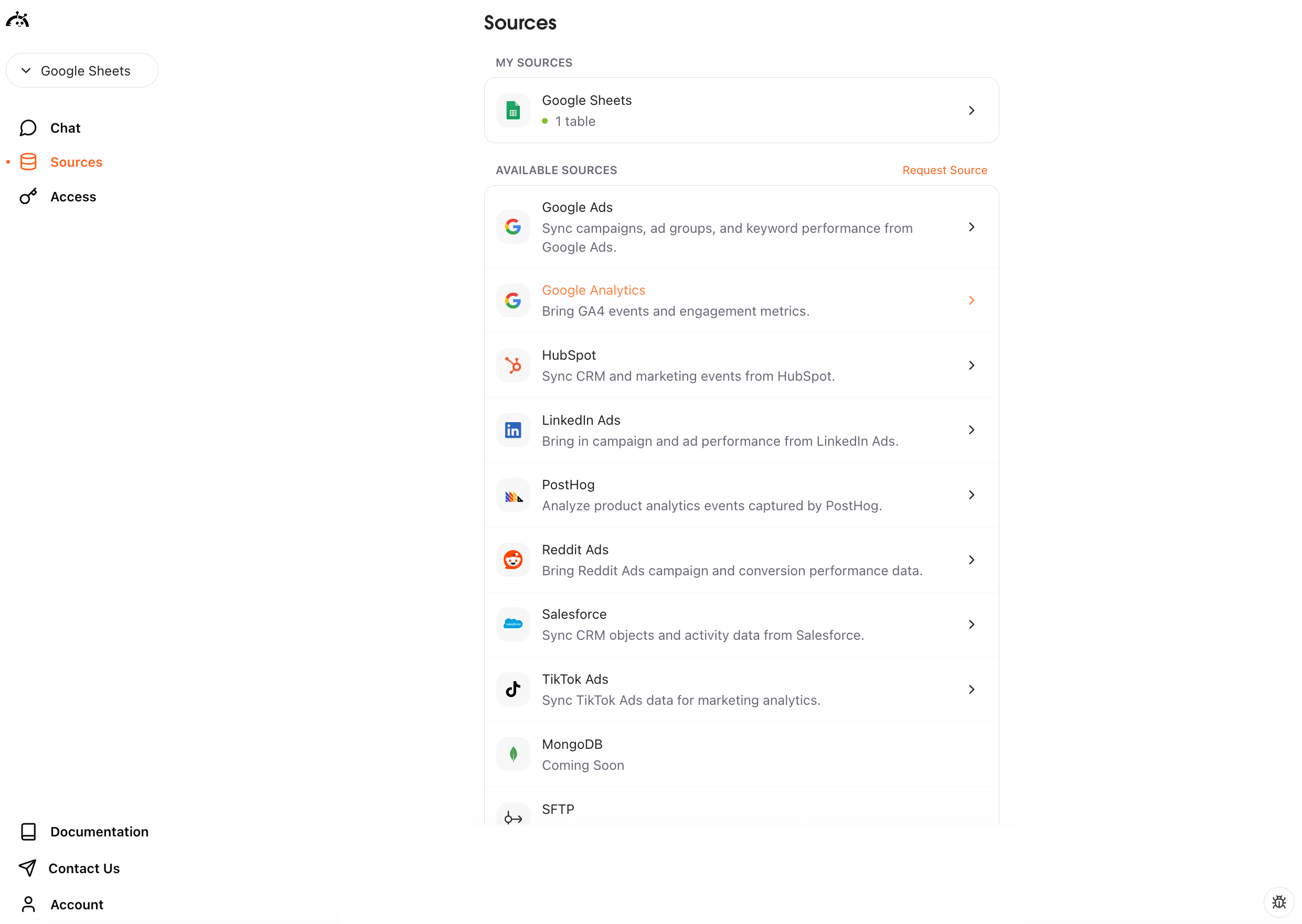
- From Sources page
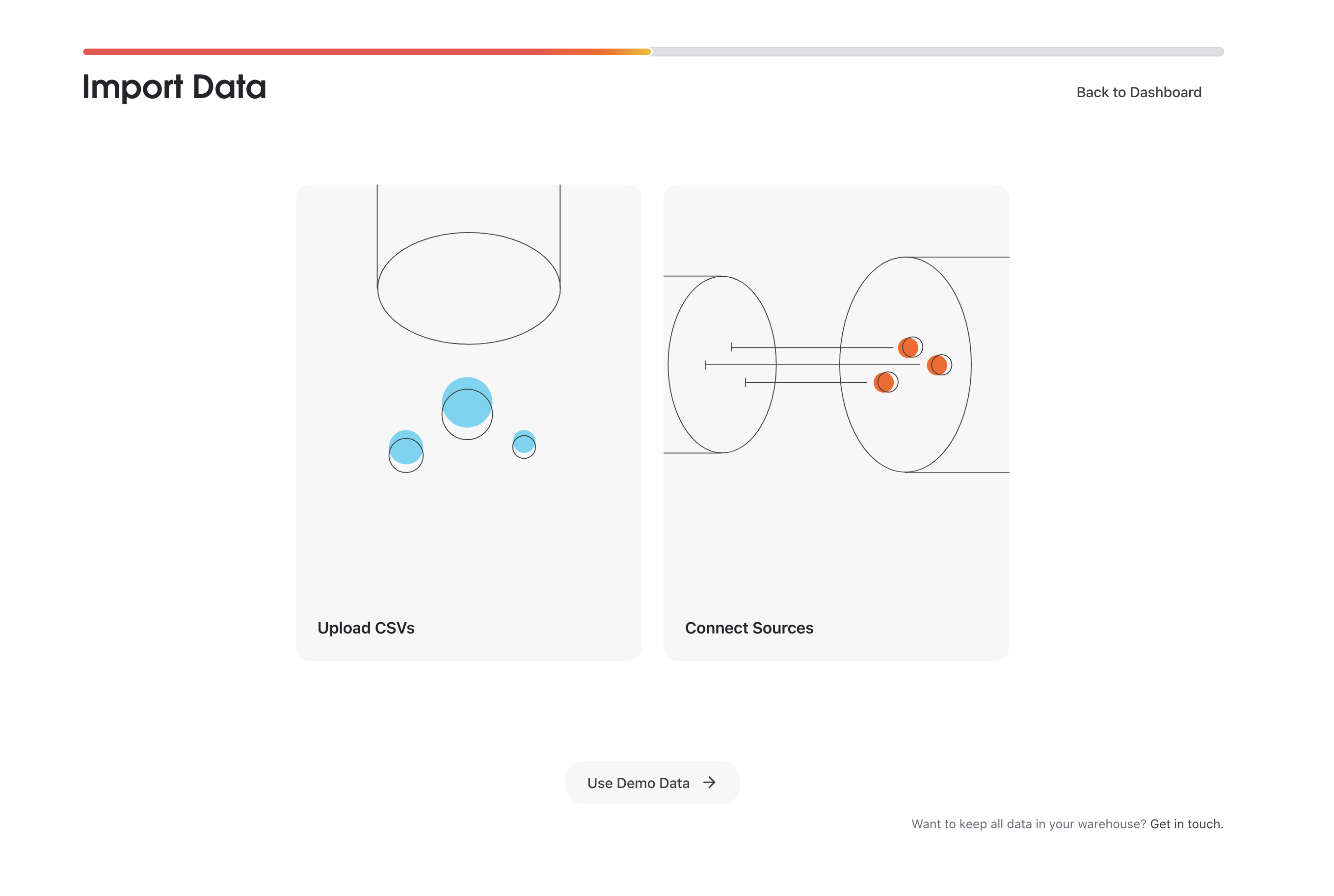
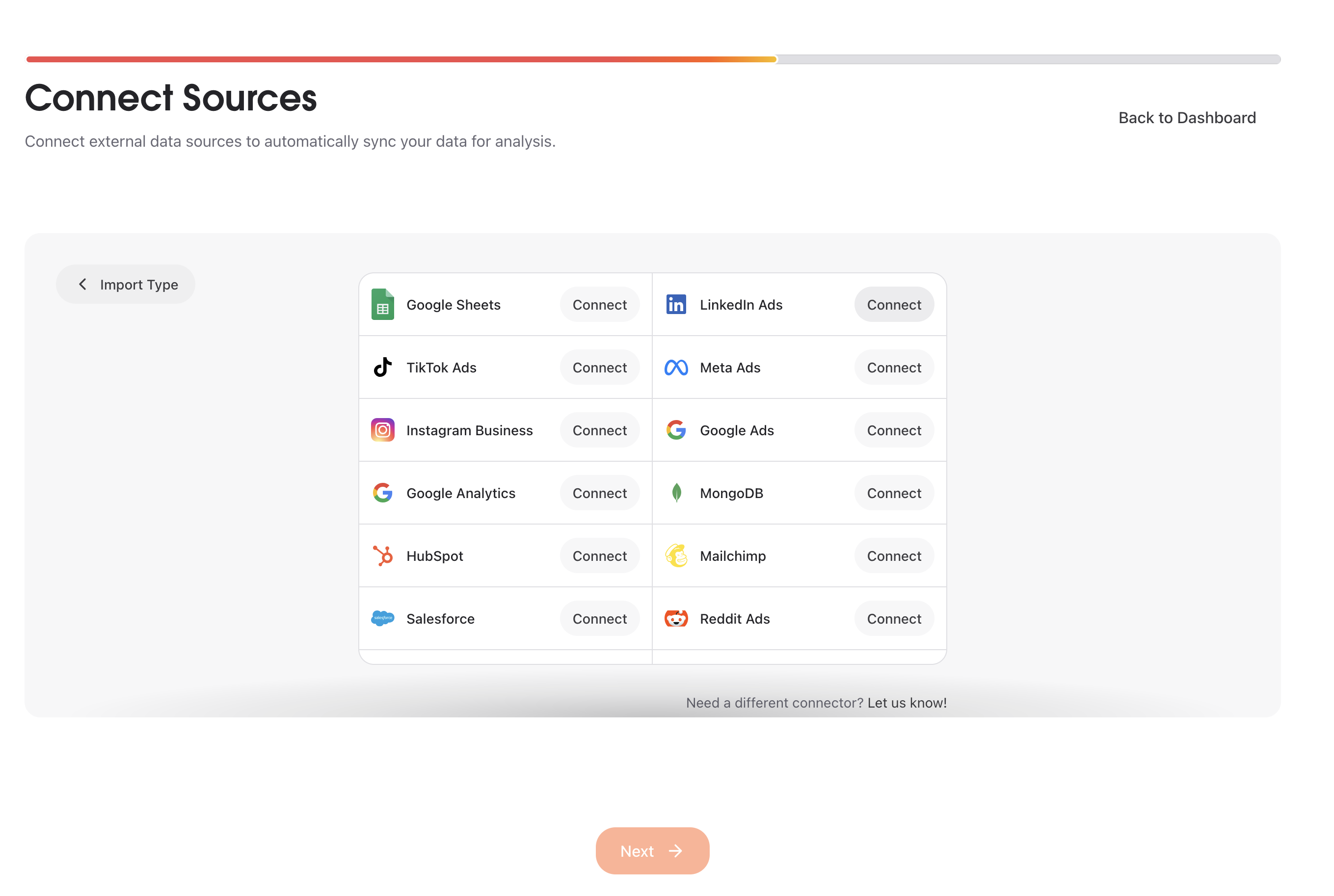
Start connection
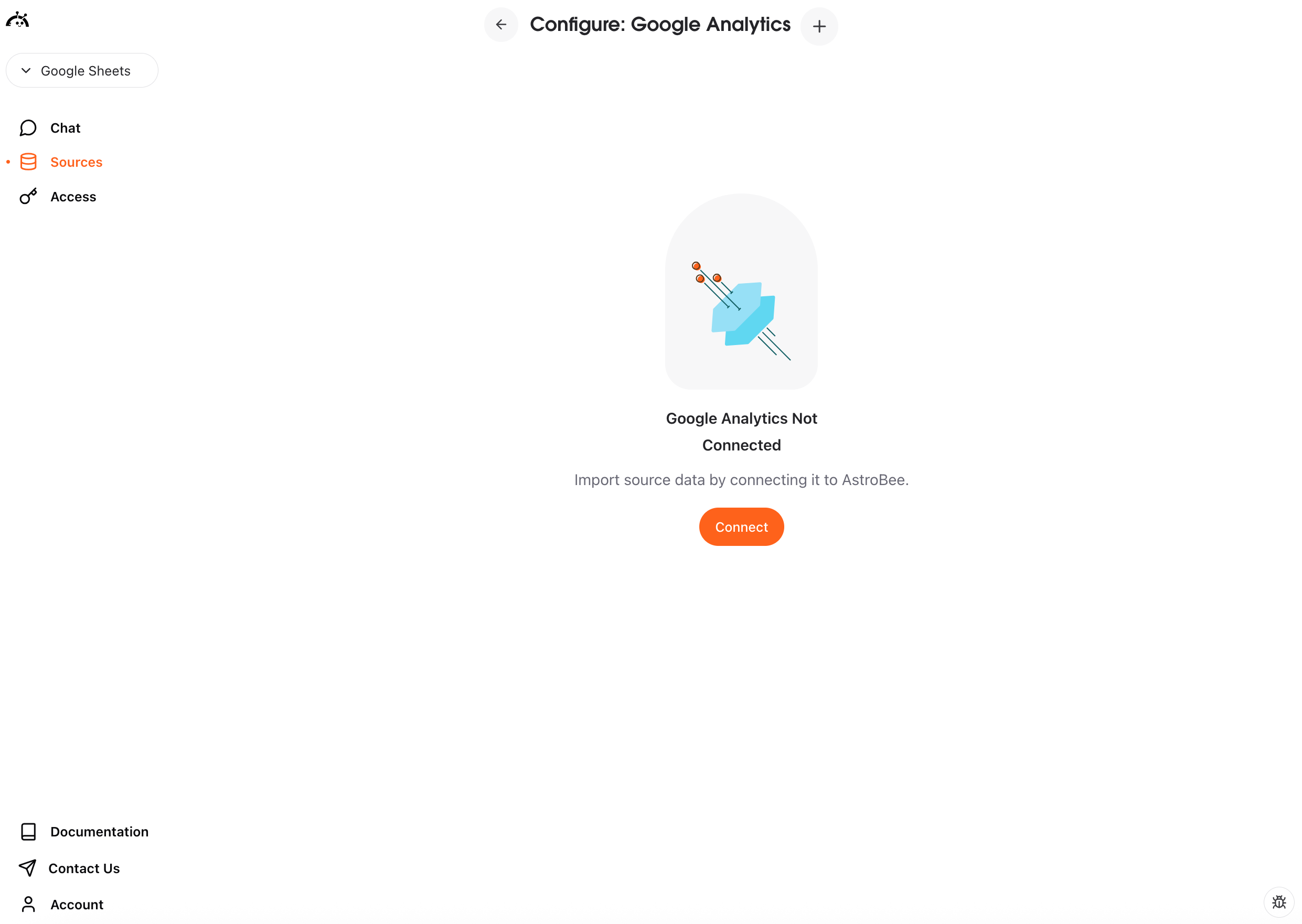
A “Configure Connector” modal appears showing “Google Analytics Not Connected”. Click the orange Connect button to begin setup.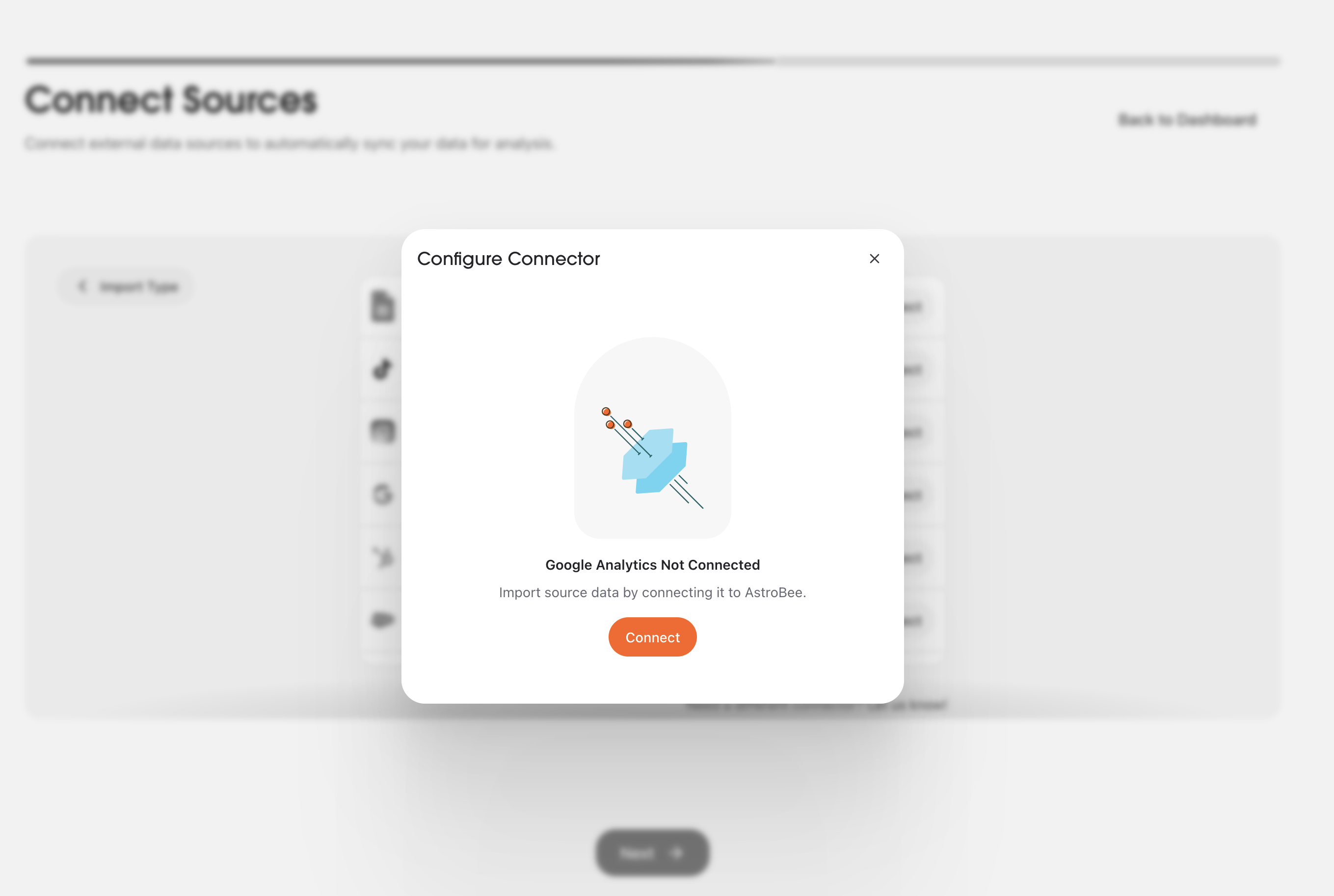
Authorize with Fivetran
AstroBee uses Fivetran to securely connect to Google Analytics 4. Review the security information and click Continue.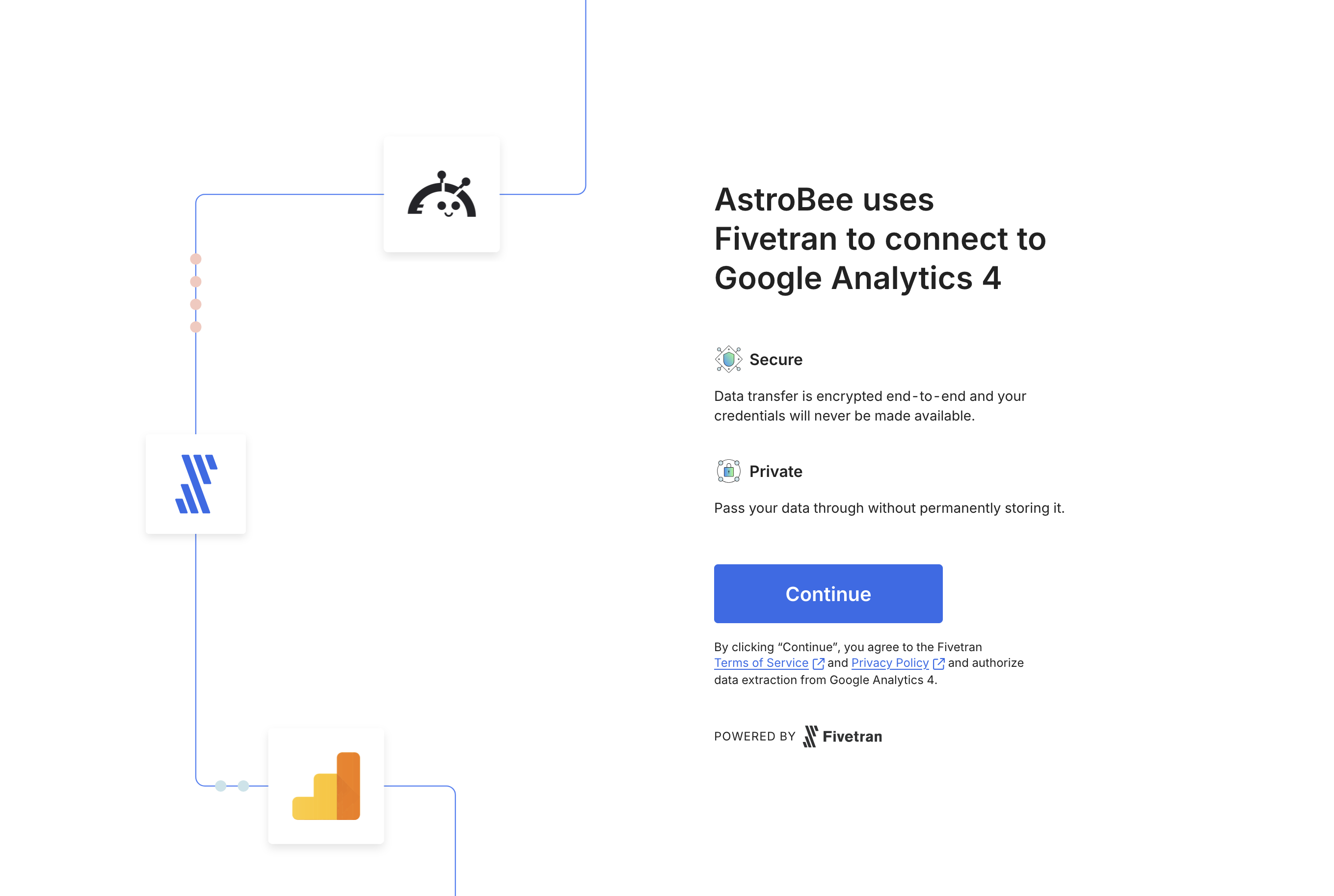
- Secure: Data transfer is encrypted end-to-end and your credentials are never exposed
- Private: Your data passes through without permanent storage
Authenticate with Google
On the Fivetran setup page, click Authorize with Google to log in through OAuth. You’ll be redirected to Google to grant access.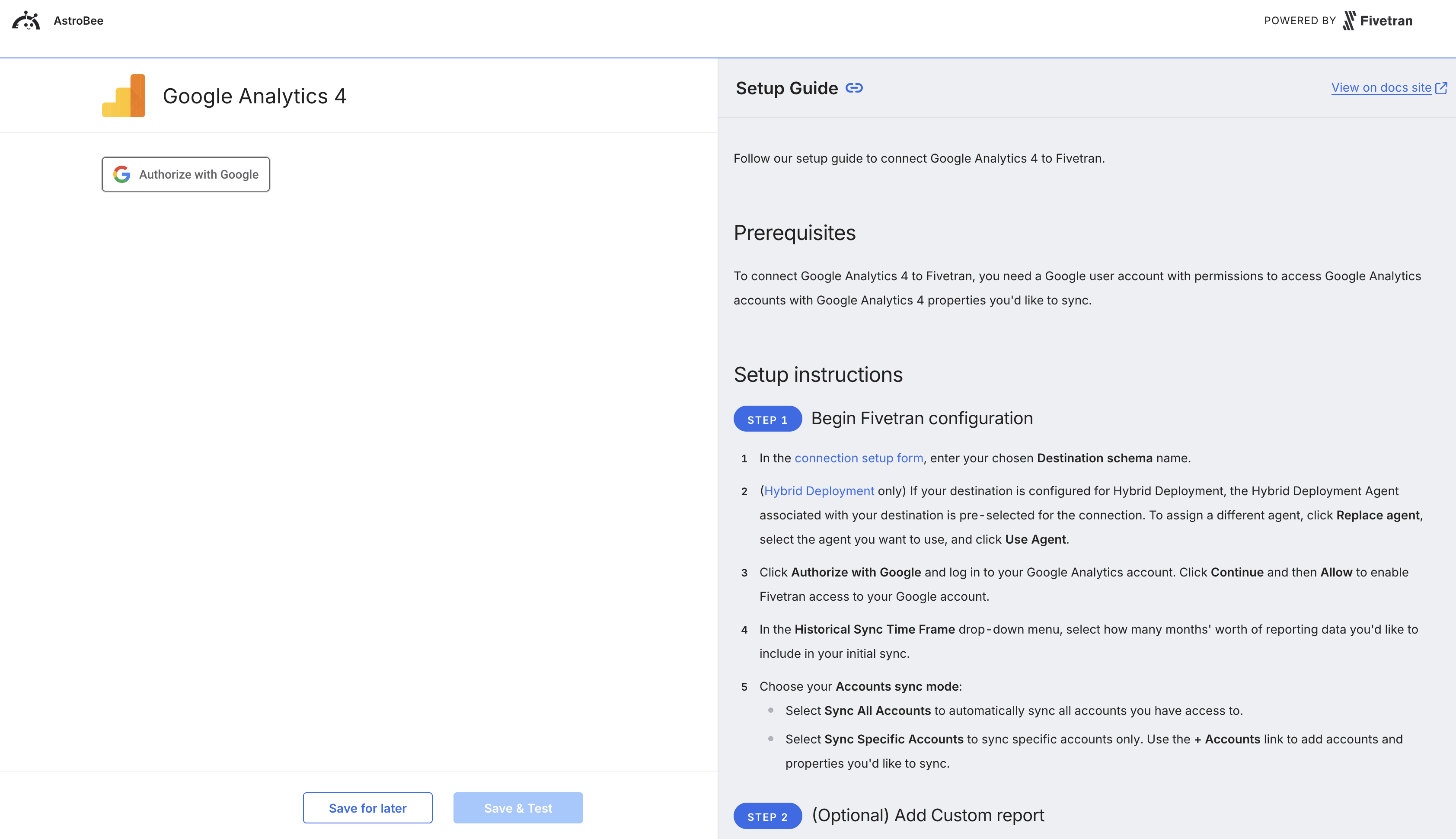
Configure sync settings
After authentication succeeds, configure your sync settings: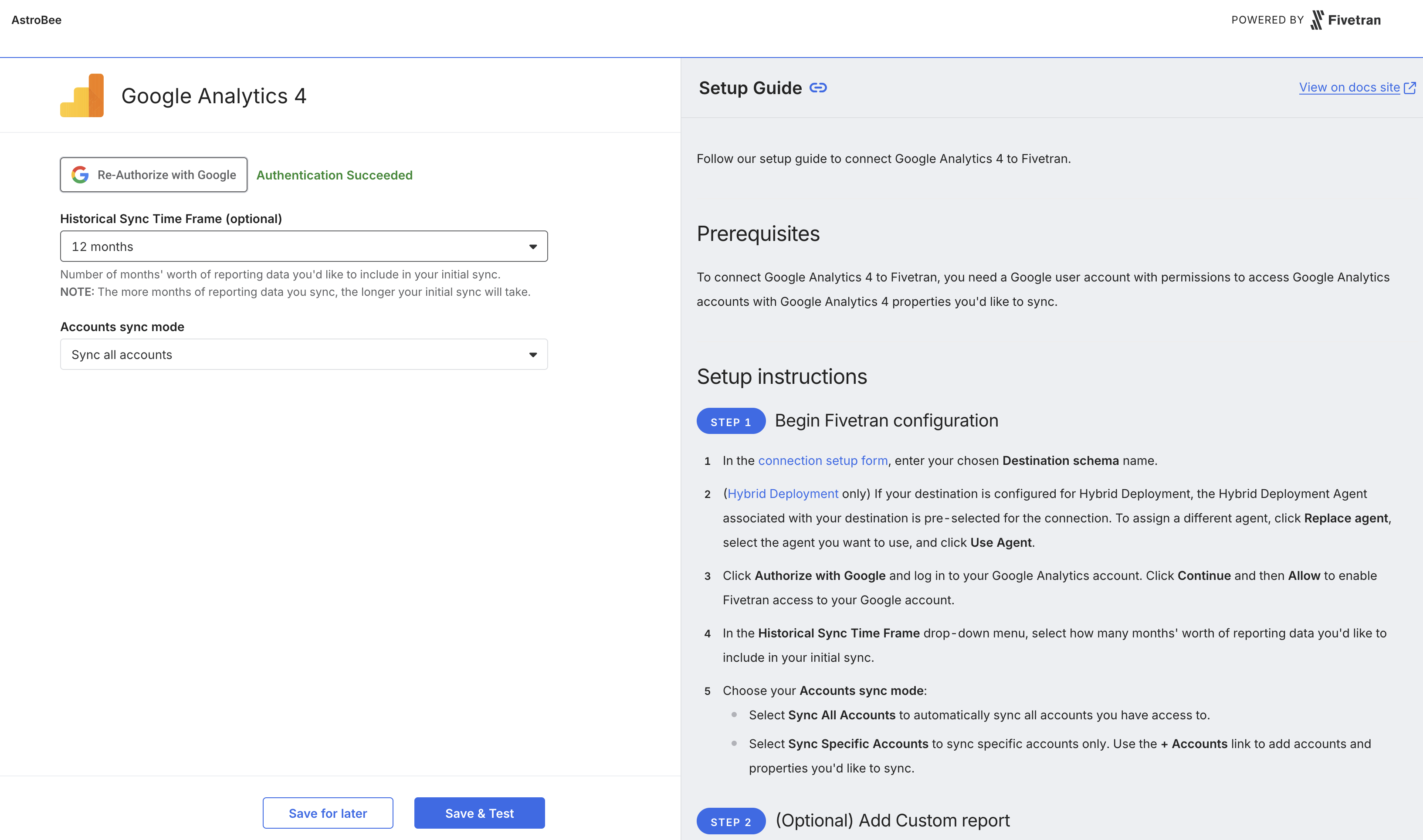
- Historical Sync Time Frame: Select how many months of historical data to sync (e.g., 12 months)
- Accounts sync mode: Choose “Sync all accounts” or select specific GA4 properties
Select tables to sync
Back in AstroBee, the “Configure Connector” modal shows your connection as “Scheduled to start”. Expand Sync Settings to select which tables to include.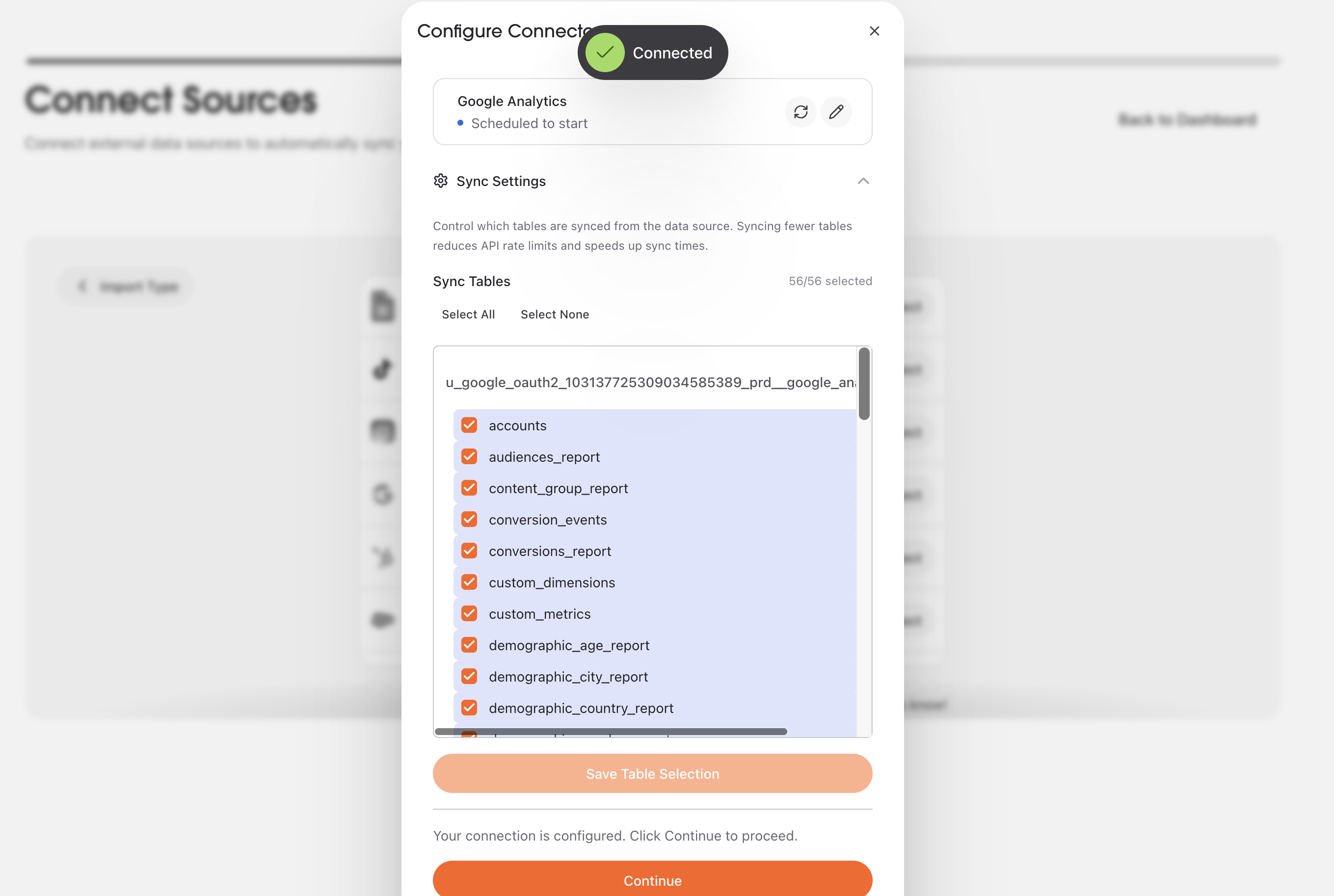
- accounts: Your GA4 account and property information
- conversion_events: Configured conversion events and their metrics
- audiences_report: Audience segment data
- demographic_age_report: User demographics by age
- custom_dimensions: Custom dimensions you’ve configured
Data layer building
A modal appears showing “Your data layer is building”. AstroBee is unifying, deduplicating, and resolving entities across your data.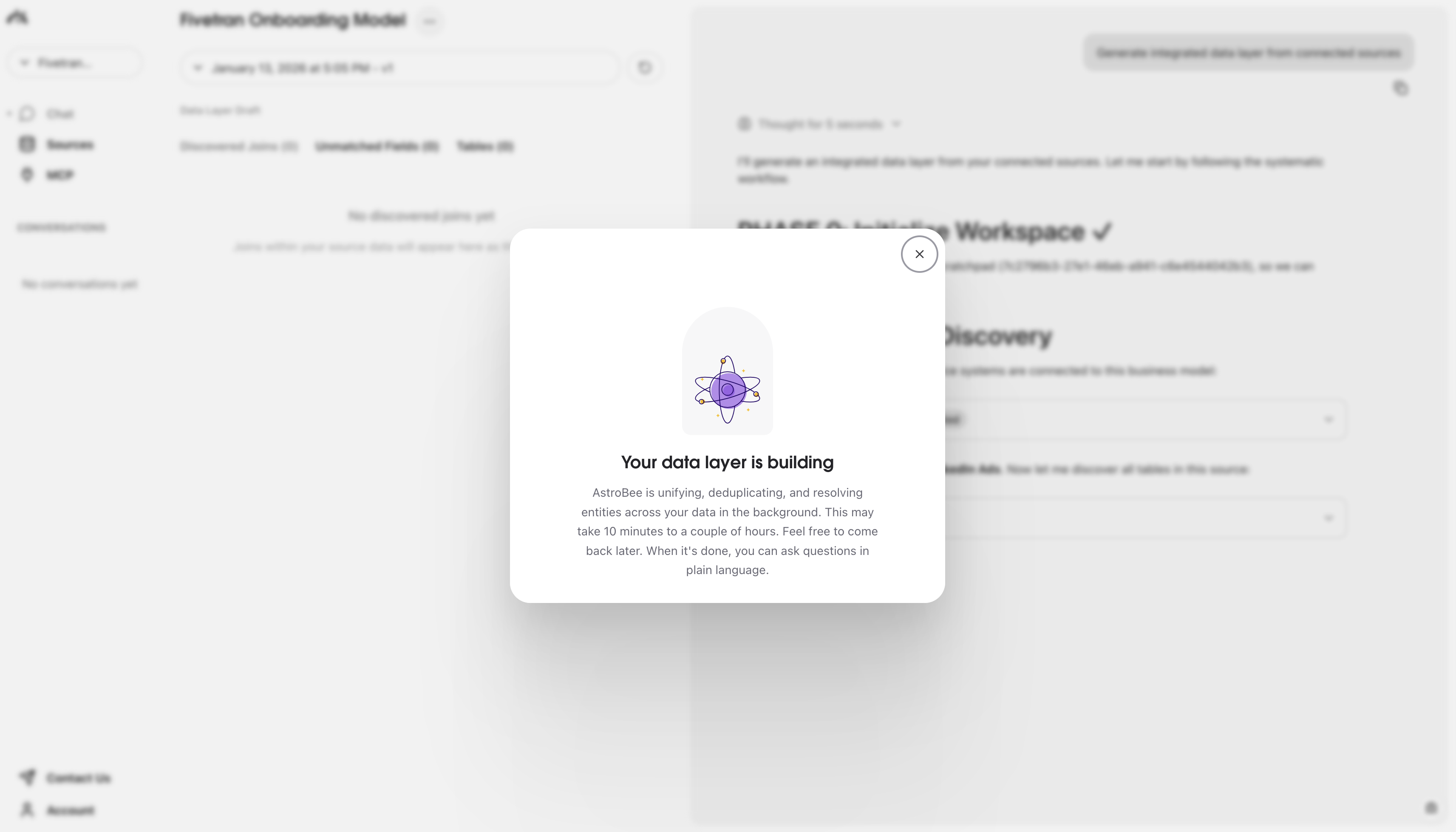
Data syncing
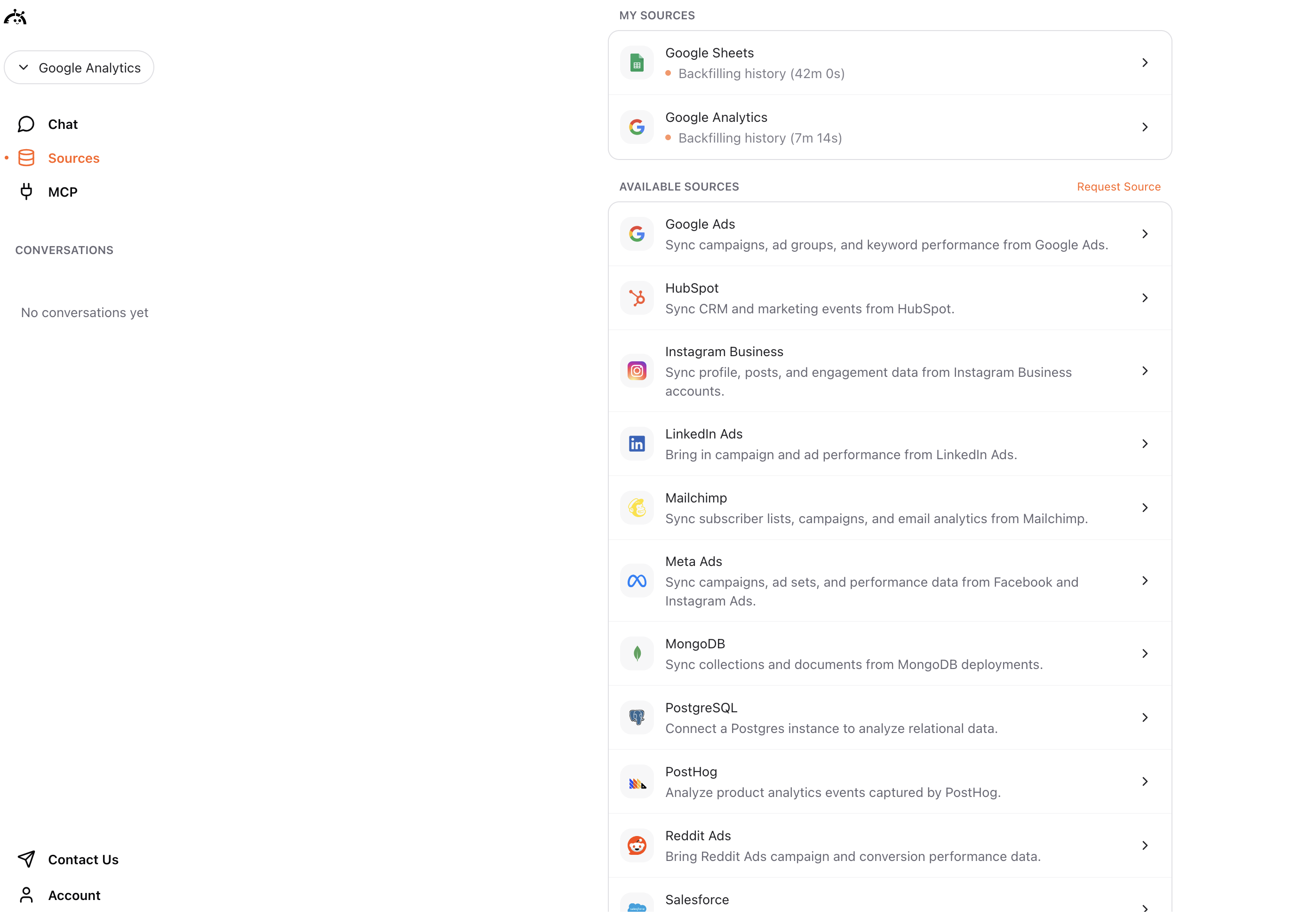
The Sources page shows your sync progress. Your data source is syncing and the data layer will be generated automatically once syncing completes.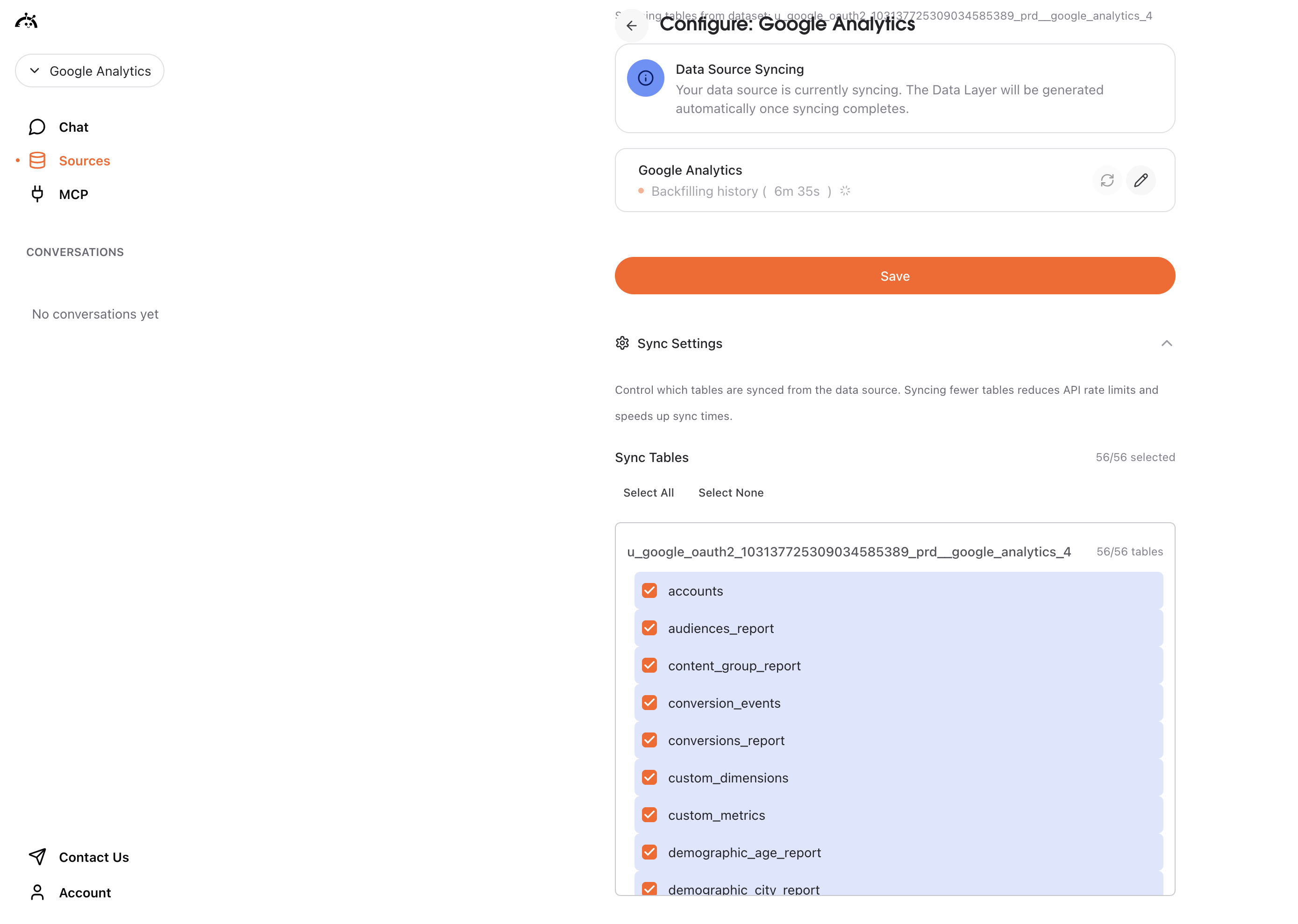
What happens next
After connecting Google Analytics, AstroBee automatically generates a data layer from your synced tables. Once complete, you can start querying your analytics data using natural language.Syncing data
Google Analytics connections sync automatically when first connected and during historical backfill. After the initial sync completes, you can trigger manual syncs to refresh your data. To sync your latest analytics data:- Navigate to the Sources page
- Find your Google Analytics connection under MY SOURCES
- Click the sync button
Understanding GA4 data
Google Analytics 4 syncs multiple related tables:- Events data: User interactions tracked on your website or app
- Conversion events: Events marked as conversions in your GA4 property
- User properties: Custom dimensions and user attributes
- Demographic reports: Age, city, and country breakdowns
- Account/Property metadata: Configuration and settings information
Troubleshooting
For additional help, see Fivetran’s Google Analytics 4 troubleshooting guide.Authentication failed
Authentication failed
Issue: Unable to authorize access to Google Analytics.Solution:
- Ensure you’re using a Google Analytics 4 property (not Universal Analytics)
- Verify your Google account has read access to the GA4 property
- Check that you’re signed in to the correct Google account
- Try re-authorizing from the beginning
- Confirm your organization allows third-party access to Google Analytics
No data syncing
No data syncing
Issue: Connection succeeds but no data appears in tables.Solution:
- Verify your GA4 property is actively collecting data
- Check that your property has been active long enough to have data
- Ensure you selected the correct property during setup
- Try increasing the historical sync time frame
- Wait for the initial sync to complete (can take 10+ minutes for large datasets)
Sync taking too long
Sync taking too long
Issue: Initial sync appears stuck or is taking longer than expected.Solution:
- Historical syncs with many months of data can take 30+ minutes
- Reduce the historical sync time frame if you don’t need all historical data
- Check your internet connection
- Avoid making changes to the connection during sync
- If stuck for more than an hour, contact support at support@astrobee.ai
Missing expected events or conversions
Missing expected events or conversions
Issue: Some events or conversions don’t appear in synced data.Solution:
- Verify the events are properly configured in your GA4 property
- Check that events have actually fired and been recorded in GA4
- Ensure conversion events are marked as conversions in GA4 settings
- Trigger a new sync to pull the latest data
- Review your account sync mode (all accounts vs specific accounts)
Universal Analytics property not working
Universal Analytics property not working
Issue: Cannot connect a Universal Analytics property.Solution:
- This connector only supports Google Analytics 4 properties
- Migrate your tracking to GA4 if you haven’t already
- Universal Analytics properties are not supported by Fivetran
- Contact support@astrobee.ai if you need help with migration strategies
Historical backfill taking too long
Historical backfill taking too long
Issue: Status shows “Backfilling history” for many hours.Solution:
- Historical backfills can take several hours for properties with many months of data
- This is normal behavior, not a stuck sync
- You can safely close the browser and return later
- The sync continues in the background and your data layer will generate automatically when complete
- If backfill exceeds 24 hours with no progress, contact support at support@astrobee.ai
Data layer not generating
Data layer not generating
Issue: Sync completed but data layer shows an error or never finishes building.Solution:
- Check that at least one table was selected during setup
- Verify your synced tables contain actual data (not empty)
- Try refreshing the page to see updated status
- If the error persists, try disconnecting and reconnecting Google Analytics
- Contact support at support@astrobee.ai with the error message if the issue continues